
Send the customer details your AI agent collects — names, phone numbers, requests — straight into a spreadsheet in your own Google Drive.
Connect
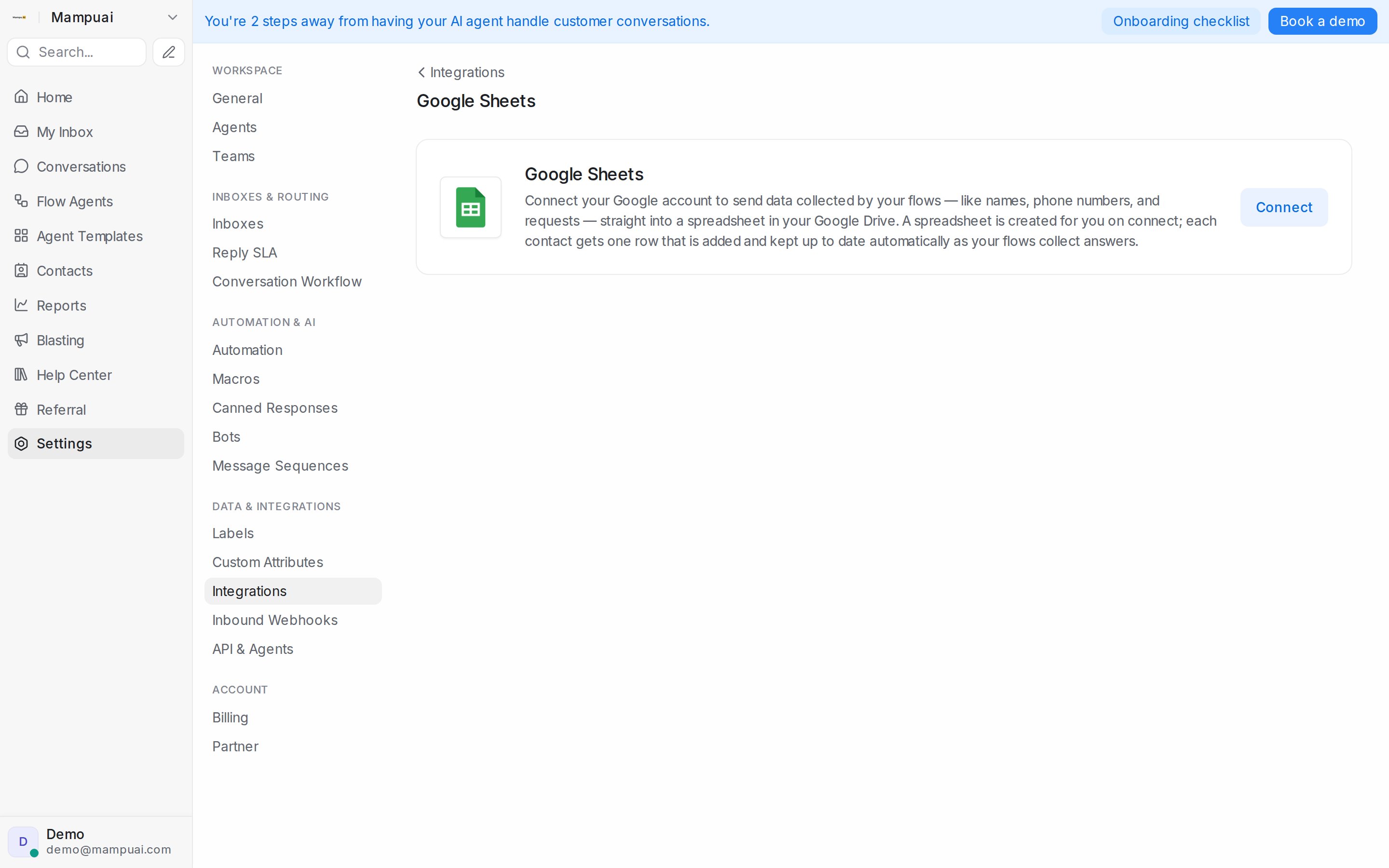
- Go to Settings → Integrations → Google Sheets.
- Click Connect and sign in with your Google account.
- A leads spreadsheet is created for you automatically — the page shows Connected as your Google email, with an Open the leads spreadsheet link.
How rows land
Every completed flow adds a row with the details the agent collected. If the same customer completes another flow later, their row is updated instead of duplicated — so the sheet stays clean enough to work from directly.
The spreadsheet lives in your Google Drive: share it with your team, add your own columns, or plug it into any tool that reads Google Sheets.
Disconnecting
Click disconnect on the same page to stop new leads from being saved. The spreadsheet itself stays in your Google Drive with everything collected so far.