
Some AI features are powered by Claude (Anthropic). To use them you may need to create your own Claude API key in the Claude Console and add usage credits. This guide walks you through creating a key, saving it securely, and checking your usage limits.
Watch the walkthrough
Keep your API key private. Treat it like a password — anyone with your key can spend your account’s credits. The full key is shown only once, so store it somewhere safe such as a password manager. In the screenshots below the key value has been redacted for security.
Quick summary
- Open the Claude Console dashboard.
- Go to Manage → API keys.
- Click Create key, give it a name, and click Add.
- Copy and store the key immediately — it is shown only once.
- Add usage credits under Billing → Add funds if needed.
- Open Limits to check your workspace and organization rate limits.
1. Open the Claude Console
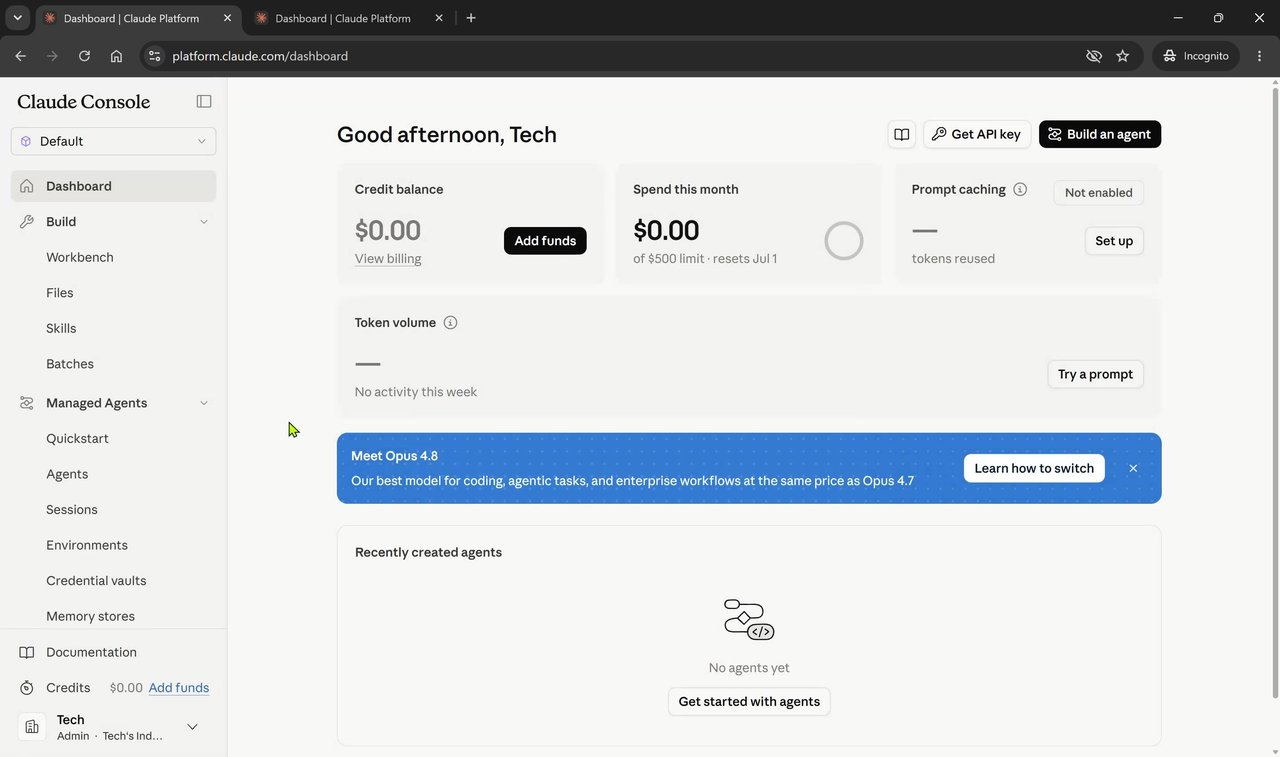
Sign in to the Claude Console. The dashboard shows your credit balance, spend this month, and quick actions such as Get API key.
2. Open the API keys page
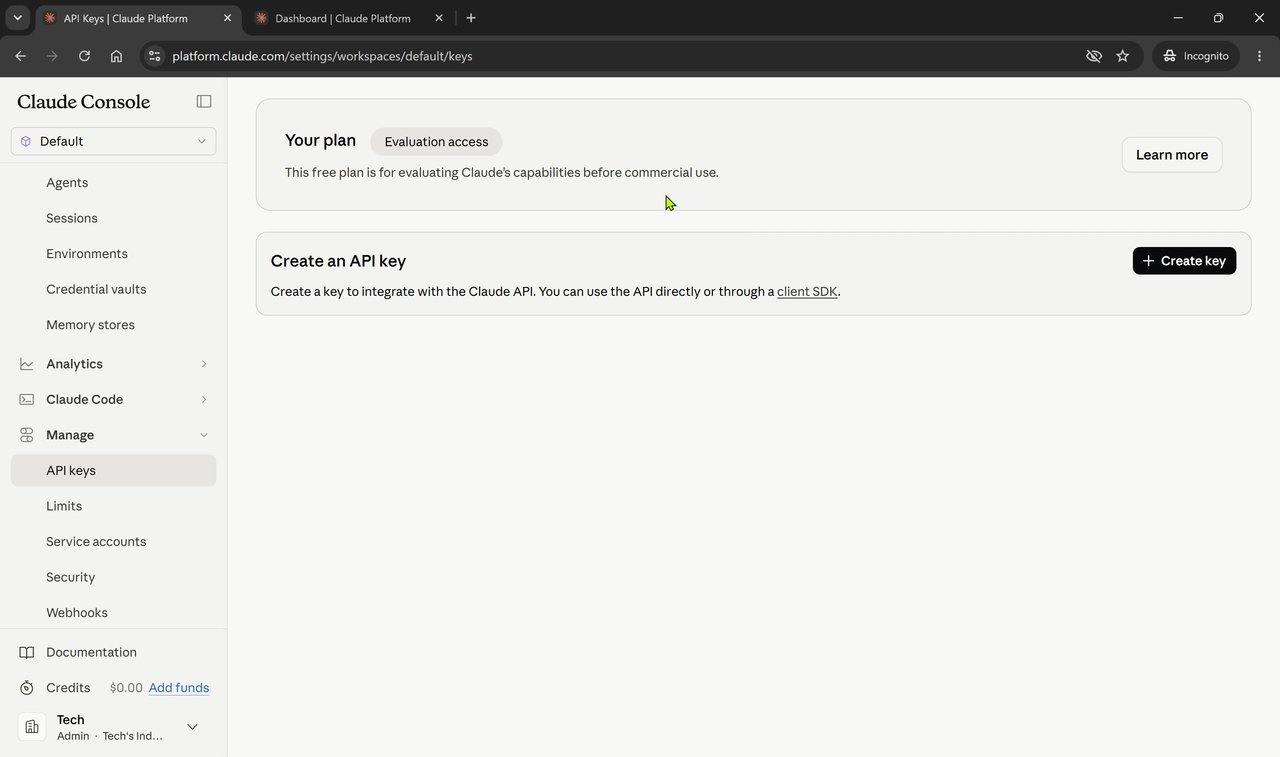
In the left-hand navigation, open Manage → API keys.
3. Create a new key
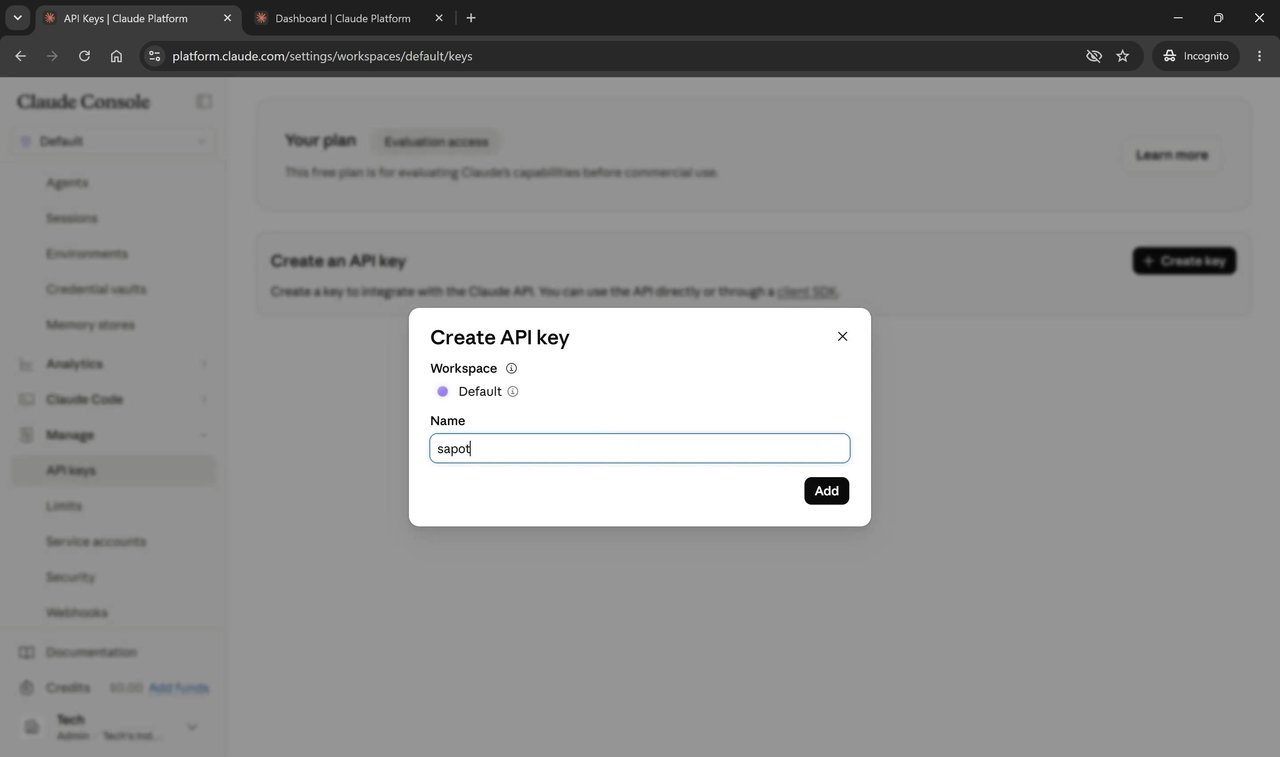
Click Create key. In the dialog, select the workspace (for example Default), enter a descriptive name for the key, then click Add.
4. Copy and save your key
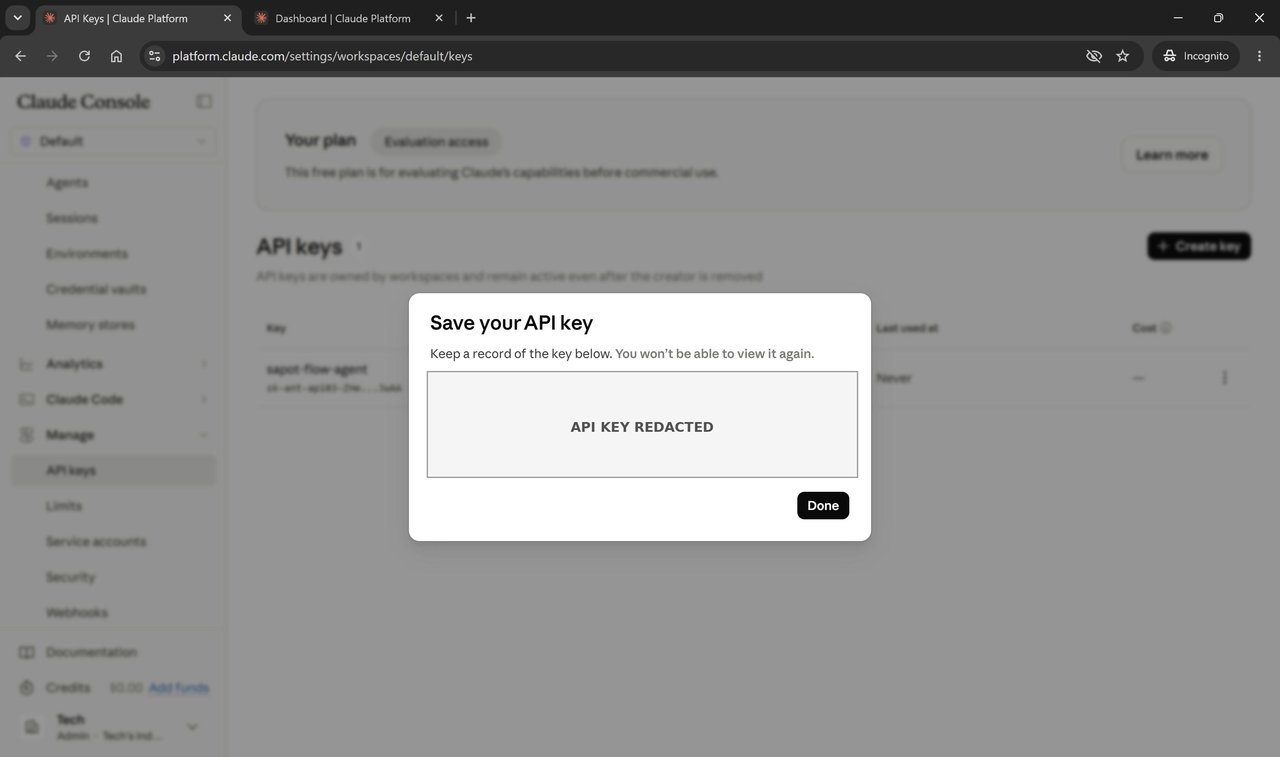
The full API key is displayed only once, in the Save your API key dialog. Copy it and store it somewhere safe, then click Done. After you close this dialog the full key cannot be viewed again.
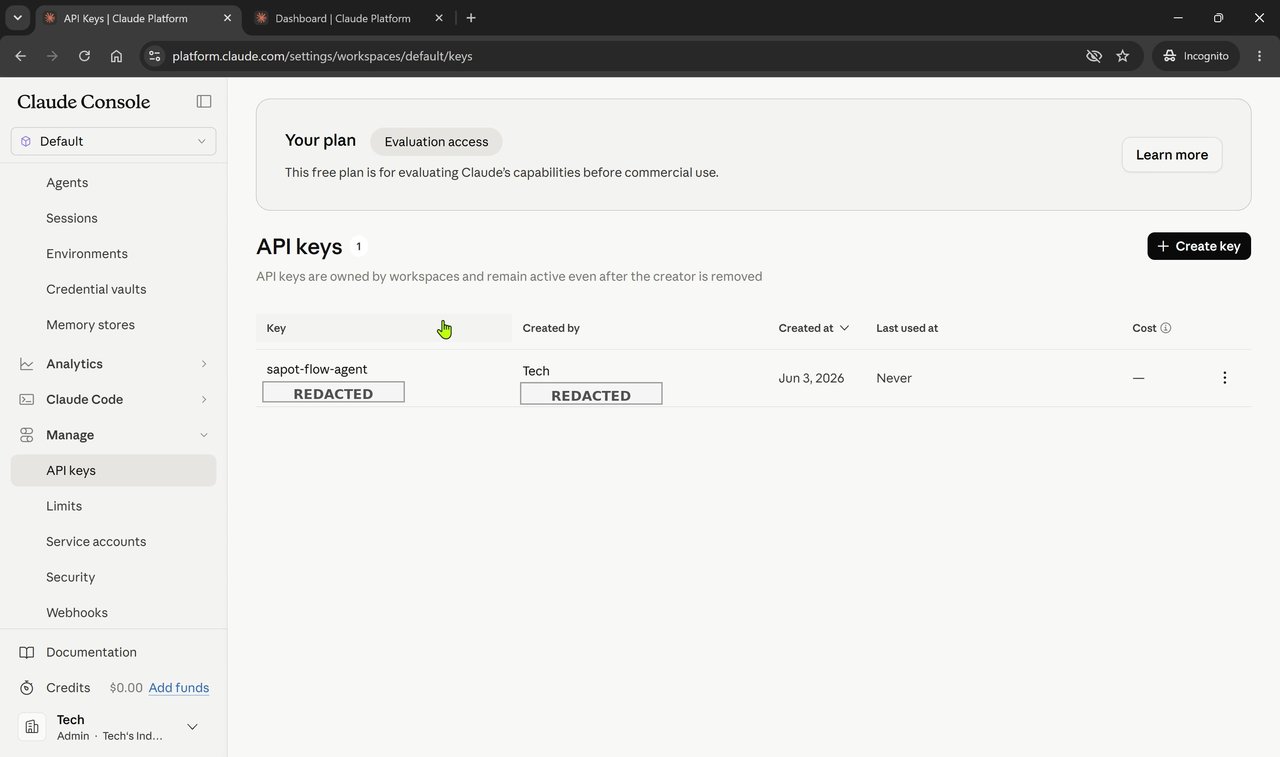
5. Confirm the key was created
Your new key now appears in the API keys table. Only a masked version of the key is shown here.
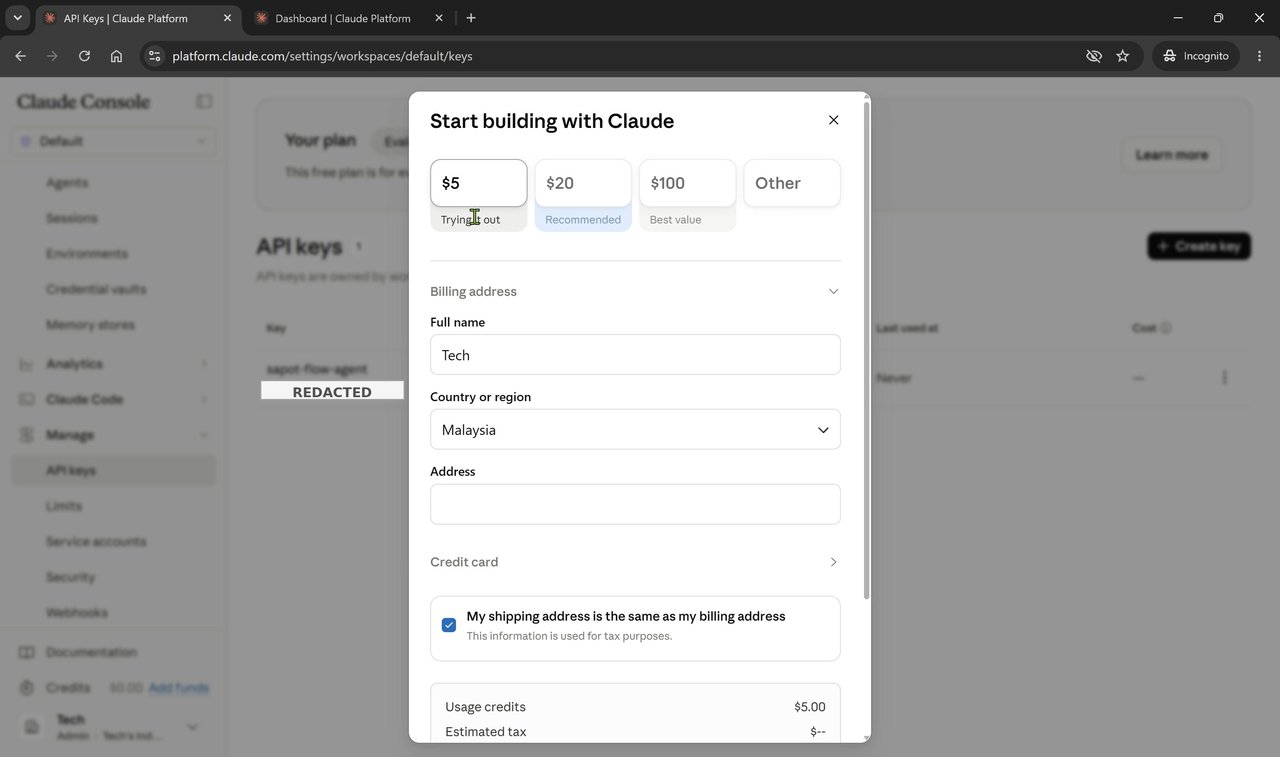
6. Add usage credits (if needed)
To start making API calls you need available credit. Under Billing → Add funds, choose an amount (for example $5, $20, or $100) and enter your billing details.
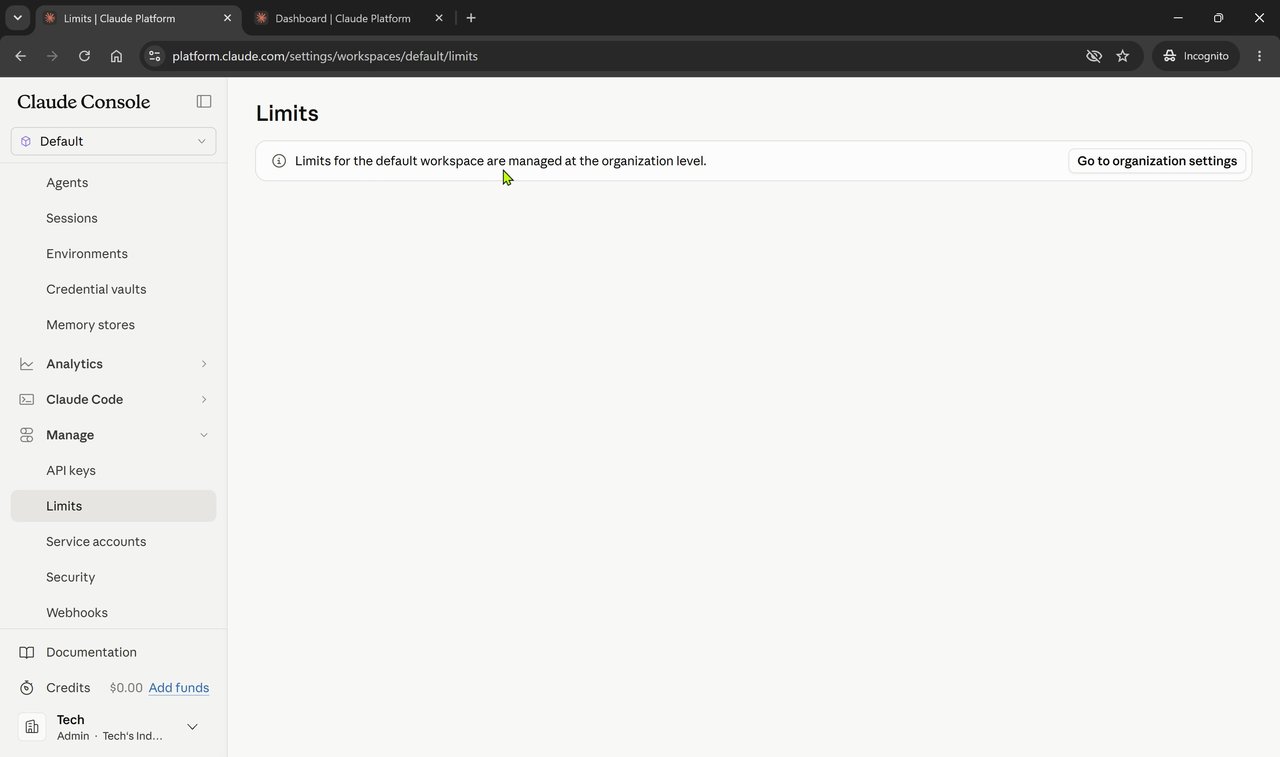
7. Check your usage limits
Open Limits under your workspace settings. For the default workspace, limits are managed at the organization level.
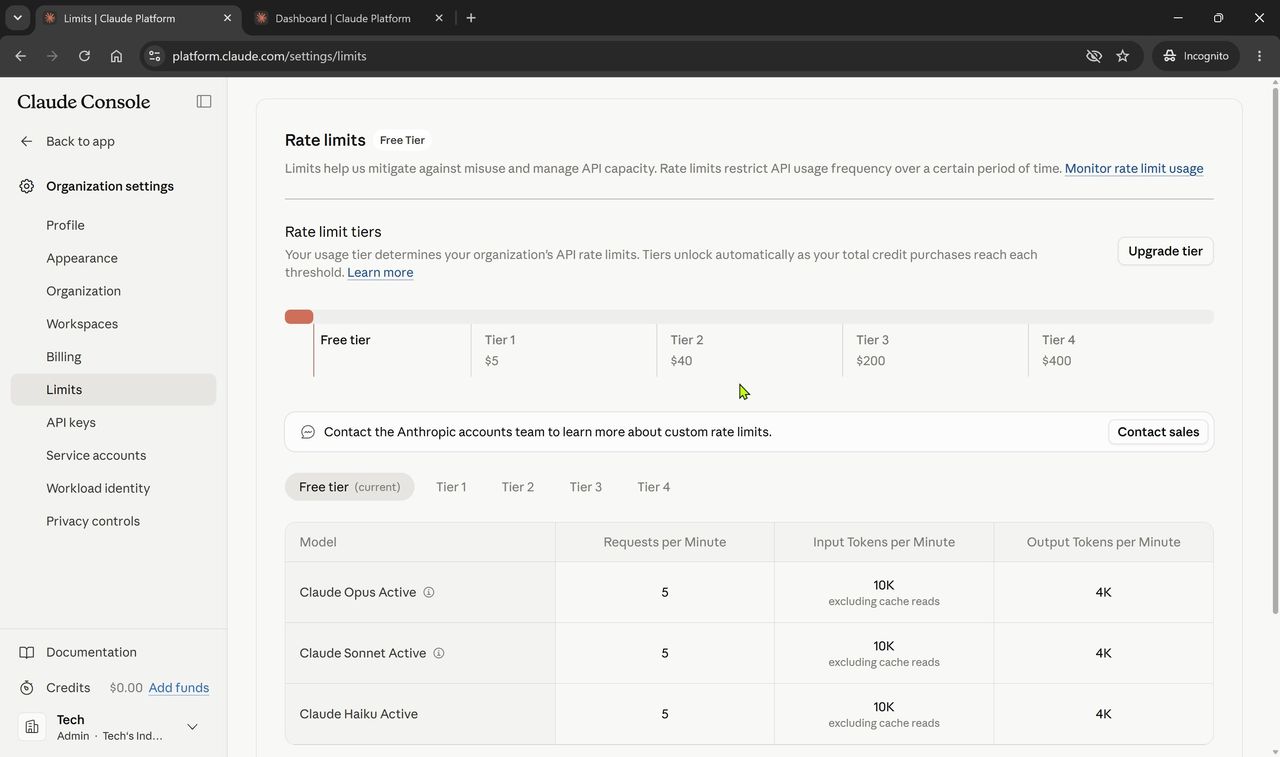
Under Organization settings → Limits → Rate limits you can see your current tier (for example Free tier) and the request and token limits for each model.
Add the key to Mampu AI
1. In Mampu AI, go to Settings > Integrations > AI Providers. 2. Find the Anthropic (Claude) card under Flow agent replies. 3. Paste the copied key and connect — the card shows Connected when accepted.
Flow agents reply with the provider that has a key connected. If both Anthropic and DeepSeek are connected, DeepSeek is used; remove the DeepSeek key to switch back to Claude.
Next steps
If you need higher rate limits, you can upgrade your tier from the Rate limits page in the Claude Console.