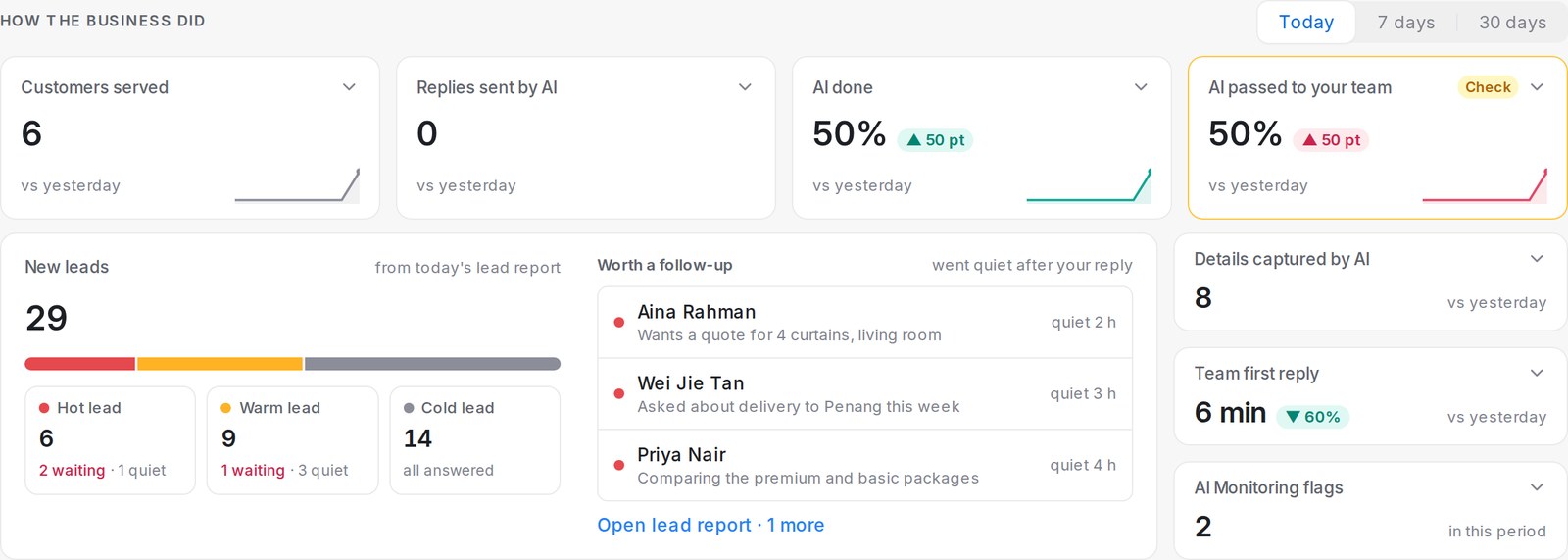
Once your AI agent is live, the Home screen becomes your daily summary for administrators. It lists what needs a person today under Needs you, and shows how the business did under How the business did. The first time you open Mampu AI each day, it opens on Home; after that it opens on Conversations as usual. The Open today’s summary button in the morning lead report email brings you here too.
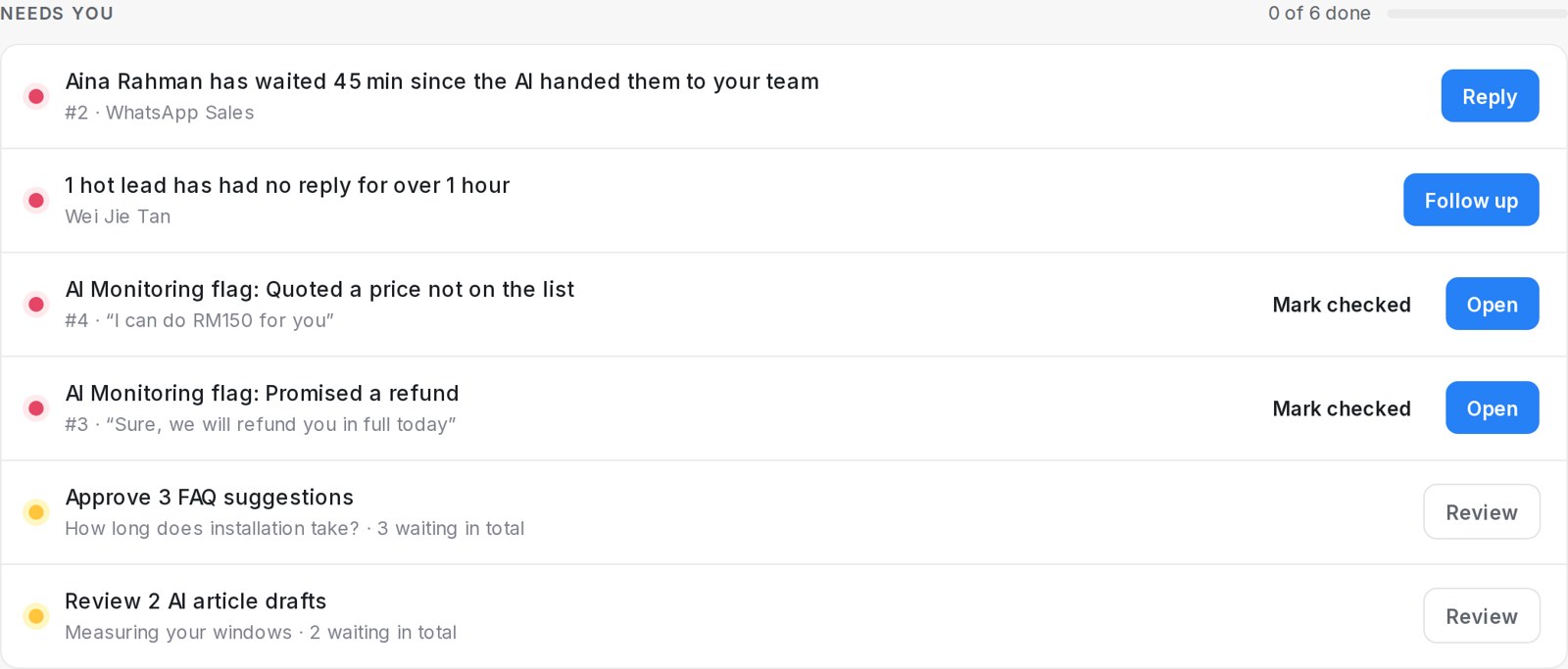
What shows up in Needs you?
Each row is one thing to act on, the most urgent first, with the button that does the job:
- A customer has waited since the AI handed them to your team. Customers wait here once 30 minutes have passed without a reply from a person. Click Reply to open the conversation.
- Hot leads have had no reply for over 1 hour. Click Follow up to open the lead report.
- AI Monitoring flags. A reply the AI Monitoring scan flagged, with the quote. Click Open to see the finding, or Mark checked once you have looked at it.
- FAQ suggestions to approve. Up to five a day, so a long list stays doable. Click Review to approve them in Knowledge.
- AI article drafts to review for your help center. Click Review to open the drafts.
Hot leads and flags appear when AI Monitoring is on for your workspace. A long list scrolls inside its box, so the rest of Home stays on screen.
How does a row get ticked off?
A row ticks itself off once it is handled, and shows Handled with the time:
- A customer who was waiting gets a reply from someone on your team.
- The FAQ suggestions or article drafts of the day are approved or published.
- A flag is marked checked here, or marked incorrect on the AI Monitoring findings page. A flag you checked stays checked the next day.
The progress bar counts the rows done, for example 2 of 5 done. When nothing is left, Home says You’re all caught up for today. Everyone on your team sees the same list, so a row cleared by one teammate is cleared for all.
What does How the business did show?
Pick Today, 7 days or 30 days. Today compares with the same hours yesterday; 7 and 30 days compare with the period before.
- Customers served and Replies sent by AI — how much your AI agents handled.
- AI done — the share of conversations where your AI agent finished the flow: it reached a handover step you built into the flow, or a closing step where the flow ends. A conversation that fell through to the flow’s default hand-off does not count here.
- AI passed to your team — the share of conversations your AI agents passed to a person before the flow was done, for example when a customer asked something the flow does not cover, or when a step had nowhere to go and the flow fell through to its default hand-off. A rise of more than 10 points shows Check.
- New leads — the latest daily lead report in brief: new leads by level, who is still waiting for a reply, who went quiet, and the leads worth a follow-up.
- Details captured by AI — how many details customers gave your AI agents in the flow’s questions, such as a preferred date, company name or website.
- Team first reply — the average time until your team first replies to a customer.
- AI Monitoring flags — flags raised in the period.
Details captured by AI, Team first reply and AI Monitoring flags sit beside the lead report. Click the arrow on a tile to see what is behind the number, with a link to the full report. Home fits on one screen on a laptop and spreads across a wide monitor; on a phone the tiles sit two to a row.