
Forwarding sends a copy of a message from one conversation into another, the way you would on your phone. Use it when a customer’s photo, document or question belongs in a different chat: a colleague’s customer asking the same thing, a supplier who needs the picture, or a contact you have not spoken to yet. When several messages belong together, select them and forward, copy or delete them in one go.
Forward a message
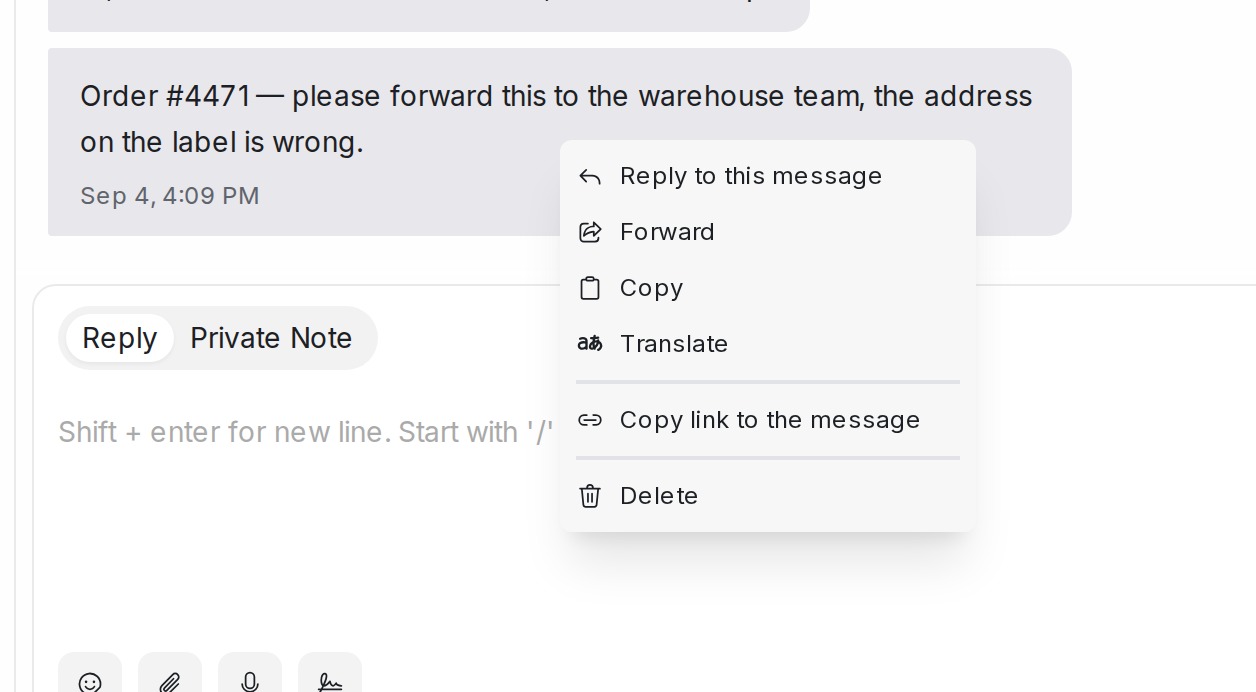
- Open the conversation and right-click the message you want to forward. For a photo or video, right-click the time shown just below it.
- Choose Forward.
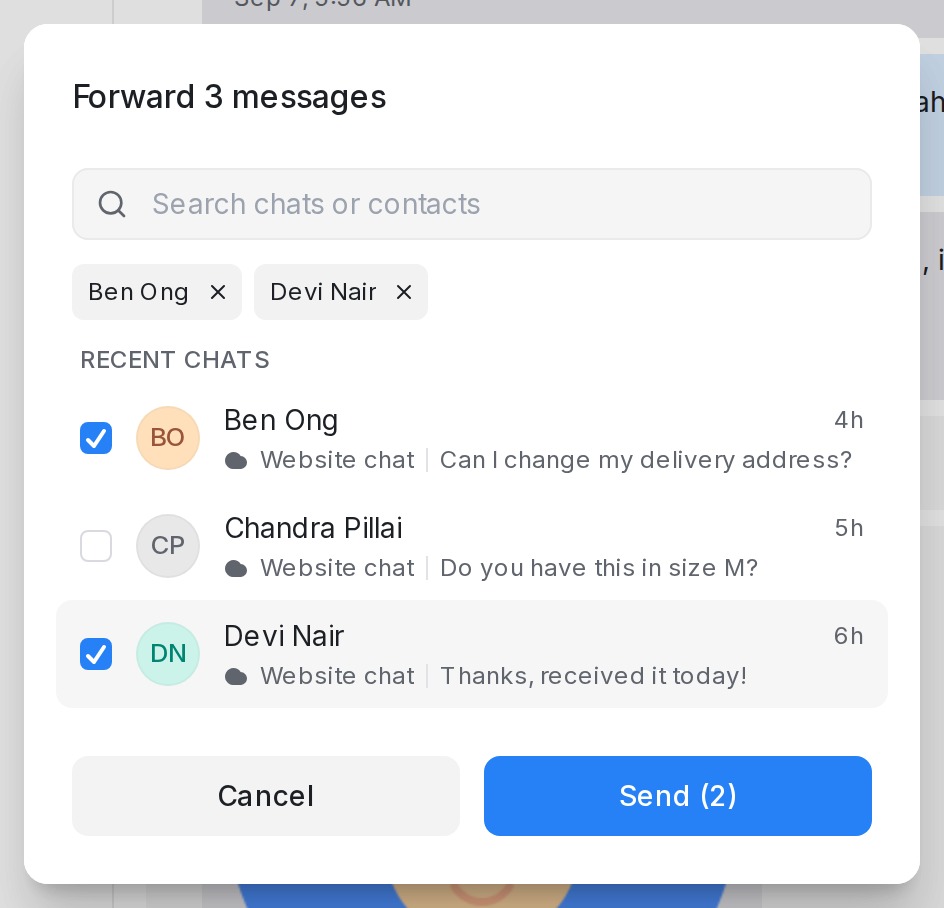
- In the Forward message dialog, tick the chats it should go to. Recent chats are listed first. Type a name, email address or phone number in the search box to find any other chat, or a contact who has no chat yet; results are grouped into Chats and Contacts. You can pick up to five at a time.
- Press Send. The button shows how many chats you picked, for example Send (3).
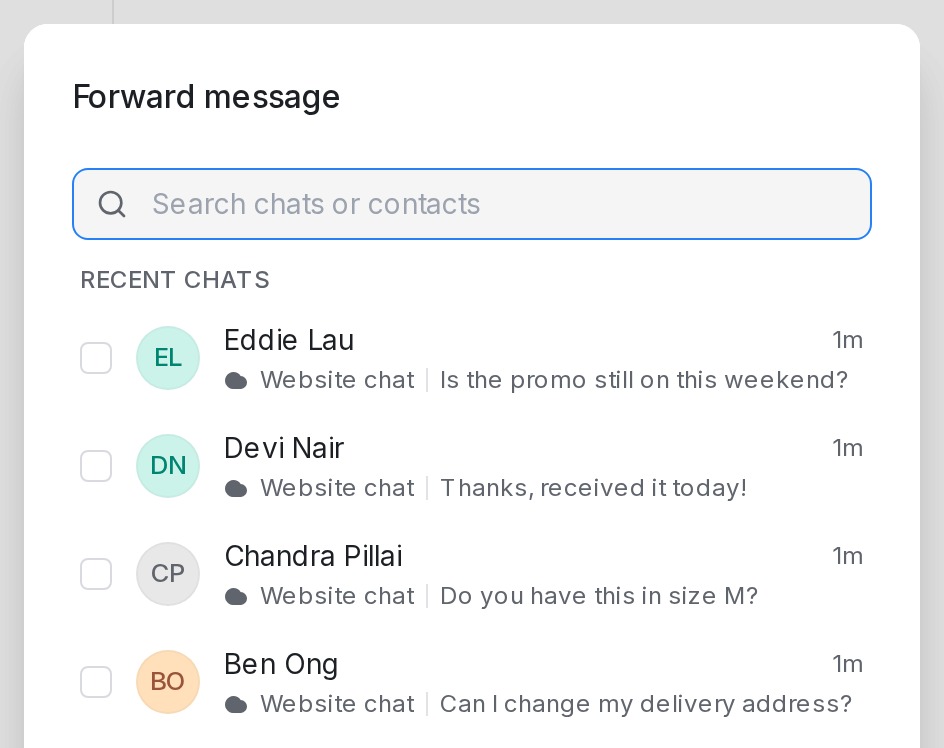
A short confirmation tells you how many chats received the message, and you stay in the conversation you were reading. Remove a chat from your selection by clicking the x on its chip or unticking its row.
Select several messages
When a customer has sent a few photos and a paragraph that belong together, you do not have to forward them one by one.
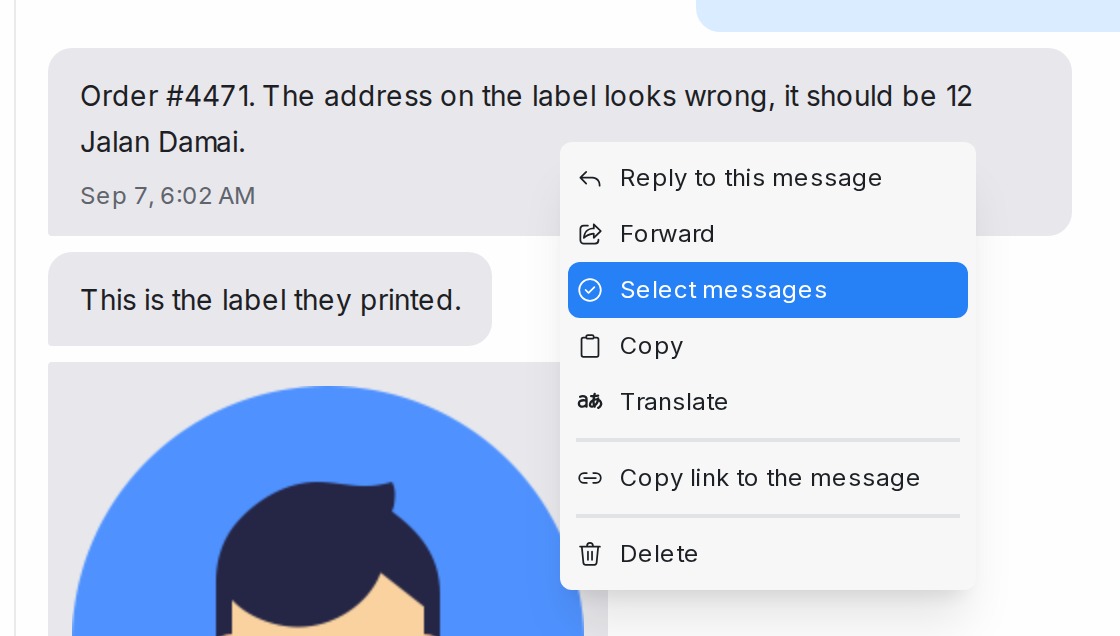
- Right-click any of the messages and choose Select messages. A checkbox appears beside every message and a bar replaces the reply box, showing how many are selected.
- Click the other messages you want. Clicking a ticked message unticks it. Up to 30 messages can be selected at a time.
- Pick an action from the bar:
- Forward opens the same dialog as above, titled with the number of messages. Every selected message is sent to each chat you pick, in the order they were originally sent.
- Copy puts a transcript on your clipboard: one line per message with the time, who wrote it and the text, ready to paste into a note or an email. Photos and documents appear as a short label such as “Picture message”.
- Delete removes the selected messages after a single confirmation that states how many will go. This cannot be undone.
- Press Escape or the x on the bar to leave selection mode. Opening another conversation leaves it too.
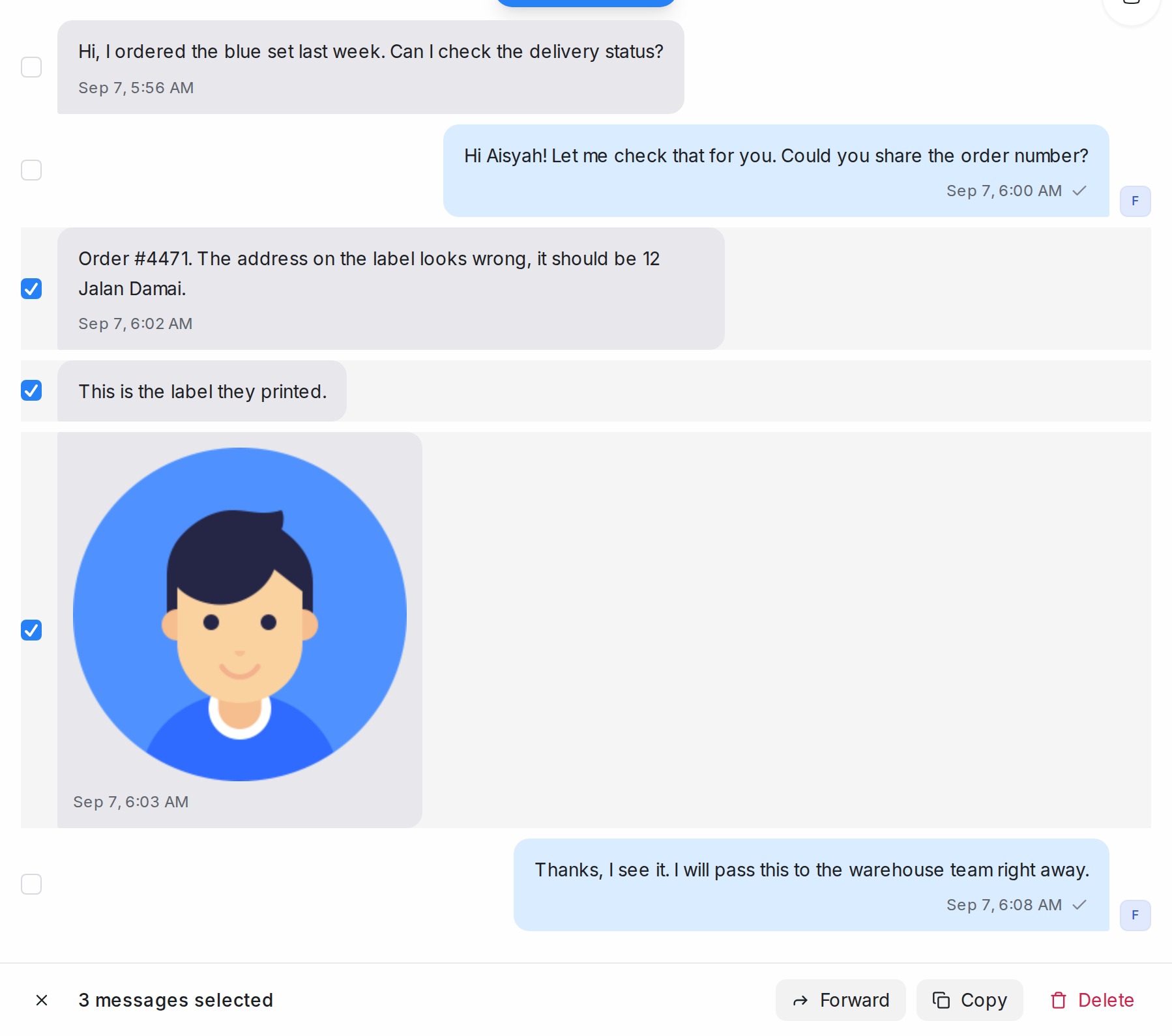
While you are selecting, right-clicking a message does nothing and the reply box is hidden until you leave the mode. Activity lines, deleted messages and messages that are still sending cannot be ticked. Private notes can be selected for Copy and Delete, but they never leave the conversation: while one is ticked, Forward is greyed out.
What gets forwarded
- The message text, exactly as written
- Photos, videos, documents and voice notes attached to it
- Both customer messages and messages your team sent
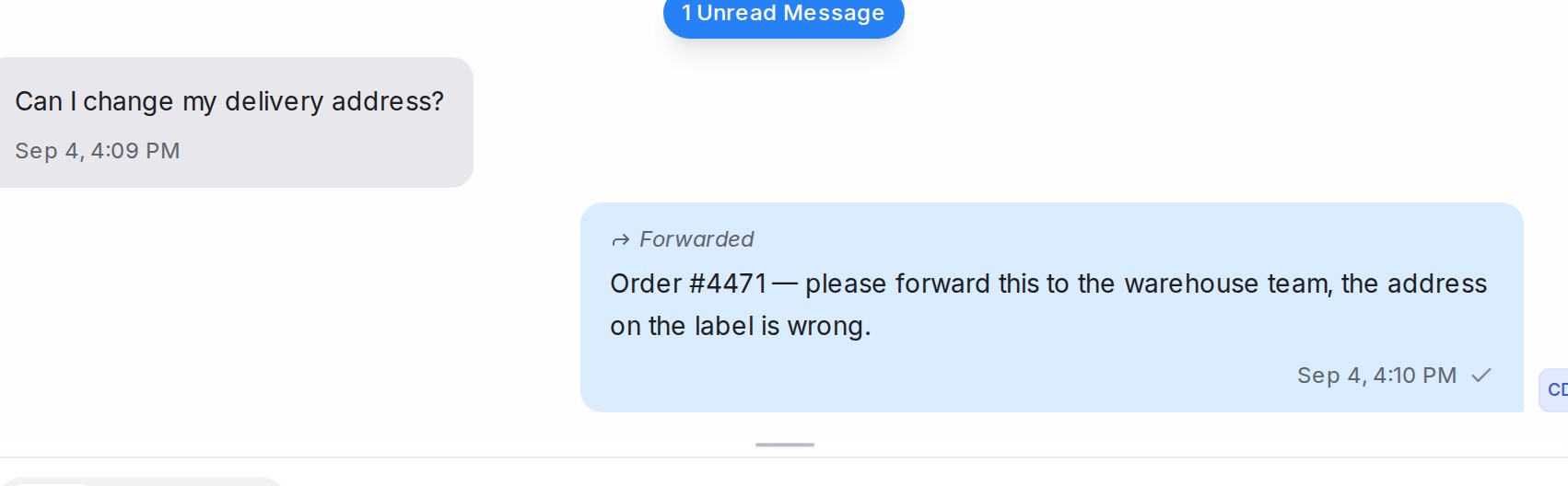
The copy arrives in each chat as a new message from you. Your teammates see a small Forwarded marker above it; the customer receives an ordinary message.
Private notes, deleted messages and messages that failed to send cannot be forwarded, so Forward does not appear in their menu.
Forwarding to a contact who has no chat yet
When you pick someone from Contacts, the message opens a new conversation with them and assigns it to you. If the contact can be reached through more than one inbox, an inbox picker appears on their row so you can choose where the message should go. Contacts who cannot be reached through any of your inboxes are greyed out.
If the contact already has an older conversation with you on that inbox, even a resolved one, the message is added there instead of starting a duplicate.