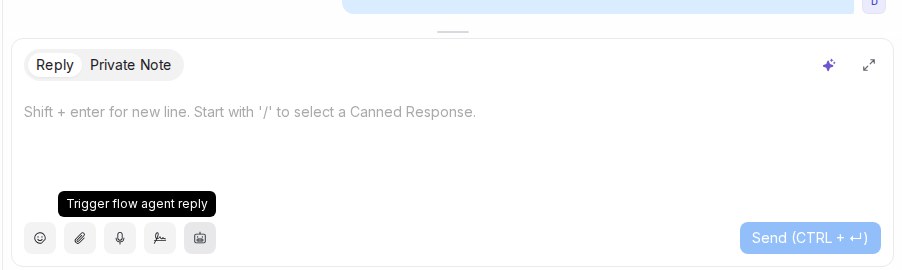
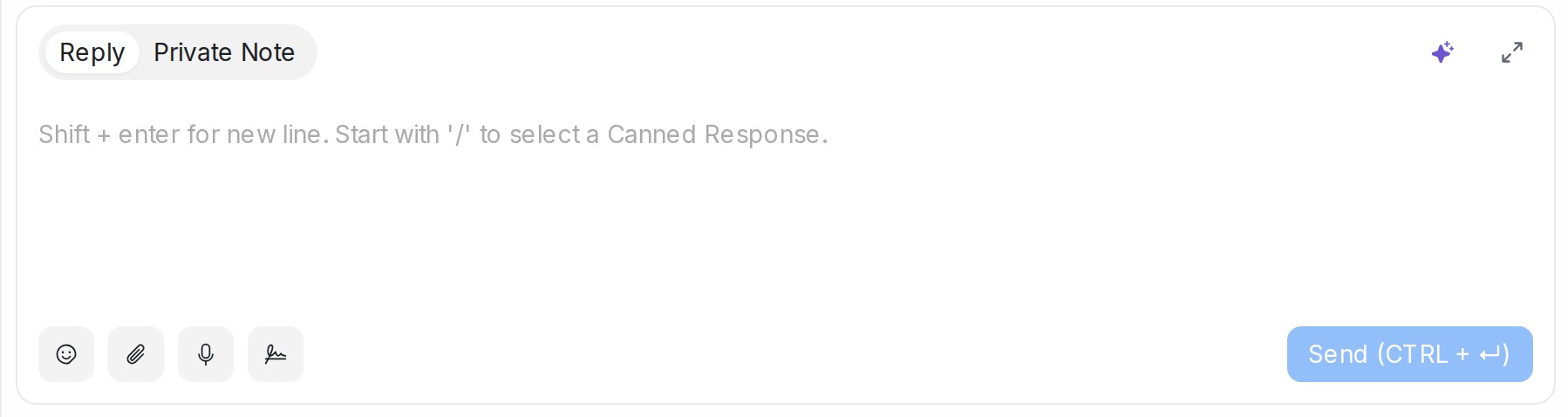
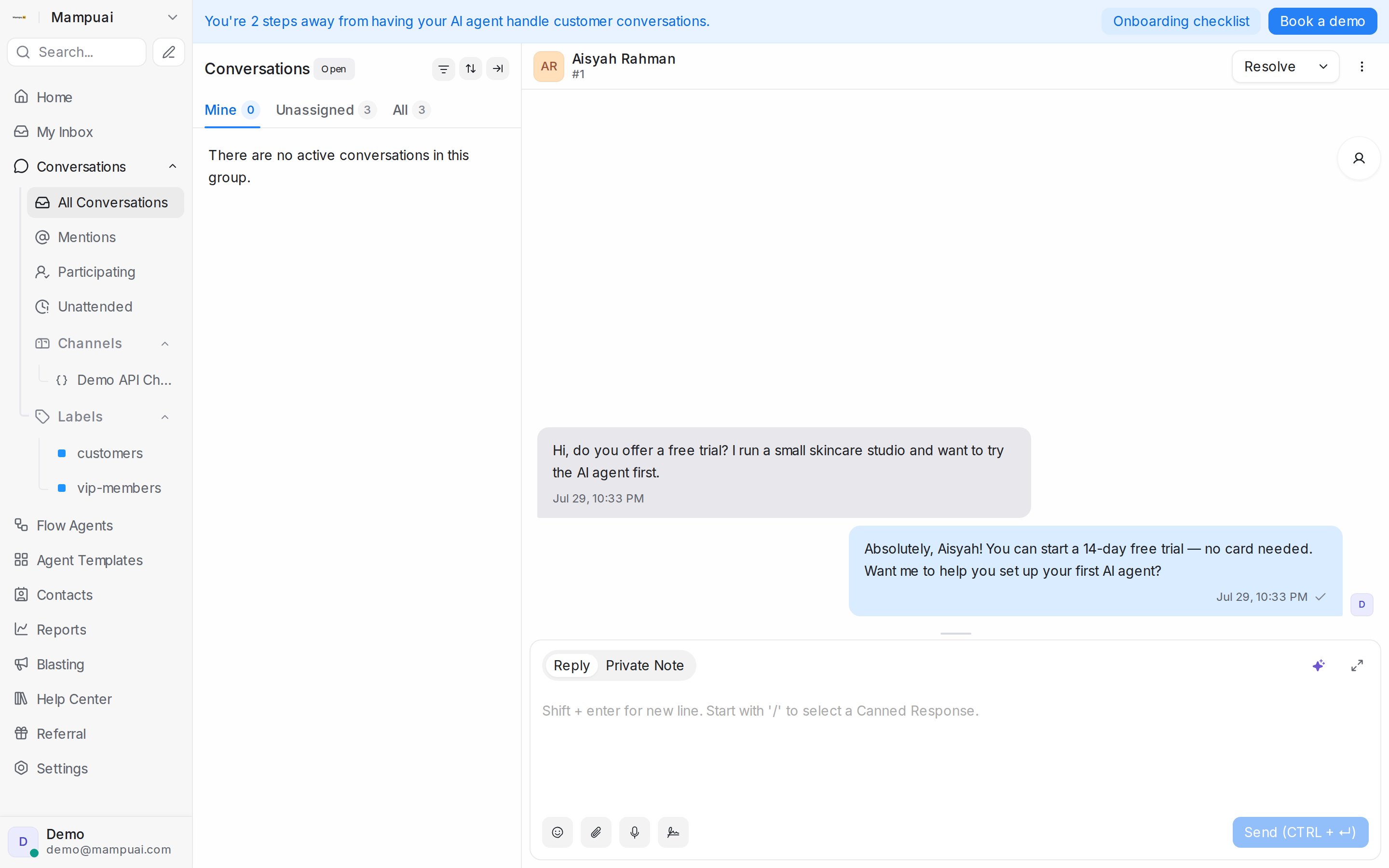
Open any conversation to see the full message thread. At the bottom you’ll find two tabs:
- Reply — your message is sent to the customer.
- Private Note — visible only to agents; use it to leave context for teammates. Mention a colleague with @ to notify them.
The reply toolbar
The icons under the message box are:
- Show emoji selector and Attach files. You can also drag a file straight onto the box.
- Record audio: records a voice note and sends it as audio.
- Enable signature / Disable signature: adds your personal signature to the reply. Write it once under your profile settings.
- Whatsapp Templates: picks an approved template. On WhatsApp this is the only way to reply once the customer’s 24-hour window has closed; the box tells you when that is the case. See The 24-hour reply window.
- From: sends from another of your WhatsApp numbers (see below).
A few shortcuts save time: Shift + Enter starts a new line, typing / opens your canned responses, and @ in a private note mentions a teammate. Whether Enter sends the message or you press Cmd/Ctrl + Enter is your choice under your profile settings.
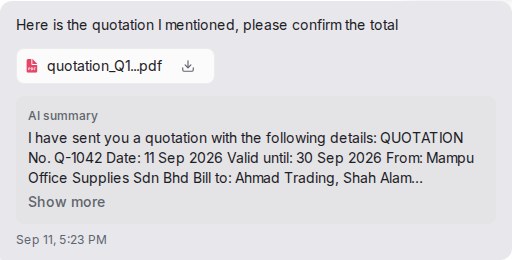
If an AI flow agent is handling the conversation, replying yourself can automatically pause it (a per-inbox setting — see Testing and connecting an agent), so you and the agent never talk over each other. Customer voice notes, photos and PDF documents are read for the AI agent, which replies to them like any text message. What it read appears under the file in the thread, as a transcript, an AI description of a photo or an AI summary of a document, with Show more for the full text, so you can see exactly what the agent understood.
See what the AI agent did in a conversation
When a flow agent replies to a customer, the last message of each reply carries a small line under it, such as 3 steps · 1 FAQ. Click it to see what the agent did for that reply:
- Steps — the steps of the flow the agent walked through, by the names you gave them in the designer, for example Start → Opening hours → Ask name. A step you have since removed from the flow reads Removed step.
- FAQs used — the questions from your AI Knowledge the answer drew on. Only the FAQs the reply actually used are listed, so when a customer asks why the agent said something, you can see which FAQ it came from.
A reply that used no FAQ shows the step count alone. Teammates who have the conversation open see the line arrive with the reply, and it stays with the message. The agent badge at the top of the conversation counts the steps for the whole chat; hover over it to read the full path.
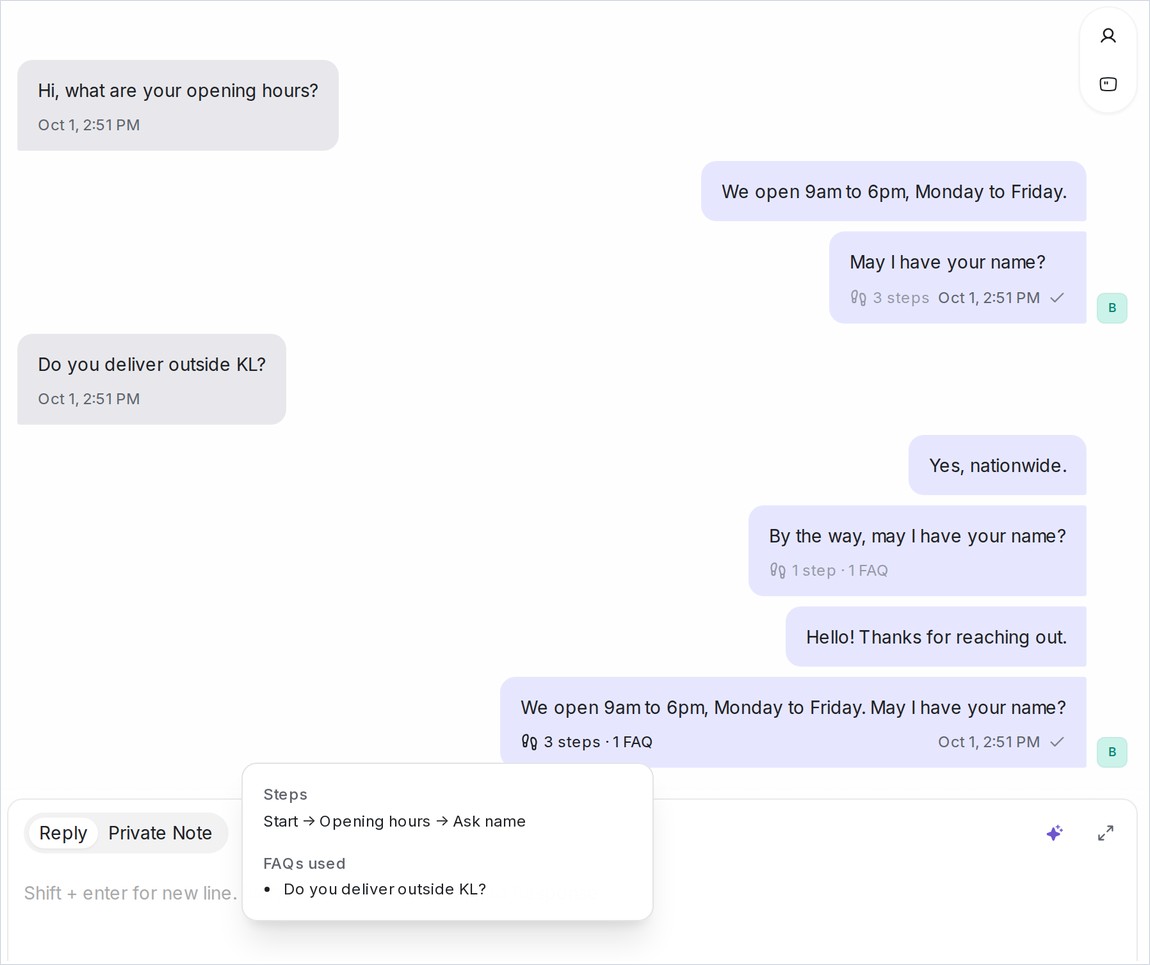
In the designer’s Playground the same information appears under every test reply as Nodes visited and FAQs used — see Testing and connecting an agent.
Quoting a message in your reply
Quote the message you are answering so the customer sees exactly what you mean. It works for any message, including photos, videos, voice notes and files:
- Right-click the message and choose Reply to this message — or simply double-click the message.
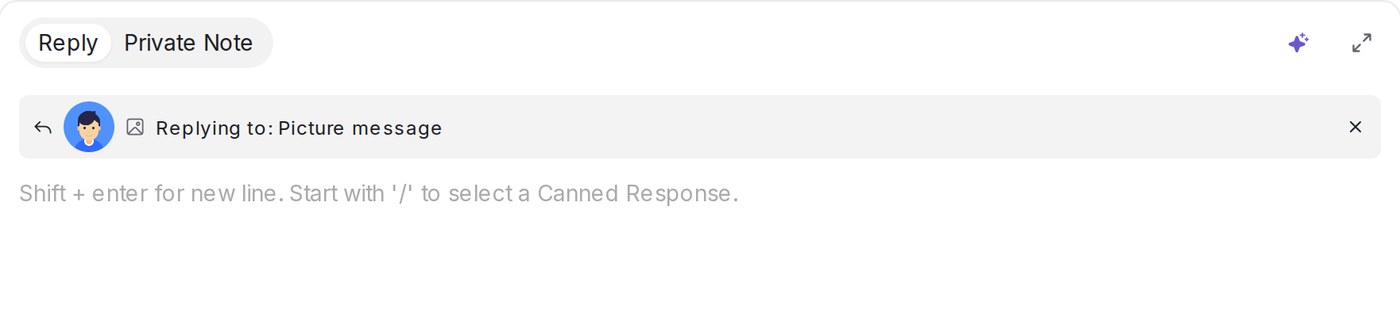
- The reply box shows Replying to with the quoted message. For a picture, a thumbnail appears next to it. Click × to drop the quote.
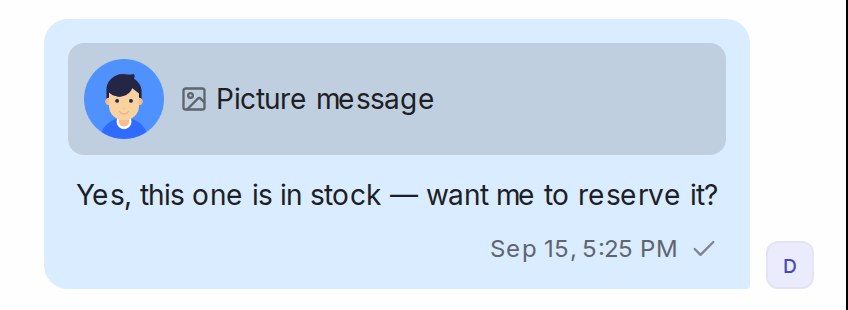
- Type your reply and send. The quote travels with it, so the customer sees the same reference in WhatsApp.
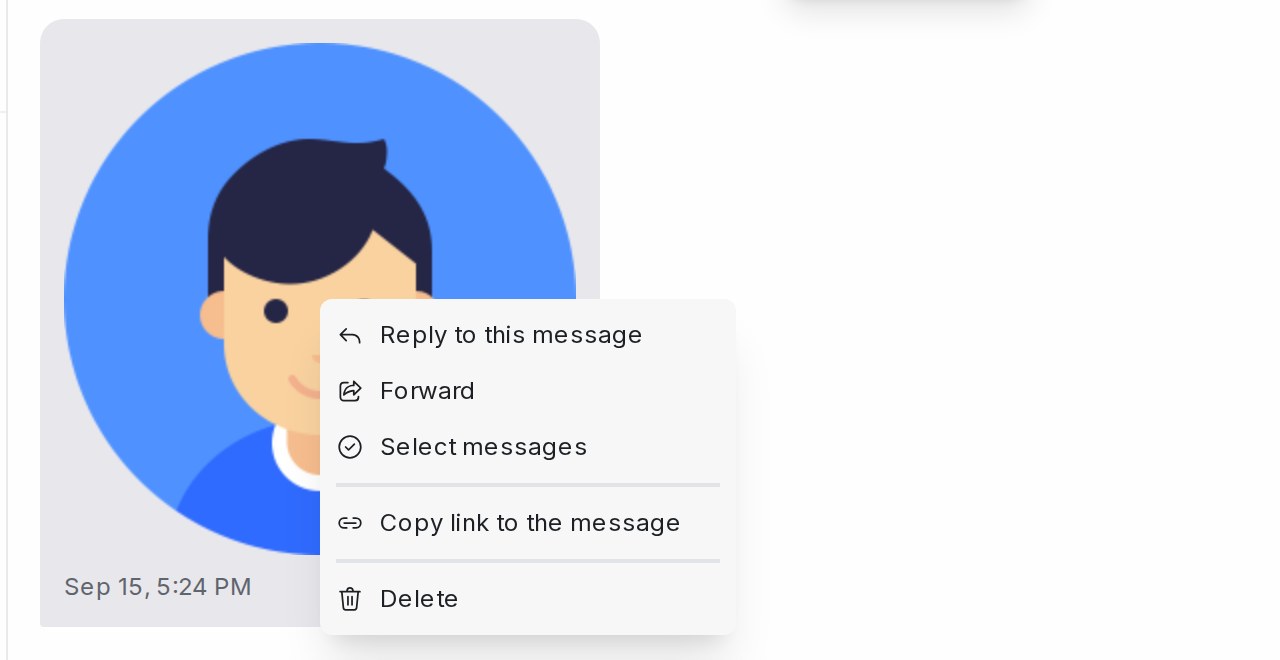
A single click on a photo still opens it full size; double-clicking quotes it instead. Double-clicking a Private Note does nothing, since notes are never sent to the customer.
Replying from another WhatsApp number
Have more than one WhatsApp number? From at the top of the reply box lets you send the reply from another of your numbers while the conversation stays in one place — see Replying from another WhatsApp number.
Watch the walkthrough
Ask the AI agent to reply
When the conversation’s inbox has a flow agent connected, the reply toolbar shows a bot button. Click it and the agent reads the customer’s latest message and sends its reply — handy when a reply never went out, or when your team has finished stepping in and wants the agent to carry on.
Triggering the agent also resumes it if it was paused, and the conversation gets an activity note showing who triggered it. The button appears on the Reply tab only.