
Look up any button or field in the flow designer here. For a guided walk through building a flow, start with Building the conversation flow.
The designer at a glance
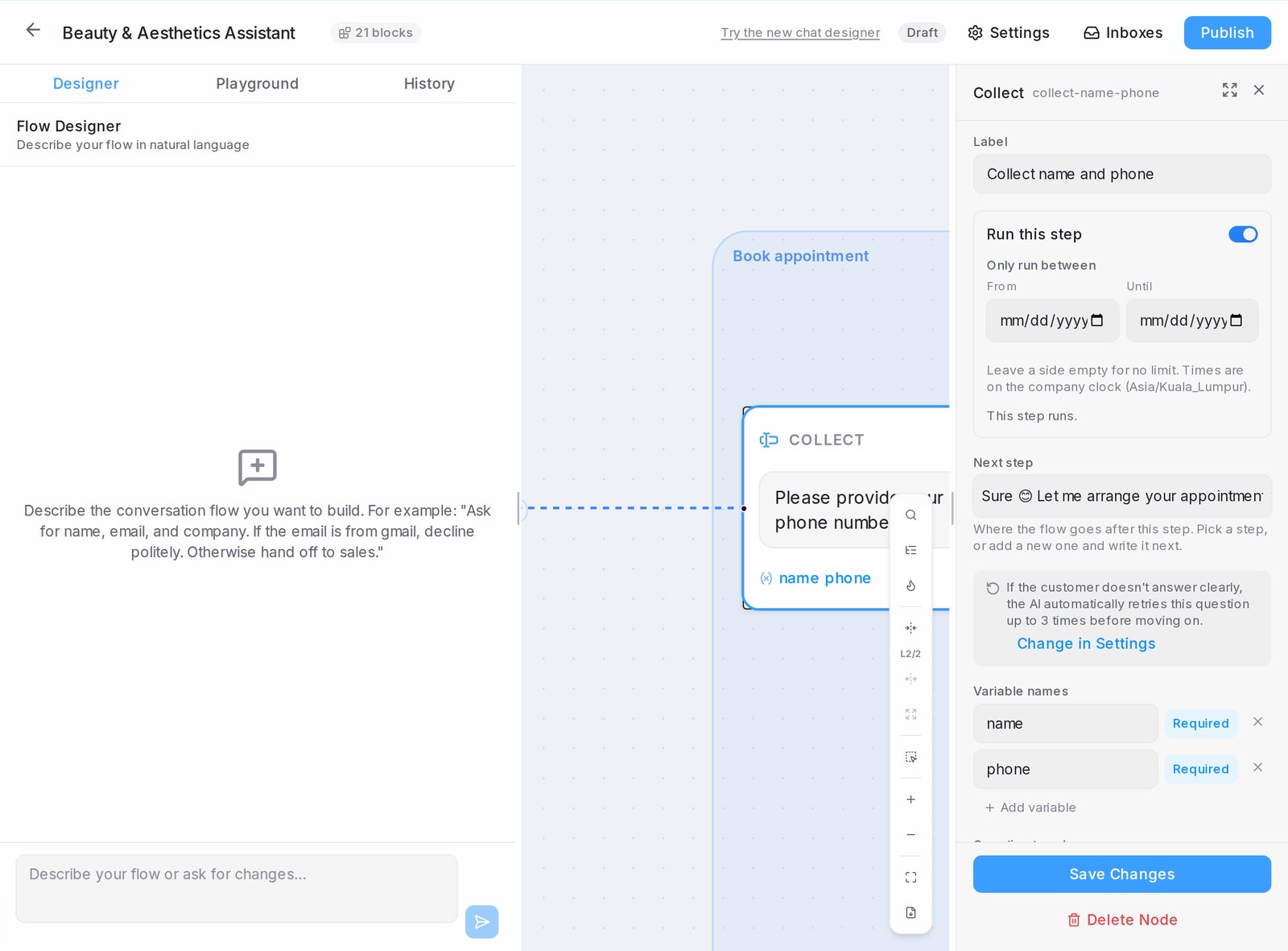
- Designer, Playground and History are the tabs on the left. Designer is a chat where you describe changes in your own words; see Designing your agent by chatting.
- The canvas shows the flow as connected steps. Click a step to open its panel on the right.
- Settings, Inboxes and Publish sit in the header. The badge shows the agent’s state: Draft, Testers only or Handling public.
If your designer opens as one large chat, click Switch to classic view in the header to get this layout.
The canvas toolbar
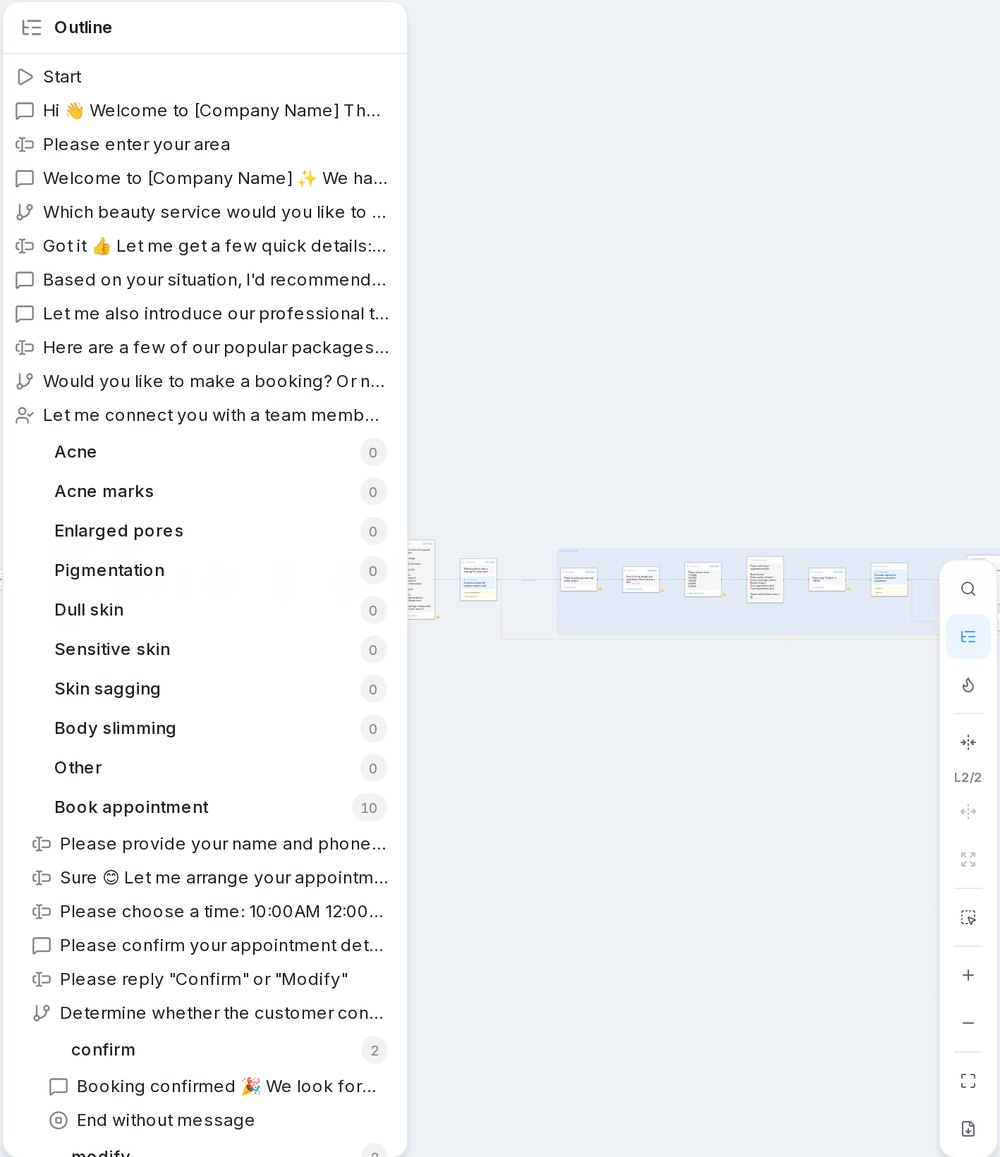
| Button | What it does |
|---|---|
| Search nodes (Ctrl+F) | Find a step by its words and jump to it |
| Flow outline | Every step as a tree of branches; click one to jump there |
| Show where customers went in the last 30 days | Heatmap of how many customers reached each step (administrators); see See where customers go |
| Collapse one branch level / Expand one branch level / Expand all branches | Fold a large flow one menu level at a time; double-click a folded pill to open it |
| Select nodes to comment | Draw a box round steps and type what should change; the designer chat edits only those steps |
| Zoom in, Zoom out, Fit to view | Change how much you see; Fit to view brings every step back |
| Download as PDF | Save the whole flow, with its images, as a PDF |
| Show one image per step | Appears when steps carry attachments; shrinks them to one thumbnail and a count |
| Show the path walked in the playground | Appears after a Playground run; numbers the steps it passed through |
Settings every step shares
Every step panel has these, from top to bottom:
- Label: the step’s name on the canvas.
- Run this step: switch the step off, or run it only between two dates with Only run between. While it is off, the flow skips to the next step. See Switch a step off, or run it only for a period.
- Next step: where the flow goes after this step. Pick a step, or add a new one and write it next. On the canvas, the grey + at a block’s right-hand connector adds the next step too, and the amber + on a question block adds a step on its No reply path.
- Actions → Add label: label the conversation and the contact when the flow reaches this step.
- FAQ category scope: narrow the FAQs the agent answers from, from this step on. See Focus the agent on the right FAQs.
- Save Changes keeps your edits. Delete Node removes the step; reconnect the steps around it afterwards.
In any message, {name} or {email} inserts a value collected earlier, and {collection:key} lists items from a repeating section. The expand icon on a long text field opens a larger editor.
Send message
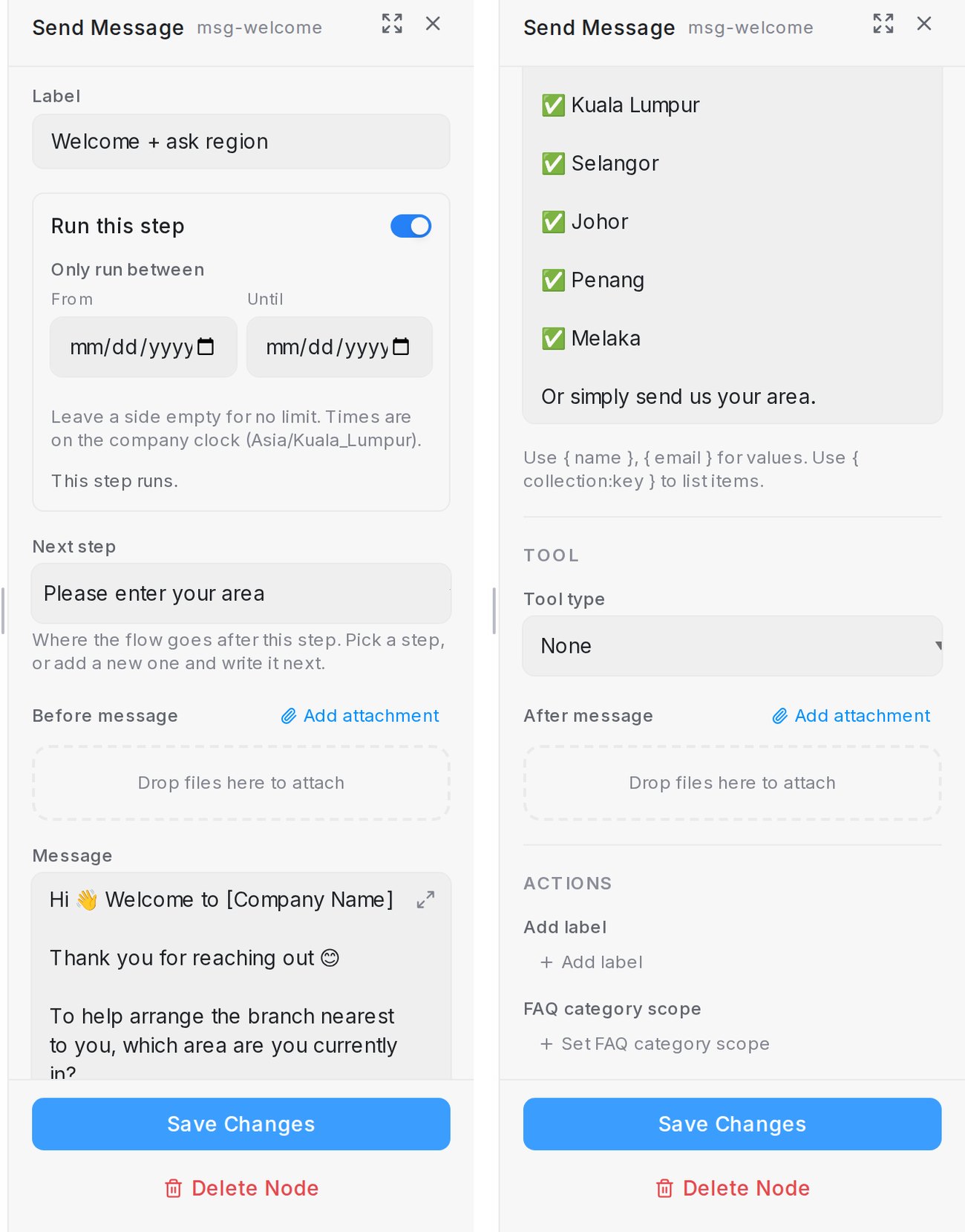
- Message: what the agent says.
- Add attachment (above or below the message) adds an image, video, audio file or document, sent Before message or After message. You can also drop files onto the box. Describe each file under What is this? and use When to send for timing, for example only after the customer shows interest.
Collect
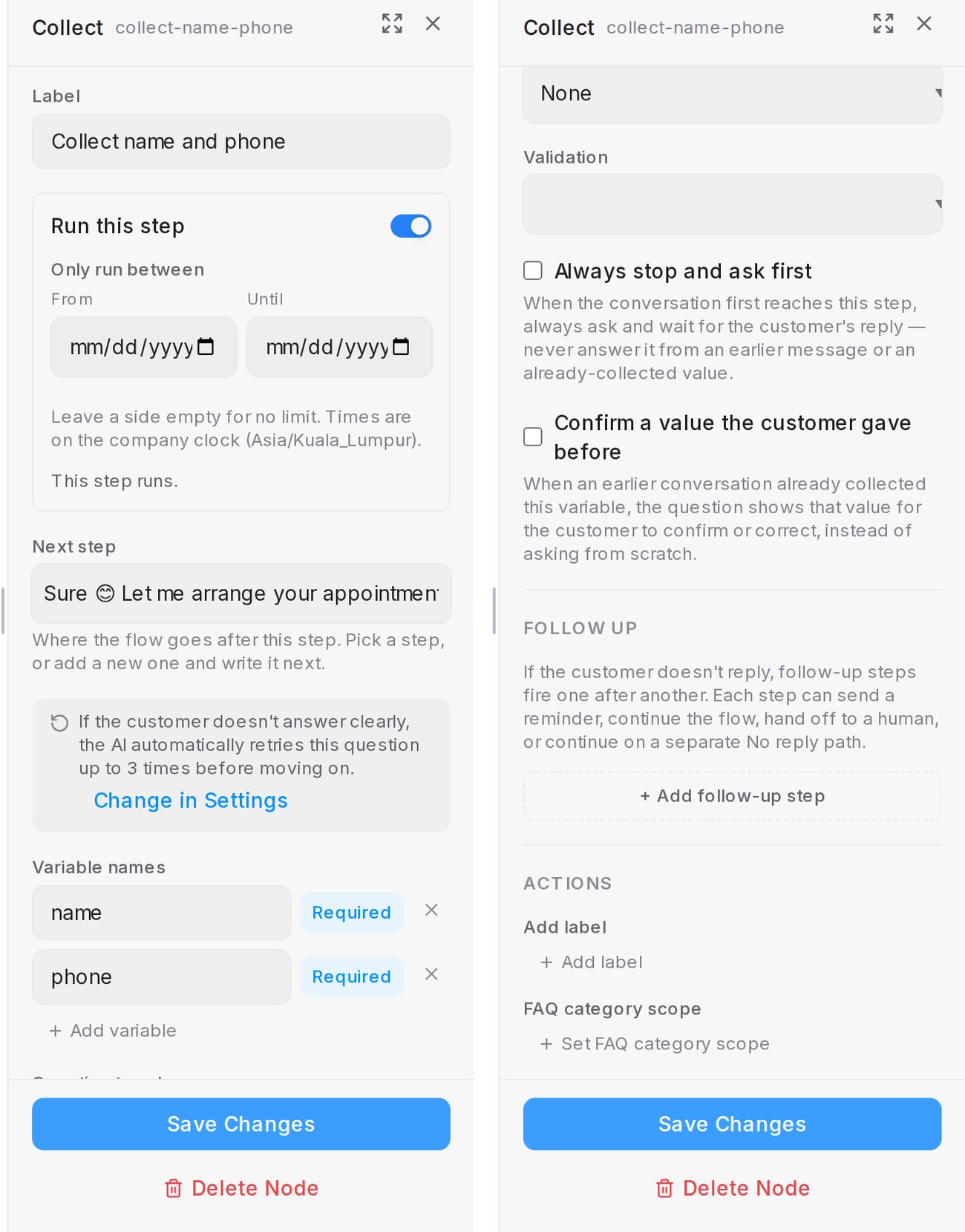
- Question to ask: what the agent asks.
- Variable names: the details this question captures. Mark each Required (asked again until given) or Optional (asked once). Add variable for more.
- Validation: None, Email, Number or Date.
- Always stop and ask first: always ask and wait, even if an earlier message seems to answer it.
- Confirm a value the customer gave before: show a returning customer last time’s answer to confirm or correct.
- Answer buttons: up to 13 tappable answers, 20 characters each. See Let customers tap an answer.
- Follow up: see Follow-ups below.
How many times a required detail is asked again is set by Re-ask limit for collect nodes in Settings; the panel links there with Change in Settings.
Condition and route rules
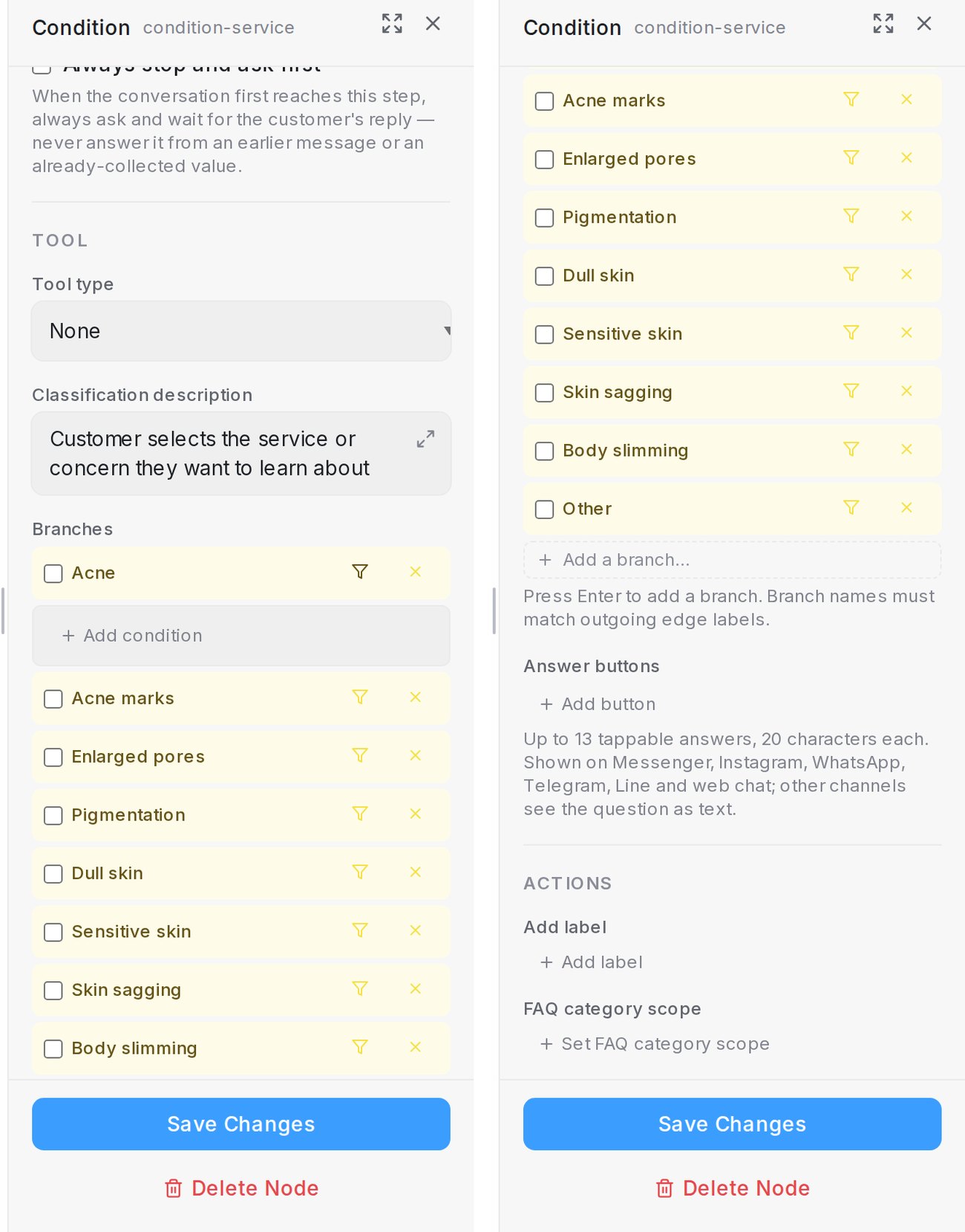
- Question (optional) is asked before the customer picks a branch. Classification description says what the branches are for.
- Branches: type a name and press Enter. Each name must match the label on a line leaving the step. Tick a branch to make it the Default branch, taken when no reply comes.
- The filter icon on a branch opens its route rule. Add condition offers:
| Condition | Shows or picks the branch when |
|---|---|
| Meta ad IDs | The customer came from one of these Click-to-Message ads |
| Customer labels | The conversation or contact has one of these labels |
| Message keywords | The latest message contains one of these words |
| Must go here on match | Skip the question and always route matching customers here (needs an ad ID or label) |
Combined conditions must all match. See Show a route only to the right customers.
AI conversation
The agent chats freely under your instructions until an exit applies.
| Field | What it does |
|---|---|
| How it should talk | Your instructions for this step |
| What this step handles | Optional one-line summary, up to 200 characters |
| Knowledge this step answers from | AI Knowledge topics to use; empty means all |
| Exit routes | Ways out: Add route, name it, describe when it applies. Done, Handoff and Unresolved are reserved names |
| Variable names | Details to capture while chatting |
| Advanced settings → Turn limit | Leave through Unresolved after this many customer replies |
AI task and tool steps
| Field | What it does |
|---|---|
| AI task → Result variable | Runs silently and saves its answer for later steps |
| Tool type | Live data for the step: calendar slots, catalogue products or one of your API tools |
| If the request fails | Say it couldn’t check and move on, or say so and hand off. Never makes up a value |
| Search from variable | Search products by a collected detail; blank uses the latest message |
| Which products to use | Suggest closest matches, or only exact fits and hand off when none match. See Product catalogue and recommendations |
| If the time was just taken | The apology a booking step sends when the slot went first. See Setting up a calendar |
Follow-ups
Under Follow up on a Collect step, click + Add follow-up step to act when the customer stops replying. Steps fire one after another. Each one waits for the time under Follow up after, then does what you choose under Then: Send a reminder and keep waiting, Continue to the next step, Hand off to a human agent or Continue on the No reply path.
- The message is optional. Without one, the step fires silently. On a reminder step you can drop images, video, audio or files onto Media to send with it.
- Continue on the No reply path draws an amber No reply line from this step on the canvas and asks where it leads under Go to step: an existing step, or + New message step, + New question step or + New end. If the customer still hasn’t replied by then, the flow follows that line instead of the normal next step. See Follow up when the customer goes quiet.
- Every step needs a wait time. Steps after a continue, hand-off or No reply step never run.
- Follow-ups never go out during Quiet hours for follow-ups in the agent’s Settings.
End
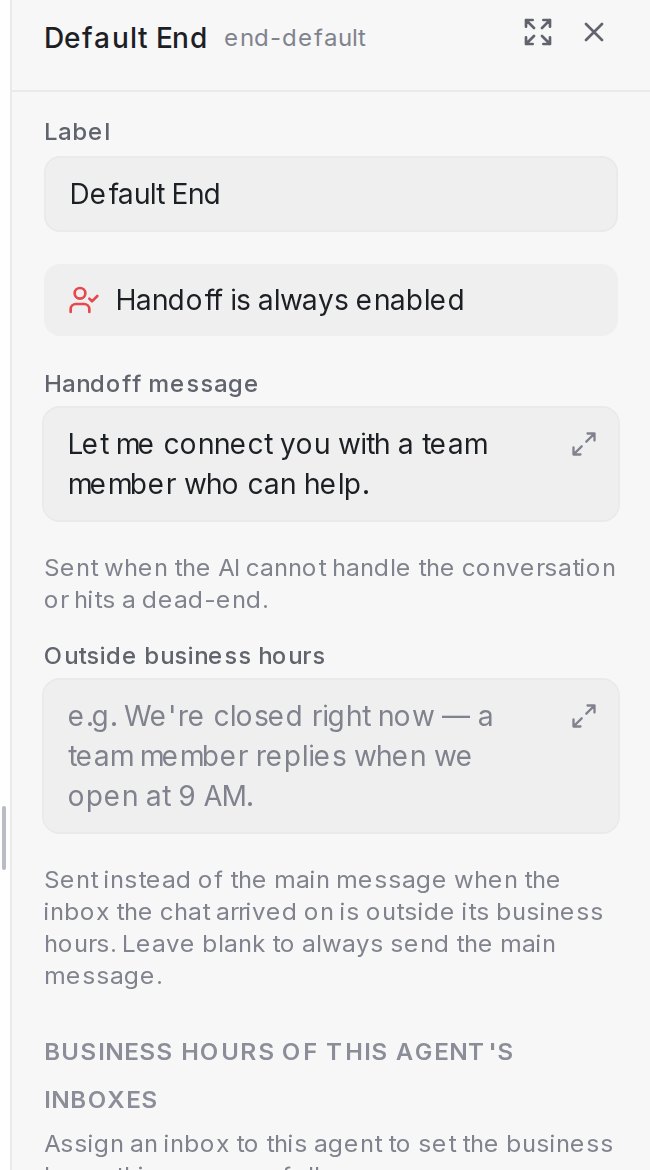
- Final message: said as the conversation ends.
- Hand off to human agent: pass the chat to your team instead of closing it. The default End always hands off.
- Handoff message: sent on handoff. Tick Leave handoff message blank (silent handoff) to send nothing.
- Outside business hours: sent instead when the inbox is outside its business hours.
See The handoff message.
Playground
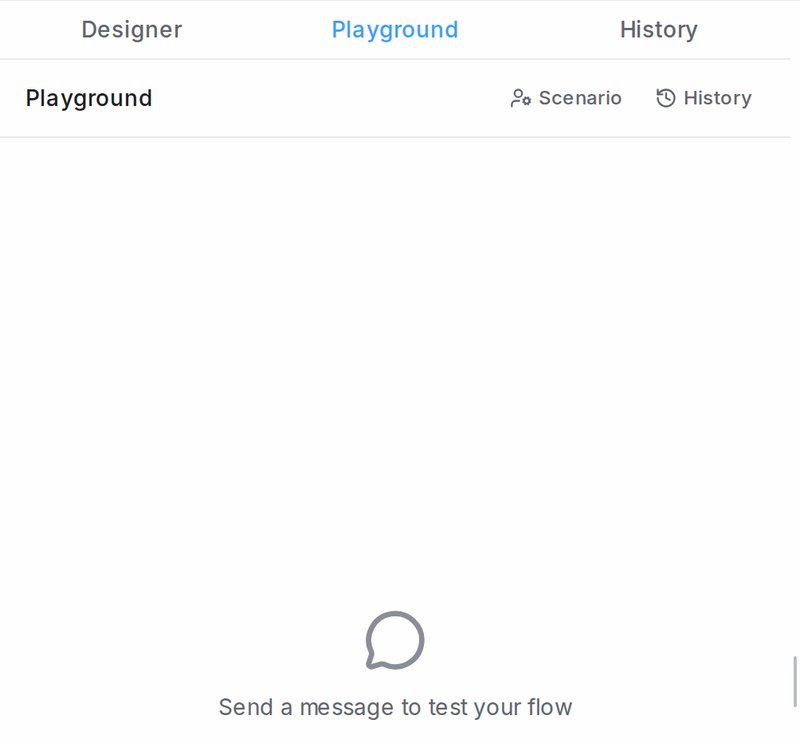
Type as the customer to run the flow. The paperclip sends a photo, voice note or PDF. History lists earlier test runs.
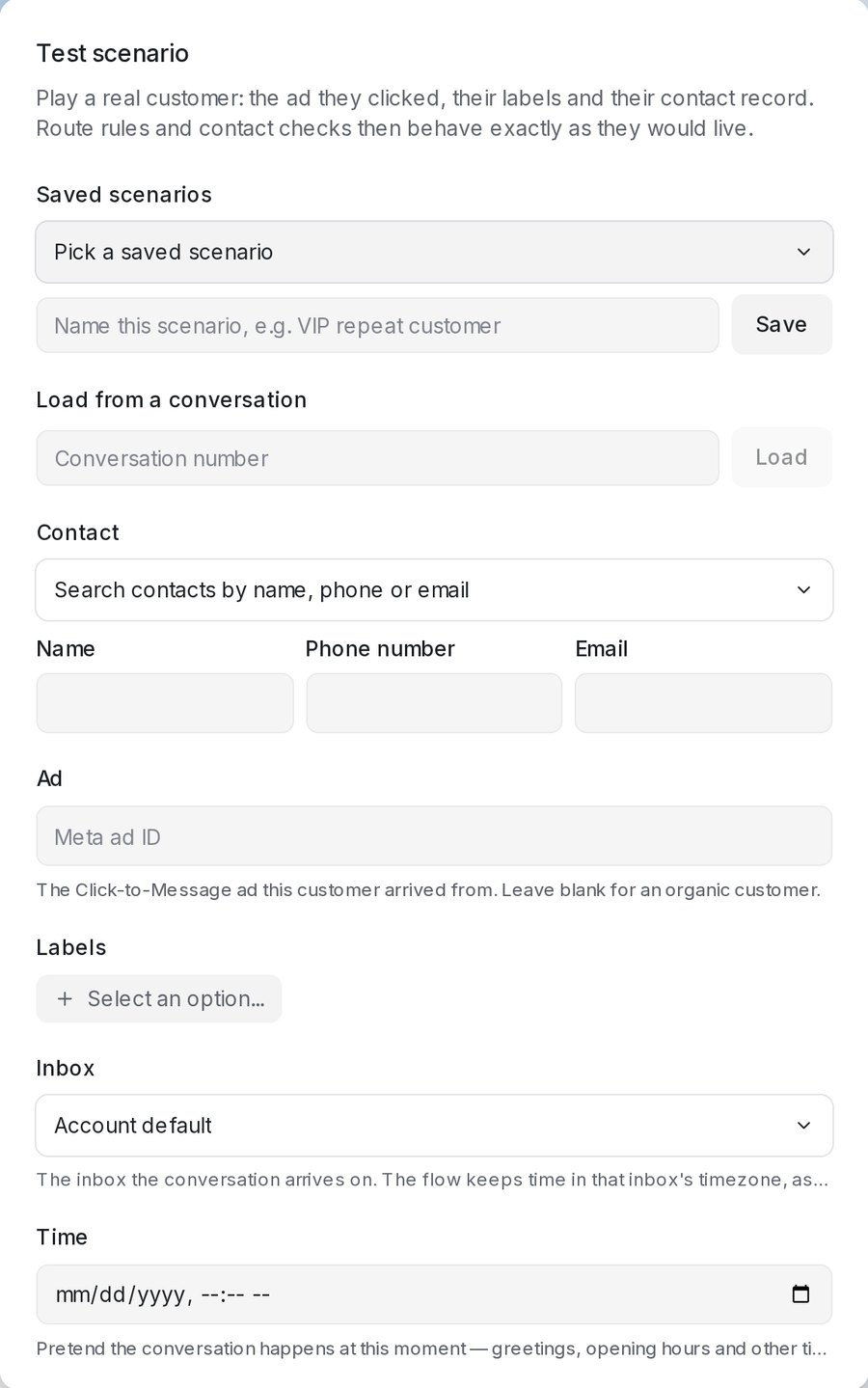
Scenario plays a real customer: their contact, the Ad they clicked, their Labels, the Inbox they write on and the Time of the conversation. Route rules and opening hours then behave as they would live. Load from a conversation fills it in from a conversation number; save a set under Saved scenarios to reuse it.
- Follow-ups fire after their real waiting time, so keep the test open.
- When a test ends and a message sequence is linked to the agent, Simulate inactivity starts the sequence and Deliver sends its next message. See Message sequences.
History
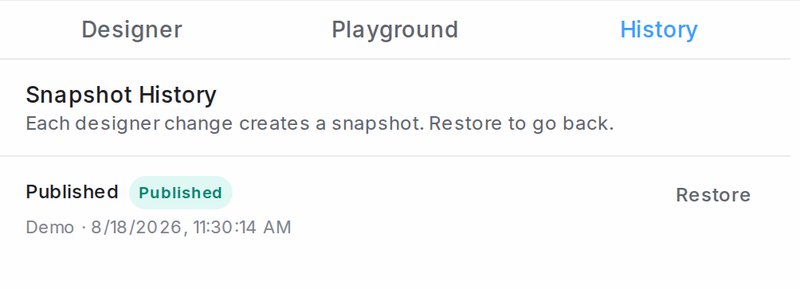
Each change creates a snapshot. Restore goes back to one. The live one carries a Published badge.
Publish and Inboxes
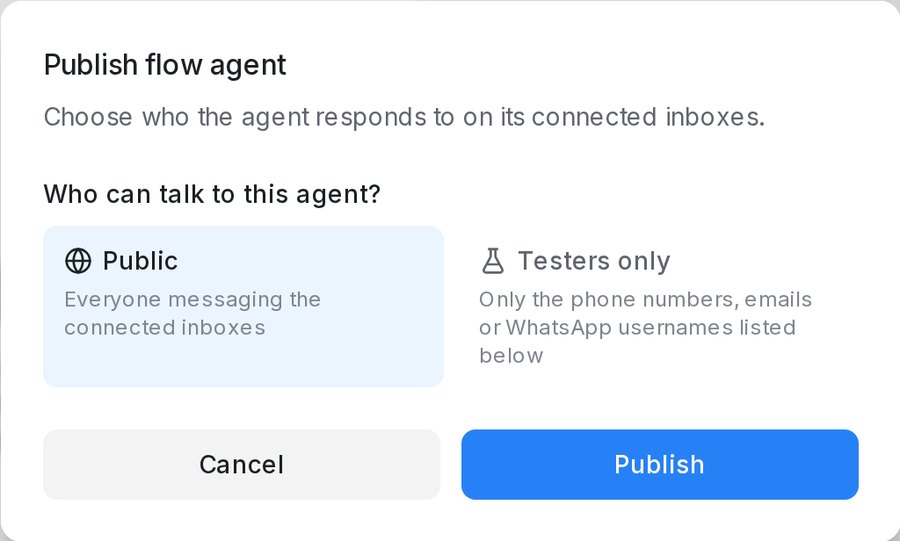
Publish asks Who can talk to this agent?: Public (everyone on the connected inboxes) or Testers only (the phone numbers, emails or WhatsApp usernames you list).
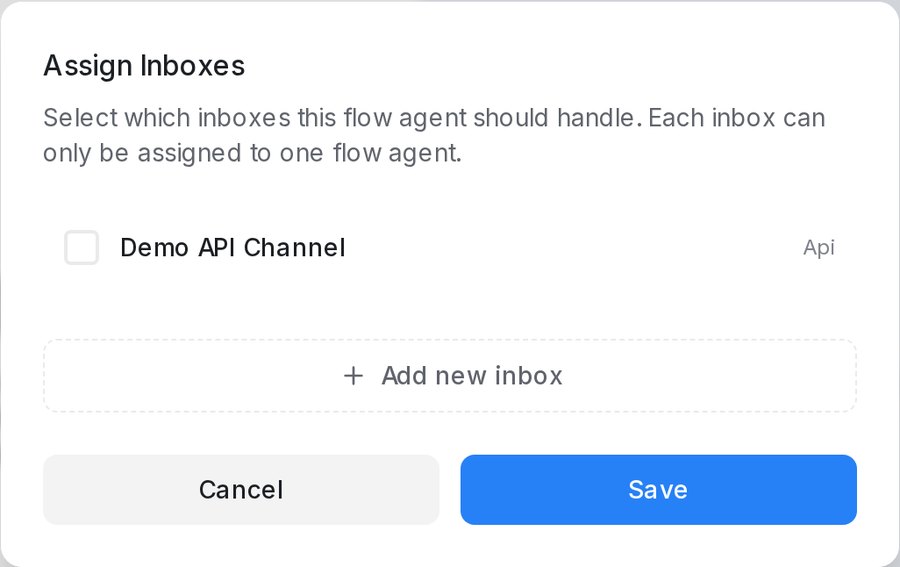
Inboxes picks which inboxes the agent answers; each inbox can have one flow agent. Add new inbox connects a channel without leaving the designer. Save collected phone to contact makes a number the agent collects become the contact’s phone; tick I understand and accept this risk to switch it on, because it cannot be undone.
Agent settings
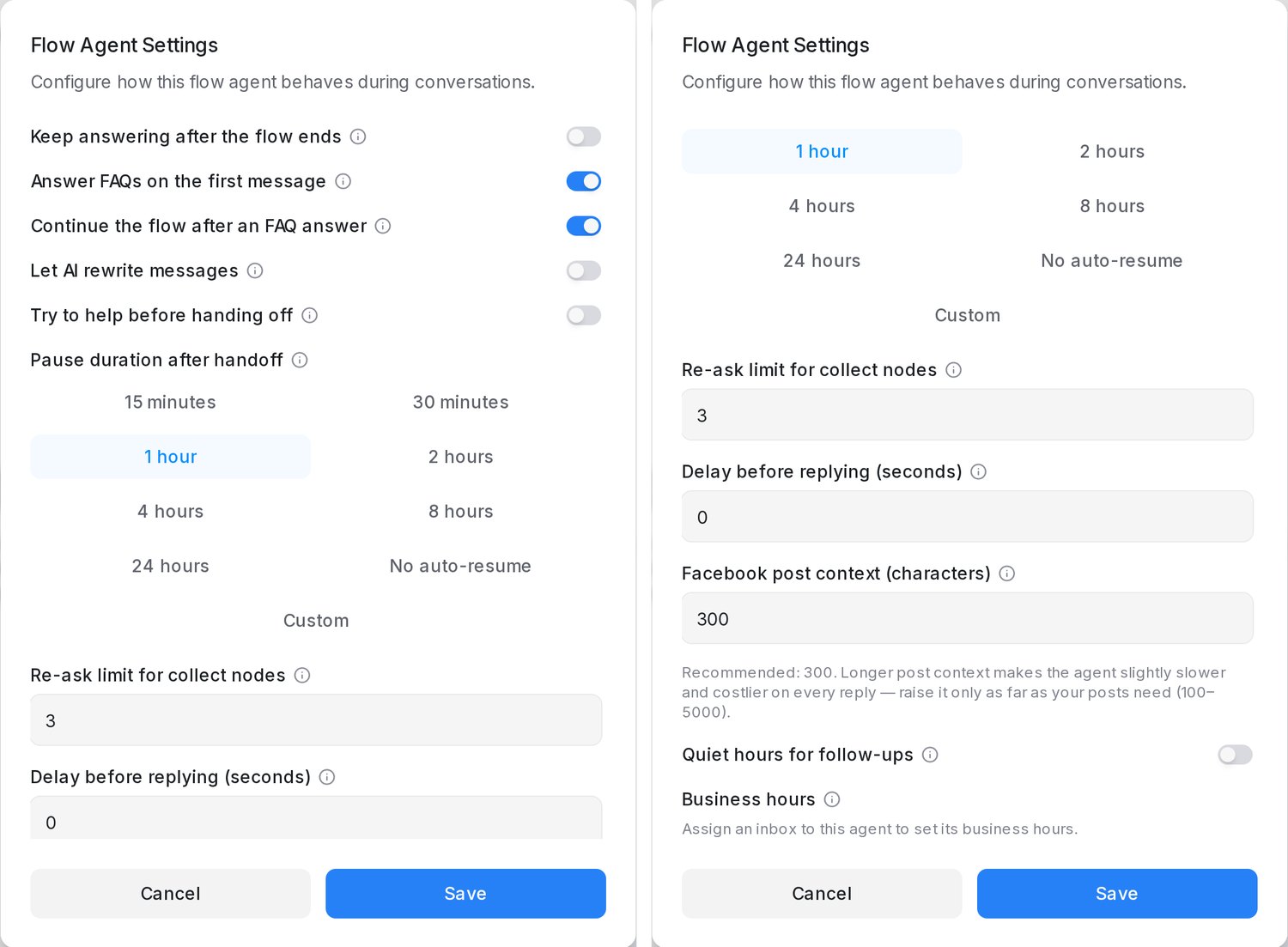
| Setting | What it does |
|---|---|
| Keep answering after the flow ends | Answer questions after the flow finishes instead of starting over |
| Answer FAQs on the first message | A first message that matches AI Knowledge is answered before the opening |
| Continue the flow after an FAQ answer | After an FAQ answer, ask the pending question again or start the flow |
| Let AI rewrite messages | Reword messages in your tone; facts, prices, dates and links never change |
| Try to help before handing off | One clarifying question or answer first; asking for a person always hands off at once |
| Details to collect before handing off | Shown when Try to help before handing off is on. Asked once before a routine handoff; answers go in a private note |
| Pause duration after handoff | How long the agent stays quiet after a handoff; Custom or No auto-resume |
| Re-ask limit for collect nodes | Times a required detail is asked again |
| Delay before replying (seconds) | 0 to 300; messages sent during the wait get one reply |
| Facebook post context (characters) | How much of a post the agent reads for a comment; 300 recommended |
| Quiet hours for follow-ups | No follow-ups in this window, in the inbox’s timezone |
| Business hours | Each connected inbox’s hours, used by Outside business hours |
More in Behaviour settings.