
Lead temperature reads each sales conversation and rates the lead hot, warm or cold from what the customer has written so far. The result shows as a small badge on the conversation, so your team can see who is ready to buy without opening every chat. You decide, in plain words, what counts as hot, warm or cold for your business.
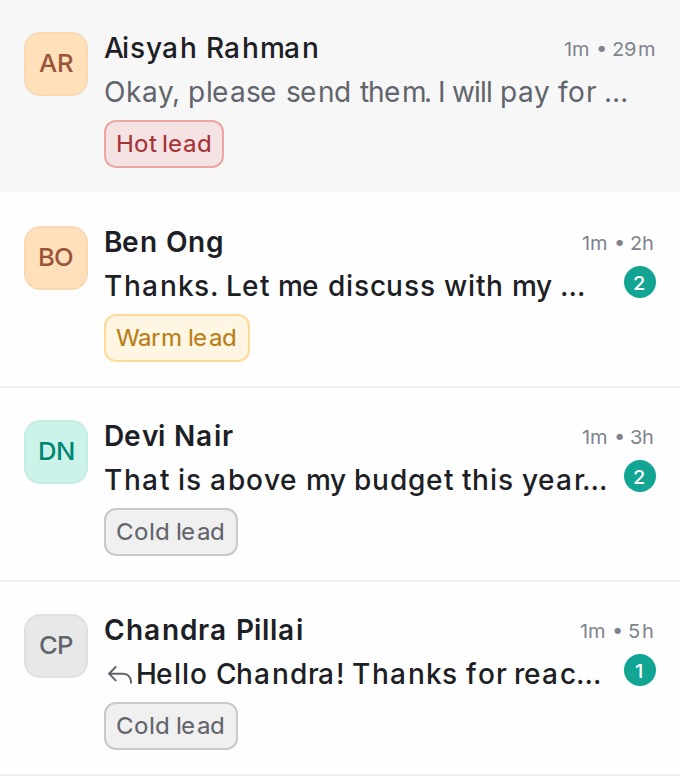
Where the badge appears
- On each card in the conversation list, next to the labels
- In the header of an open conversation, next to the Reply SLA badge
Hover the badge to see why the lead was rated that way: whether the customer is proceeding, still deciding, has declined or has gone quiet, the highest temperature the lead has reached (for example Was hot), and, once a lead has gone cold, why it went cold.

By default a hot lead is red, a warm lead amber and a cold lead grey.
Turning it on
- Open Settings → AI Monitoring (also reachable from Flow Agents → AI Monitoring) and scroll to Lead analysis.
- Switch on Rate leads in this account.
- Click Save changes.
A conversation is rated about 30 minutes after its last message, and rated again whenever the customer or your team writes more. Every sales enquiry gets one of your categories. Conversations that are not sales enquiries, such as an existing customer asking about a delivery, a supplier or spam, get a Not a lead badge instead (see Chats that are not a lead).
Lead temperature looks at every conversation in the inboxes AI Monitoring watches — all inboxes, or only the ones you pick under Inboxes at the top of the AI Monitoring page — whether it was handled by a flow agent, by your team, or has not been answered yet. It is not limited to conversations a flow agent handled.
Describing what each category means
Each temperature has its own card. Expand a card to edit it:
- Badge text — what the badge says, for example “Hot lead” or “Ready to book”.
- Badge colour — pick any colour; the badge uses it for its text and a lighter tint of it for the background.
- What does “Hot lead” mean? — the question follows your badge text. Describe, in your own words and in any language, what a customer says or asks when they are at that stage.
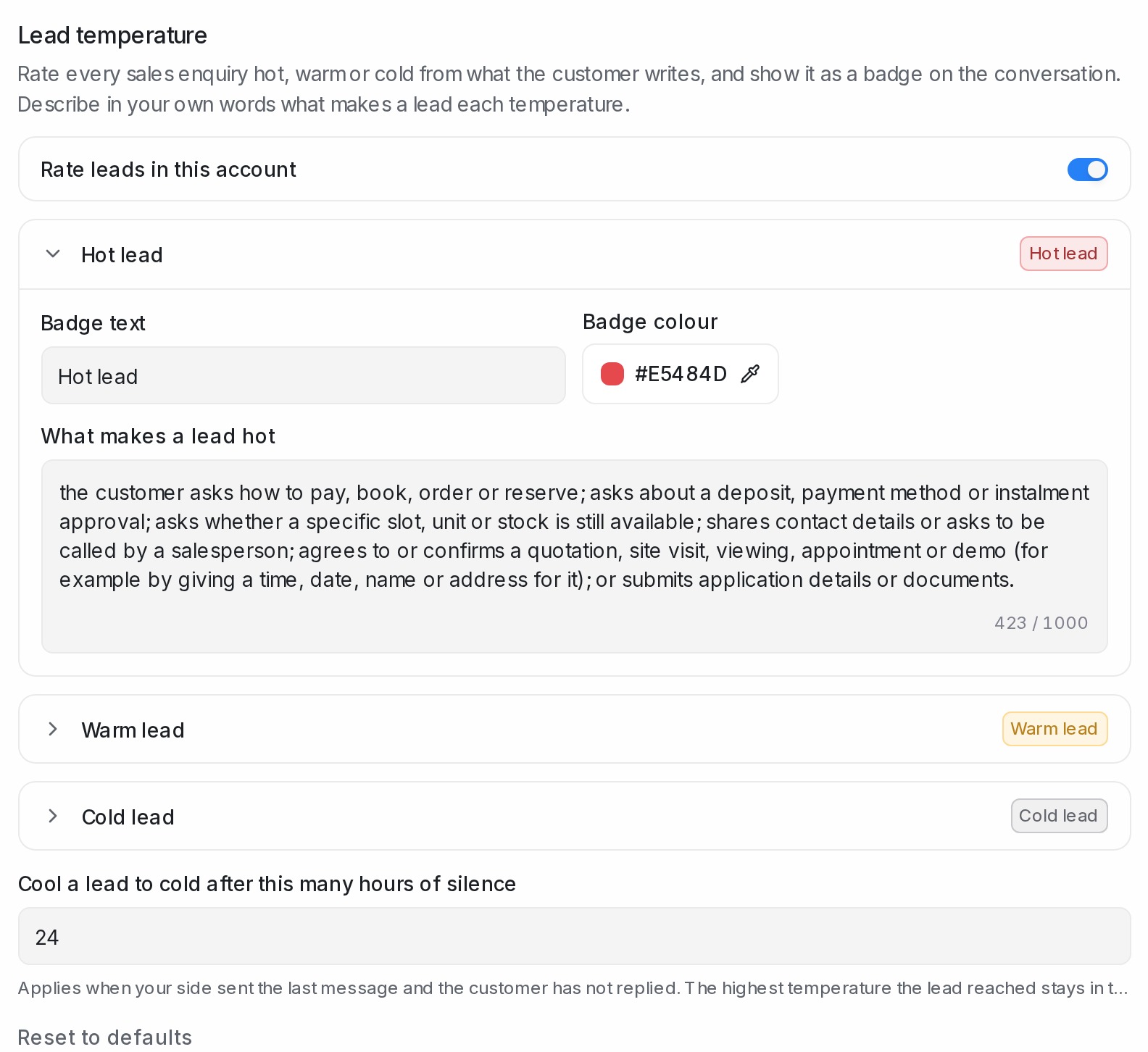
The built-in descriptions cover common sales signals: asking how to pay or about a deposit is hot; asking about price or dates, or discussing with family, is warm; a greeting with no real question is cold. Replace them with what matters in your business. A travel agency might write:
- Hot — asks about the deposit, asks how many seats are left, or confirms a departure date.
- Warm — asks for the price or the itinerary, or says they are discussing it with family.
- Cold — only says hello, or received the itinerary link and did not reply.
Click Save changes when you are done, or Reset to defaults to go back to the built-in text and colours. Recent conversations are rated again with your new descriptions.
Adding your own categories
Hot, warm and cold are only the starting ladder. Click Add category to add a rung of your own — say “Ready to sign” for customers who ask for the payment link — then give it a badge text, a colour and a description like any other card. Move up and Move down place it on the ladder; the rungs run hottest first, and Cold always stays the lowest step, where quiet leads land. You can add up to five categories of your own. Delete one you no longer need and the conversations rated on it are re-rated on the remaining categories.
Chats that are not a lead
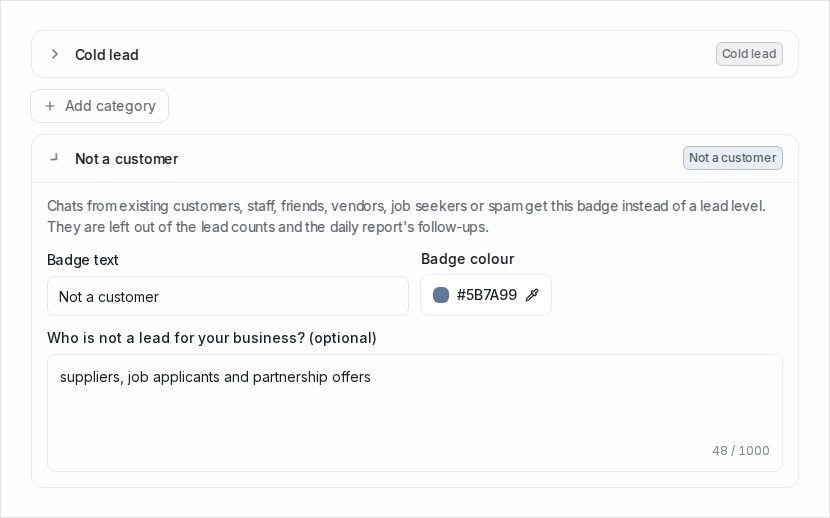
Some chats are not sales enquiries at all. These get a grey Not a lead badge instead of a category, and they stay out of the lead counts and the follow-up list:
- Existing customer — after-sales for something already paid for, such as a delivery, a pickup, support or a change to their account.
- Staff or personal chat — colleagues, friends, agent group chats, or your team testing the chat.
- Vendor, job seeker or spam — someone selling or offering something to your business (a supplier, an agency, a partnership or event offer), a job or internship applicant, an invoice or statement sent to you, a request for something you clearly do not sell, or a marketing blast.
Hover the badge to see which kind it is and why. A customer who only says hello, or sends one short message that could be about what you sell, is still a lead and gets your lowest category (Cold by default), not Not a lead.
The Not a lead card sits below your categories under Lead analysis. Expand it to change the Badge text and Badge colour, and to fill in Who is not a lead for your business? (optional): describe, in your own words, the chats that are never sales for you, for example “suppliers, job applicants and partnership offers”. Click Save changes. Your description is used together with the built-in kinds above, and a single message that could be about what you sell still counts as a cold lead.
How a lead is rated
- Only the customer’s own words count. What your team or your AI agent writes is context, not a signal.
- The pre-written message a customer sends by tapping an ad does not count as a signal, because they did not write it. The conversation is still rated, though: a customer who has only sent the ad’s message shows in your lowest category (Cold by default) with the note Opened the chat from an advert, until they write something of their own.
- A lead takes the highest temperature that any of the customer’s messages matches, so a customer who asks about the deposit is hot even if they also asked about the price.
- A customer who says no, “too expensive” or “maybe later” is rated cold. The badge remembers the highest temperature the lead reached, so you can still see that it was a warm or hot lead before.
Cooling down after silence
A lead that stops replying should not stay hot forever. Move a quiet lead to “Cold lead” after this many hours of silence sets how long to wait, from 1 hour to 720 hours (30 days); the default is 24 hours. The name in quotes is the badge text of your Cold card, so it follows you if you rename that category. It applies when your side sent the last message and the customer has not replied since. The lead drops to Cold, your lowest category, and the badge tooltip keeps the highest category the lead reached.
Why a lead went cold
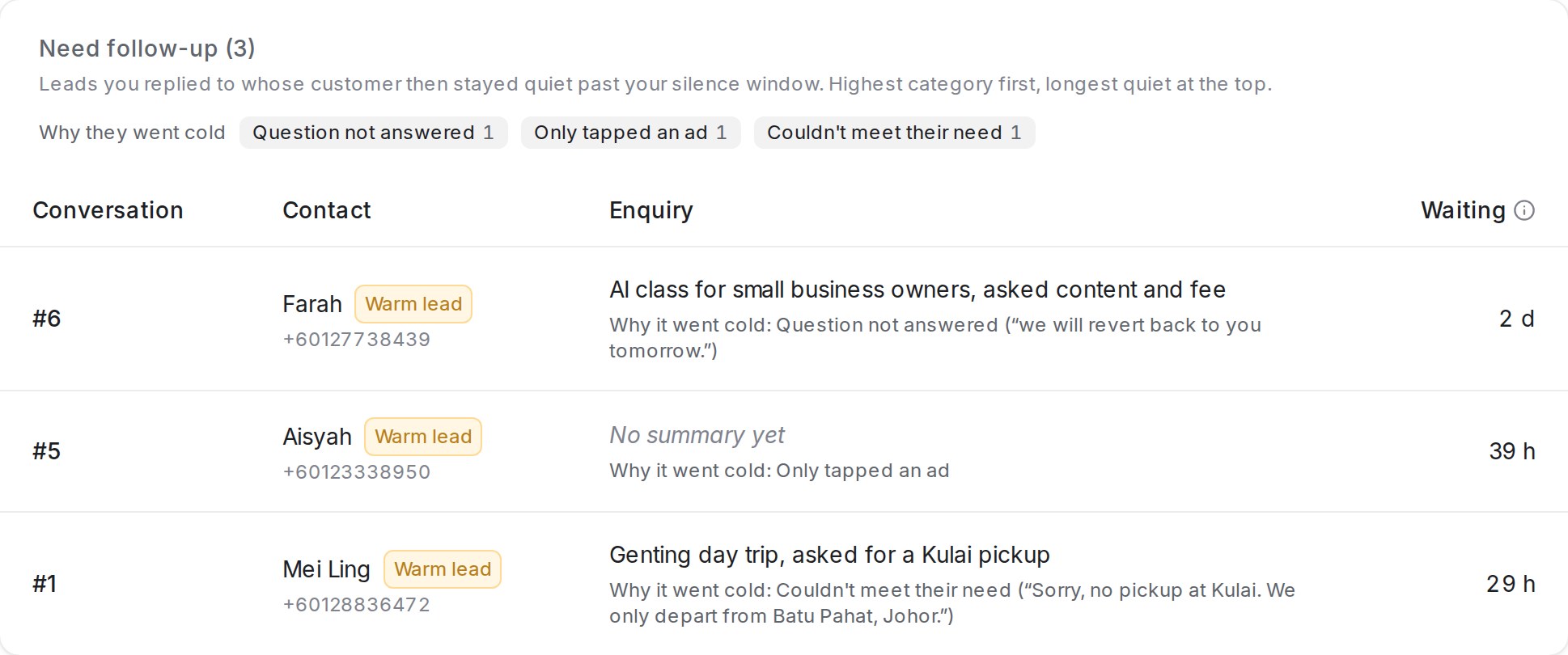
When a lead goes quiet past your silence window, or the customer says no, AI Monitoring reads the chat once more and picks the most likely reason it went cold from your list of reasons. It quotes the line from the chat that shows it, so you can check the reason at a glance. The reason appears in the badge tooltip, for example Why it went cold: Couldn’t meet their need (“Sorry, no pickup at Kulai”), and in the daily lead report.
The built-in reasons are:
- Couldn’t meet their need — your side said no or cannot to something the customer needs: their area or pickup point, a date that is full, their group size, or a condition they questioned.
- Price — the customer got a price and went quiet, said they will think about it, or said it costs too much.
- Details never sent — your side asked for details (a date, the number of people, a name) and the customer never sent them.
- Booking not completed — the customer was choosing a time slot or had booked one, then did not confirm, could not get their time, or did not show up.
- No decision after demo — the customer attended a demo or meeting and has not decided since.
- Not now — the customer said not now, will decide later, or is only looking.
- Went elsewhere — the customer said they already booked or planned with someone else.
- Moved to a call or another number — your side took the conversation elsewhere, such as a phone call or another WhatsApp number.
- Question not answered — the customer asked something, or your side promised to get back to them, and nothing from your side answered it or followed up.
- Only tapped an ad — set automatically when the customer only tapped an ad or a menu option and never wrote anything of their own.
- No clear reason — your side answered and nothing in the chat explains why the customer stopped.
A reason is only given when a line in the chat supports it. When nothing does, the lead gets No clear reason instead of a guess. If the customer writes again, the lead is rated afresh and the reason clears; if it goes cold again later, it gets a new reason.
Changing the reasons
- Open Settings → AI Monitoring, scroll to Lead analysis and find Why leads went cold, below the silence window.
- Expand a reason to change its Reason name, or the description under When is it “…”?: in your own words and in any language, when does this reason apply?
- Click Add reason to add a reason of your own, for example “Casino chips required” for a tour agency whose Genting trips need them. Delete a reason that never applies to your business.
- Click Save changes.
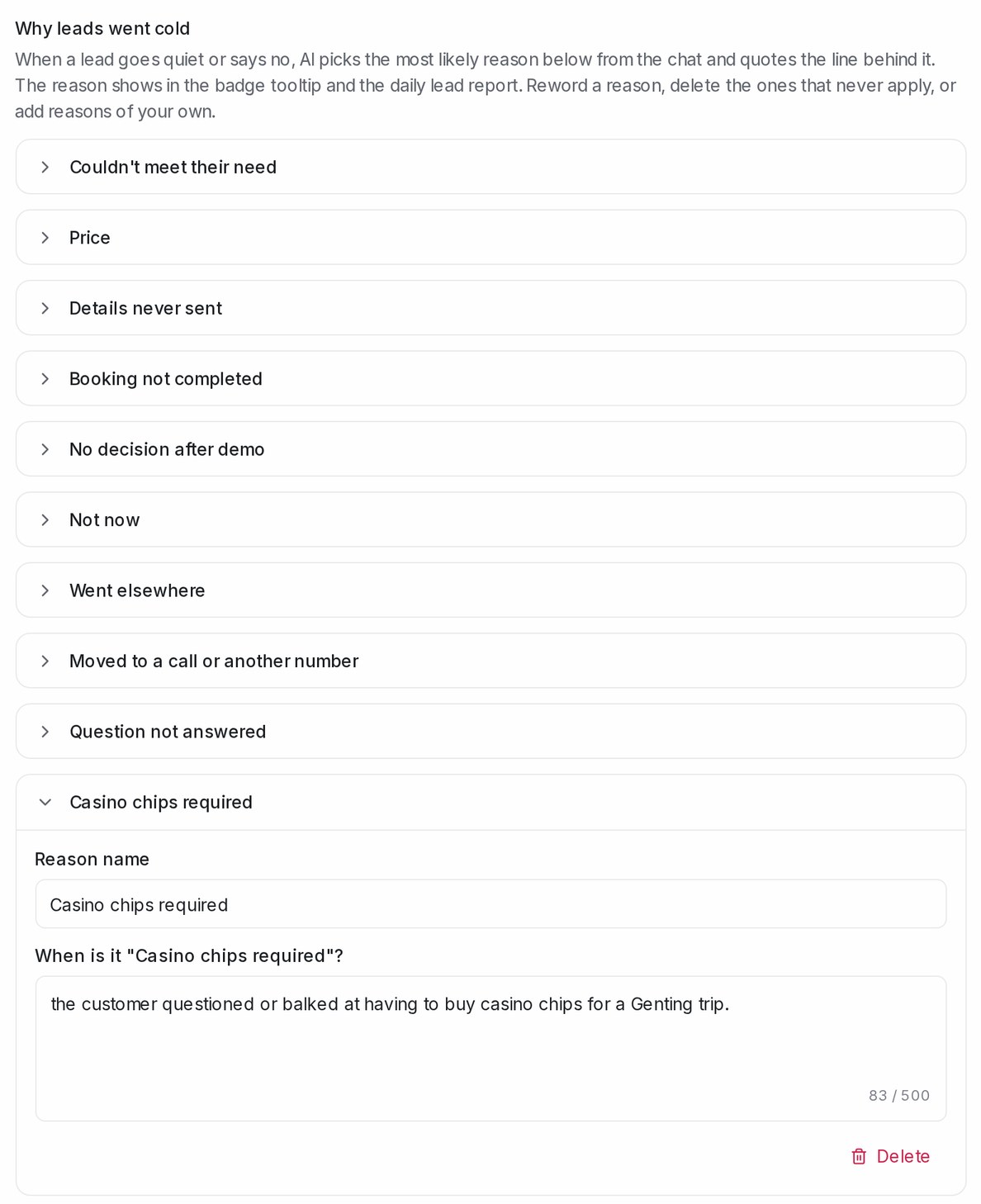
You can have up to 14 reasons. Only tapped an ad and No clear reason are always kept. When you delete a reason, the leads from the last 30 days that carried it are explained again with your updated list. Reset to defaults restores the built-in reasons along with the built-in categories.
Daily lead report
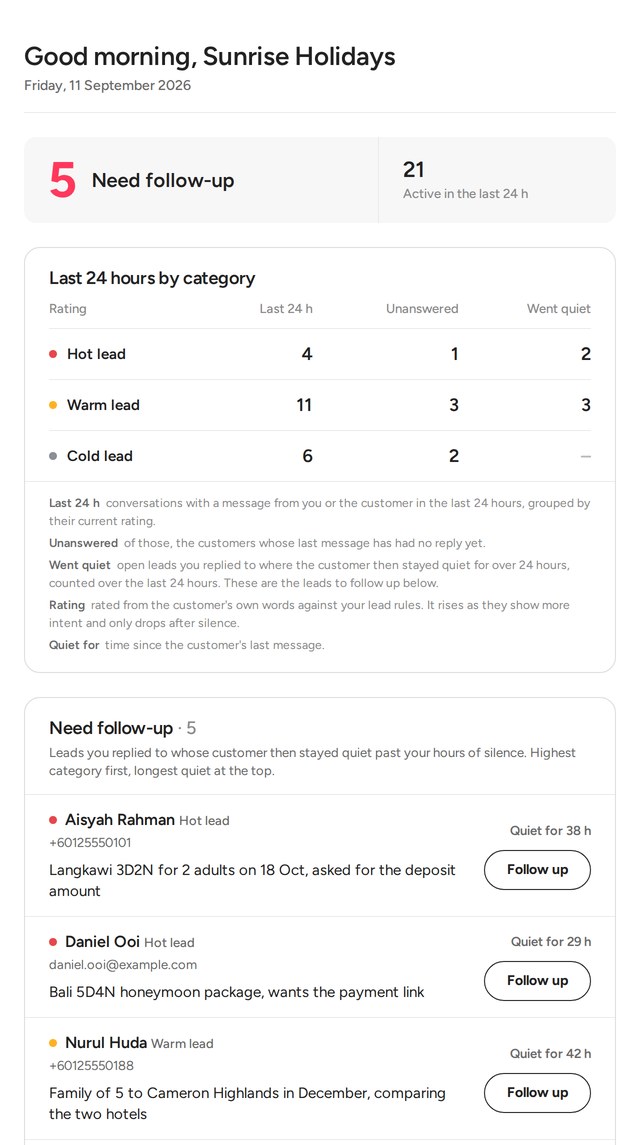
Every morning at 8:30 (Malaysia time), the administrators of your account receive an email that turns the badges into a work list, and the same report is kept under Reports → Leads so you can look back at any day. Everything in it is about the last 24 hours. It covers the same conversations as the badges: every conversation in the inboxes AI Monitoring watches, whoever replied, including customers who only tapped an ad, who count in the lowest category.
The email greets you with the number that matters most in the morning: how many leads need a follow-up — the leads you replied to whose customer then stayed quiet past your silence window. Next to it, how many conversations were active in the last 24 hours. Below it:
- Last 24 hours by rating — one row per category, in ladder order and marked with its badge colour, and three numbers: Last 24 h, the conversations that had a message from you or the customer in the last 24 hours; Unanswered, of those, the customers whose last message has not been replied to yet; and Went quiet, the open leads above Cold you replied to whose customer then stayed quiet past your silence window. A short legend under the table explains each number in plain words, using your own silence window. The subject line carries the follow-up count and the day’s activity of every category above Cold. A last row, Not a lead, counts the chats that were not sales enquiries and were active in the last 24 hours; it has no unanswered or quiet count, because nobody follows those up.
- Need follow-up — the leads that went quiet, highest category first and the longest quiet at the top. Each row shows the category the lead fell from, the customer’s name with their phone number or email (or the contact ID when neither is known), a one-line summary of what they asked for in the words of your own descriptions (for a travel agency, the itinerary and the number of travellers), how long they have been quiet, why the lead went cold with the line from the chat behind it, and a Follow up button that opens the conversation. Above the list, Why they went cold counts the day’s quiet leads by reason. The email shows up to 25 leads; Open the report takes you to the full list.
Looking back at past reports
Reports → Leads keeps every morning’s report. Use the arrows or the day list to step through the days; each one shows the same follow-up count, the scoreboard (hover the ⓘ next to a column to read what it counts) and the complete follow-up list, every lead linked to its conversation. The button in the email opens that morning’s report directly. Reports built before this change keep their original To chase today list.
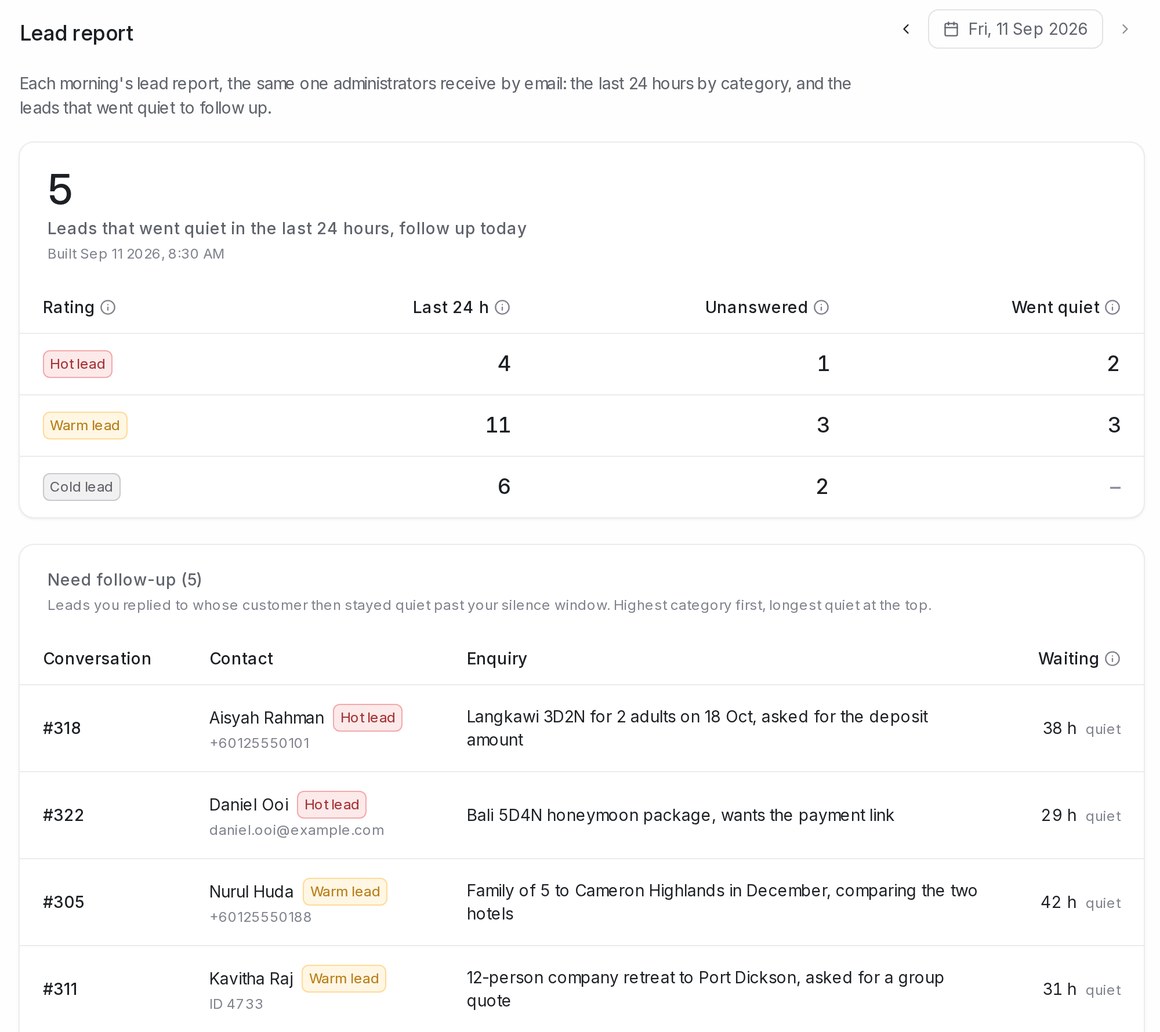
Reports are kept from the first morning after lead temperature is switched on, even for accounts that turned the email off. Earlier days cannot be rebuilt, because the numbers describe the moment each report was built.
The report uses the badge text and colours you chose for each temperature. It is on whenever lead temperature is on; to stop the email while keeping the badges and the report page, switch off Email administrators a daily lead report under Settings → AI Monitoring → Lead analysis and click Save changes.
A customer who says no also gets a reason on their badge, but the follow-up list only shows leads that went quiet. A lead only goes cold when you replied and the customer went quiet. A customer you have not replied to stays at their temperature; the report counts them as unanswered on the morning after they wrote, and your inbox keeps showing them until someone replies or resolves the conversation.
Lead temperature is part of AI Monitoring and is included on higher plans.