
Assignment decides whose queue a conversation lands in. An assigned conversation shows up under that person’s Mine tab and in their My Inbox; an unassigned one waits under Unassigned for anyone to pick up.
Watch the walkthrough
From the details panel
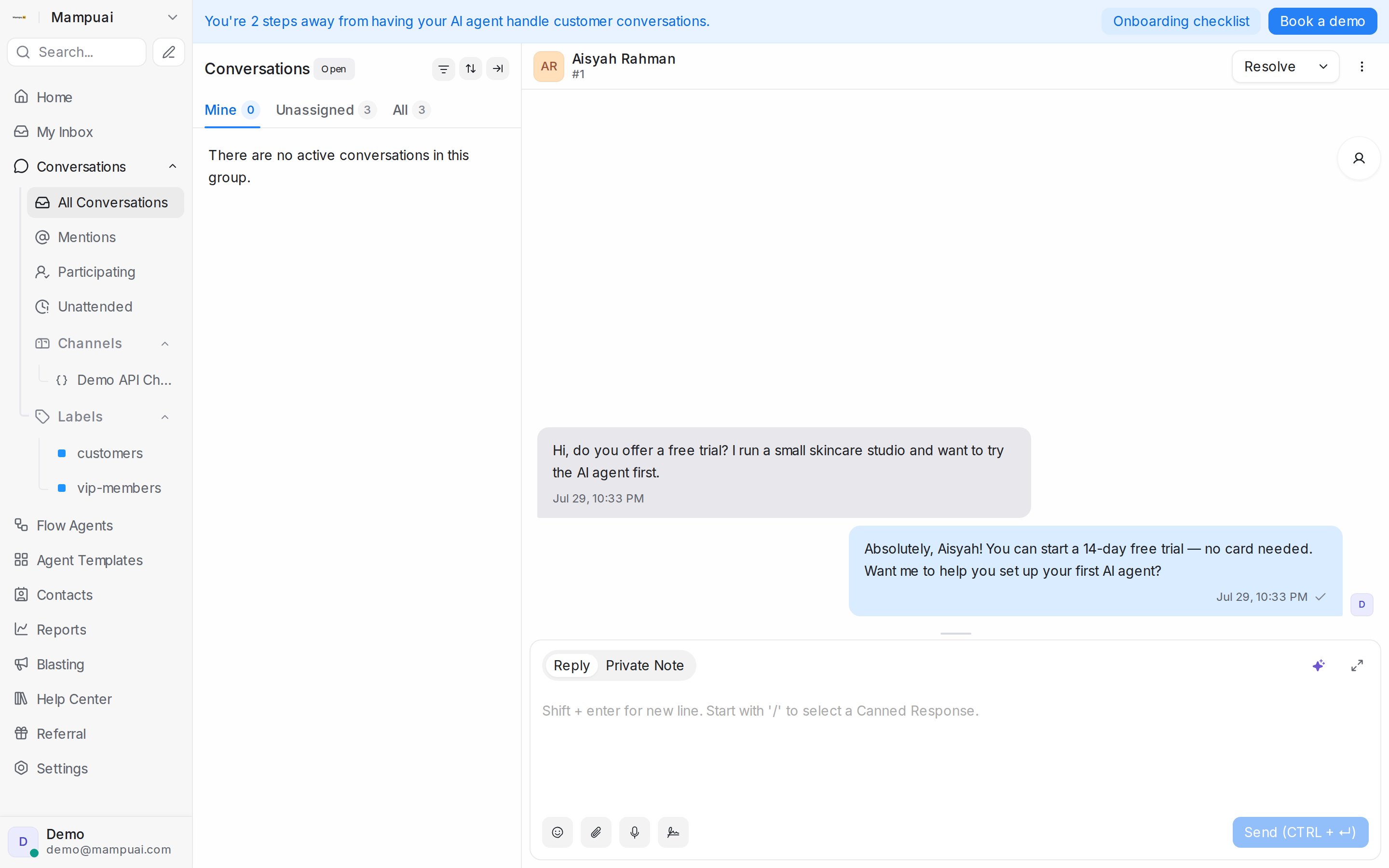
Open the conversation and look under Conversation Actions on the right:
- Assigned Agent: pick a teammate from the list, or click Assign to me to take it yourself.
- Assigned Team: route to a group such as Sales or Support. Pick None to clear it.
You can reassign at any time as the conversation evolves, and the conversation gets an activity line saying who changed it.
From the list
Right-click a conversation and choose Assign agent or Assign team to route it without opening it. To route many at once, tick the conversations and use Assign agent or Assign team in the bar at the bottom of the list. Choosing None there unassigns them all; you confirm first.
Participants
A conversation can involve more than one teammate. In the details panel, expand Conversation participants and click Select participants. Everyone added sees the chat under their Participating folder, and a teammate you mention with @ in a private note is notified and added too.
Automatic assignment
New conversations are handed to an agent automatically when the inbox has agents, online or offline, and automation rules can assign on conditions you set. See Automatic conversation assignment to switch this per inbox or change who is eligible, and Labels, attributes and automation for rules.