
The sidebar on the Conversations screen groups chats so your team can stay focused. Each entry is a ready-made view; click one and the list on the right shows only those conversations.
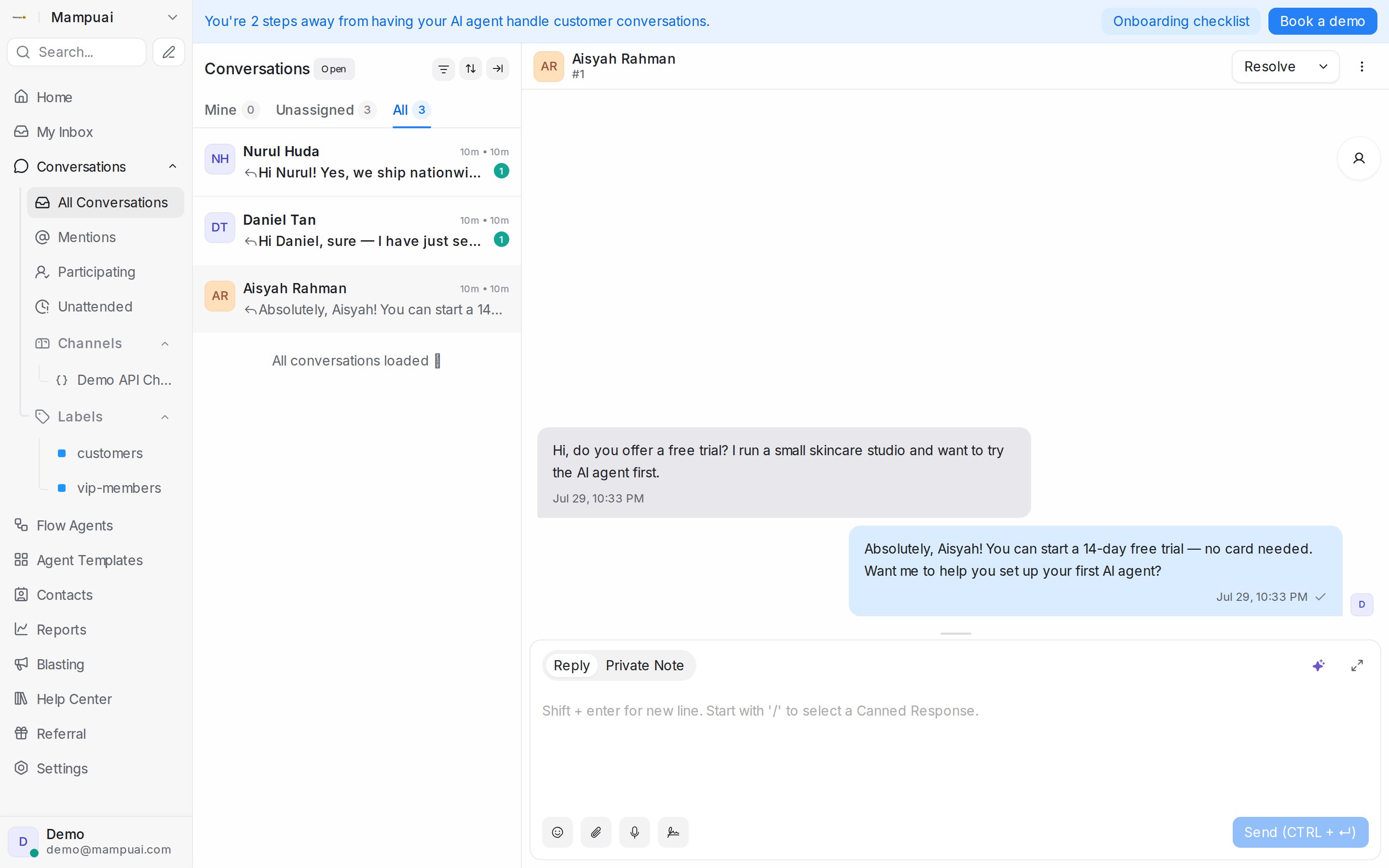
The built-in groups
- All Conversations: everything across your connected inboxes.
- Mentions: chats where a teammate mentioned you with @ in a private note.
- Participating: chats you have joined or replied to.
- Unattended: chats still waiting for a first response from your team.
Groups that come from your setup
- Folders: the filters you saved. See below.
- Teams: one entry per team, showing the conversations assigned to it.
- Channels: one entry per inbox, so you can work one WhatsApp number or page at a time.
- Labels: one entry per label that is set to show on the sidebar.
Hover over a group’s heading and click the sort icon to order its entries by Newest first, Oldest first, Ascending (A - Z) or Descending (Z - A). Collapse a group you do not use by clicking its heading.
Saving a filter as a folder
- Click Filter conversations above the list and build your conditions, for example Status Equal to Open AND Labels Has any of VIP.
- Click Apply filters. The list updates and a Save icon appears next to the filter icon.
- Click it, name the folder, and Save filter. The folder appears under Folders for everyone in your account.
With a folder open, the icons above the list change to Edit folder and Delete filter. See Filter conditions and operators for what each condition means.
Inside a group
Within any group, the Mine / Unassigned / All tabs filter by ownership, Status behind the sort icon narrows to Open, Pending, Snoozed, Resolved, Spam or All, and Unread keeps only conversations with customer messages you have not read.