
Chat analysis reads the latest conversations your team already answered in one inbox and groups them into intents: the reasons people get in touch. Nothing is built or changed until you ask for a draft.
Start an analysis
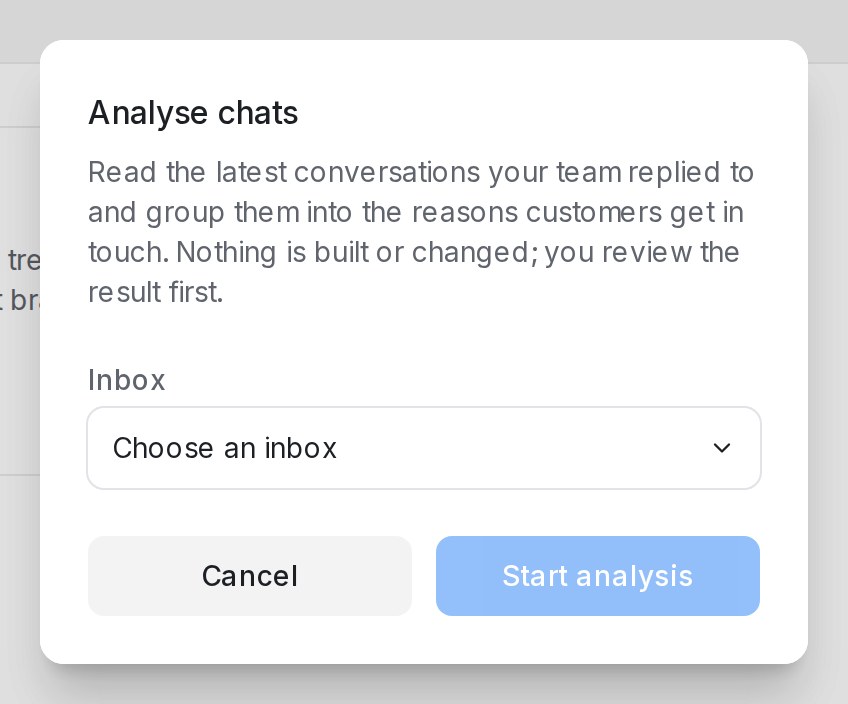
- Open Flow Agents and click Analyse chats.
- Pick the Inbox. The dialog shows how many recent conversations with a team reply qualify.
- Click Start analysis.
Only conversations a person on your team replied to are read. The first run reads the latest 30. You can leave and come back: Open the latest analysis of this inbox takes you to the last result.
Read the map
When the analysis is Ready, the top of the page counts Conversations read, Intents found, Left out as noise, any that could not be read, and the Languages used. Each intent is a card:
| On the card | What it shows |
|---|---|
| Share of the sample | For example 12 of 30 conversations |
| How customers put it | Real phrasings from the chats |
| Your team usually asks for | Details your team collects for this request |
| How your team usually answers | The typical reply |
| Open conversation #… | Each conversation behind the intent |
Below the cards, Conversations read lists every chat with its language and outcome: Answered, Handed to the team, Booked, No reply or Unclear. Chats that were not real requests are marked as noise: Another business’s message, Automated reply, Spam or Too short to tell.
Hide from the map drops an intent you don’t want in the agent; Show again brings it back.
Widen or rerun
- Widen to 40 conversations (then 50) reads more history and redraws the map.
- Run again starts a fresh analysis of the same inbox, for example after a busy month.
Turn the map into a draft agent
Click Draft agent. You get a draft flow agent built around the main reasons customers write in, or a menu when the reasons are spread out. Smaller intents become FAQ drafts in AI Knowledge; hidden intents are left out. Open draft agent opens it in the designer.
The draft is connected to no inbox and answers nobody until you publish it. Check it in the Playground, and approve the FAQ drafts under Review FAQ drafts; see Managing AI Knowledge.
When something goes wrong
| Message | What to do |
|---|---|
| No intents came out of these conversations | Widen the sample or pick a busier inbox |
| The analysis stopped before finishing / The draft could not be written | Run it again a little later |
| Chat analysis is not available for this account yet | The feature is not on for your plan |