
Once a calendar is set up, there are three ways appointments get booked — and one place to see them all.
Watch the walkthrough
Three ways to get booked
- Your AI agent books in chat — during a conversation, the agent offers real available slots from your calendar and books the one the customer picks.
- Customers book themselves — every saved calendar has a public booking page. Click Copy booking link in the calendar’s settings and share it anywhere; customers pick a time that works for them, in their own time zone. Choose an inbox for public bookings so each booking also opens a conversation with that customer — booking messages and reminders then work automatically.
- Your team books manually — from the Schedule view.
Reschedules and cancellations handle themselves
Every confirmation includes a personal manage link — a short URL that fits on one line in a chat — where the customer can reschedule or cancel on their own. Your calendar stays accurate without any back-and-forth.
When one of your agents agrees a new time or a cancellation in the chat itself, an automation rule can move or release the booking for them — see Updating a booking when an agent reschedules.
If the booked team member has connected Google Calendar, bookings can include a Google Meet link so video appointments are ready to join.
The Schedule view
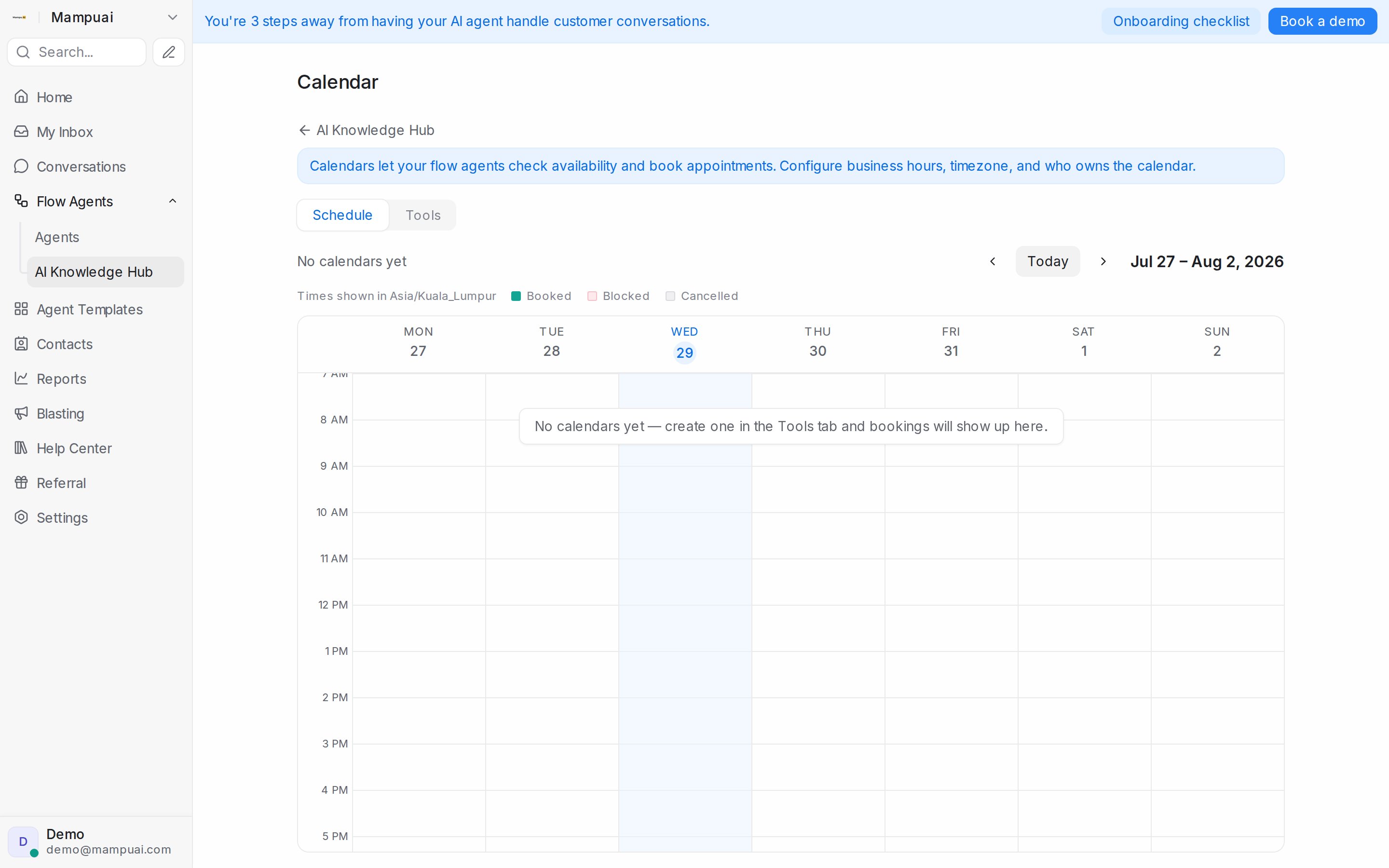
Flow Agents → AI Knowledge Hub → Calendar opens the Schedule tab: a weekly view of every appointment across your calendars, colour-coded as Booked, Blocked, or Cancelled, in your calendar’s timezone. Expand a booking to see its details — who it’s with, when, the customer’s phone number, and anything your flows collected.
Appointment details also appear in the conversation with the customer, so whoever picks up the chat has the full context.
Tip: pair calendars with Message Sequences to send automatic reminders before an appointment and follow-ups after it.
Choosing what a booking shows
Each calendar decides which extra details appear when you open one of its bookings in the Schedule tab:
- In Flow Agents → AI Knowledge Hub → Calendar, go to the Tools tab.
- Open the calendar’s menu, choose Edit, and expand Booking details.
- Tick the fields you want, then click Save. They are grouped as:
- Contact fields — Email, City, Company and Country.
- Contact attributes — any of your custom contact attributes.
- Flow answers — the variables your flows’ collect steps gather. This list stays empty until your flows have collected something.
Fields appear in the booking in the order you ticked them, each with a copy button. Values are read from the contact when you open the booking, so a correction made on the contact also shows on past bookings. A field with no value for that booking is left out.
Working in the Schedule
- Select an agent at the top to see one member’s week, including Team calendar · … entries for calendars they belong to. Today jumps back to the current week; times are shown in the timezone named above the grid.
- Block time marks time as unavailable for that person: pick the Day, Start, End and an optional Label. Blocked time is never offered for booking. Click a block and Remove block to free it again.
- Click a booking to see its Host, Phone, Meeting link with Join Meet, when it was Created, and Open conversation. Customer link is the private link the customer uses to change or cancel; Copy it to resend.
- Cancel booking cancels an appointment after you confirm. It stays on the grid crossed out with Cancelled by and your name, and the time becomes bookable again.
Connecting Google Calendar
Each member can connect their own Google Calendar from the Schedule tab with Connect Google. Once connected, their Google events show as Busy (Google) and block those times for booking, and new bookings appear in their Google Calendar. If access expires, the tab shows Google sync stopped with Reconnect; the member reconnects from their own login. Disconnect Google Calendar stops the sync.