
The Product tile in Flow Agents → AI Knowledge Hub holds your catalogue — the names, prices and details of everything you sell. Once it’s filled, your flow agents recommend real products with real prices whenever a customer asks — “do you have…”, “how much is…”, “which one is cheapest?” — in whatever language the customer writes, even when they misspell the product name.
Adding products one by one
Open the Product tile and click Add entry. Each product has:
- Product name — what the item is called, e.g. Widget Pro 2024.
- Description — a short description of what it is.
- Price and Currency.
- Year — the model year, e.g. 2025. Optional; when a customer names only a brand, the newest year is recommended first (see below).
- Remarks — specs and attributes, e.g. Color: Red, Aluminium.
- Photos & files — pictures of the item, or a spec sheet. Drop them in or click to upload, and drag them to set the order.
Put the details that tell similar items apart — colour, size, storage — in the name or remarks, and the model year in Year. That’s what lets the AI pick the exact variant when a customer is specific, and ask which one they mean when they aren’t.
Recommending the newest model first
When a customer names only a brand or a family — “do you have iPhone?”, “any Samsung?” — the agent leads with the matching products whose Year is the most recent, then the rest in their usual order. Fill the year in on your current models and they come up first; you don’t need to fill it in on every product.
Two things stay exactly as they are: a customer who names an exact model gets that model, and a customer who asks for the cheapest option gets the cheapest.
Importing your price list
For a bigger catalogue, click Data integration → Upload CSV/Excel and upload the file you already have — a CSV or Excel (.xlsx) price list exported from your POS or maintained in a spreadsheet. You don’t need to reformat it first:
-
Choose file — or click Download example CSV if you’re starting from scratch.
-
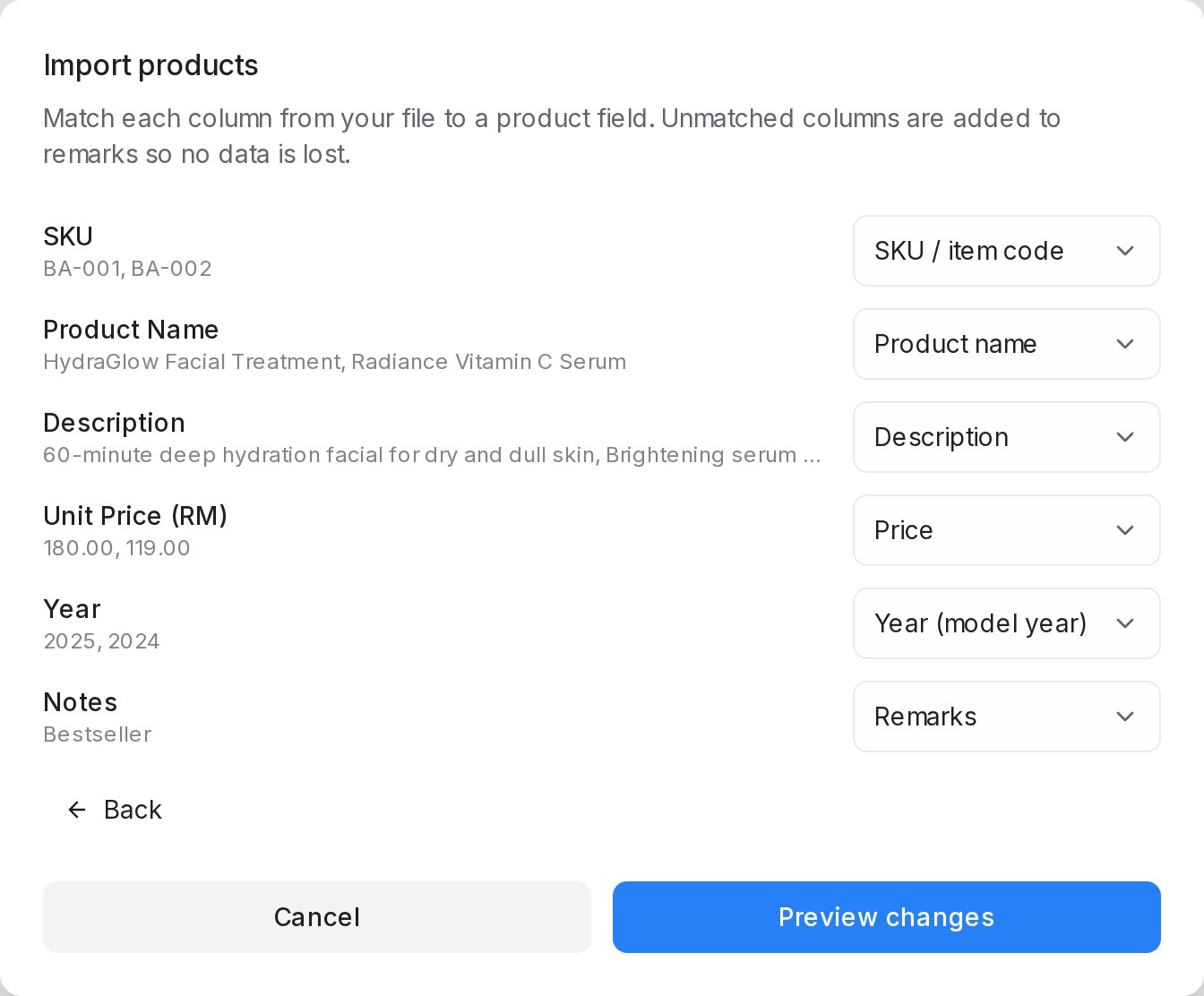
Match the columns. Each column from your file is matched to a product field — Product name, SKU / item code, Price, Currency, Year, Description, Remarks. The matching is guessed for you; anything unmatched is set to Add to remarks so no data is lost, and columns you don’t want can be set to Skip this column.
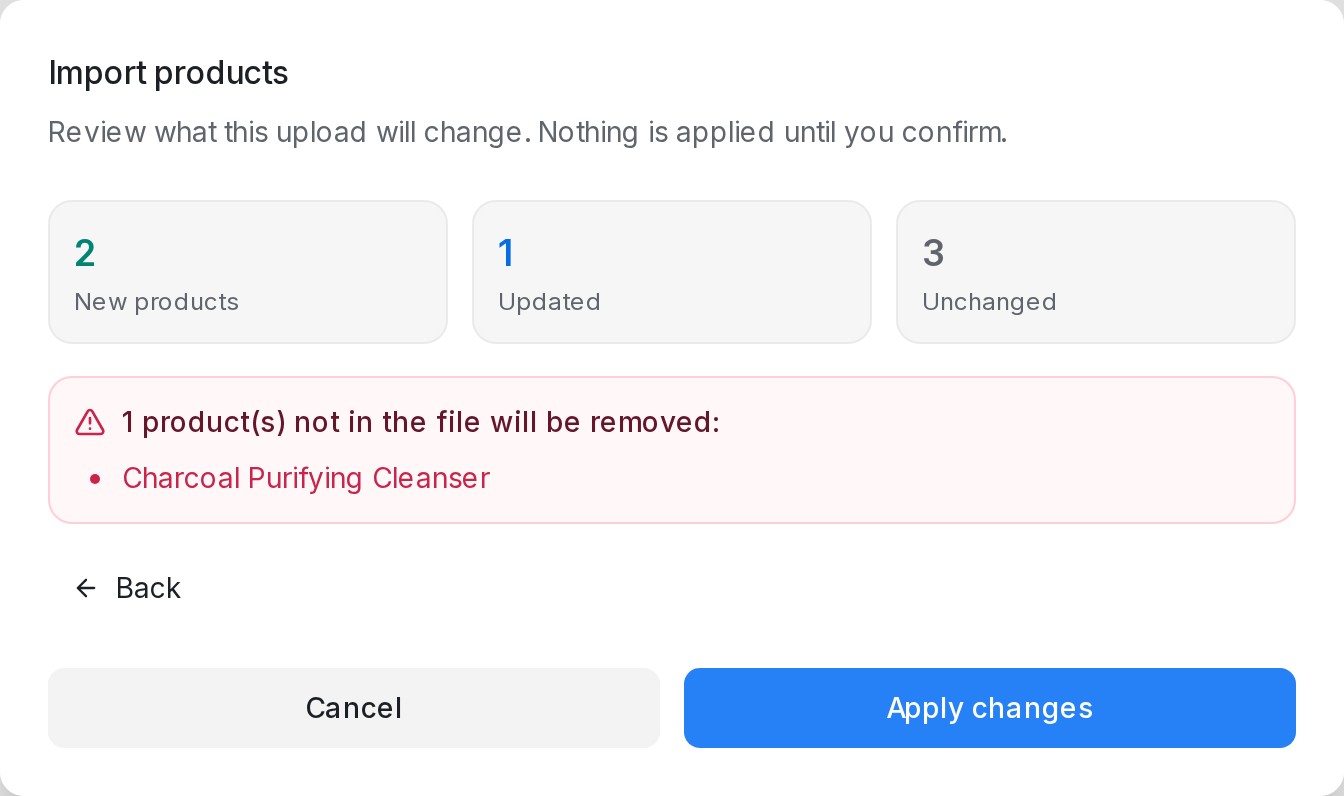
- Preview changes. Before anything happens, you see exactly what the upload will do.
- Apply changes. The import runs in the background — a notification tells you when it’s done, e.g. Product import finished: 24 added, 3 updated.
Prices can stay in your file’s own format (e.g. RM 3,299.00) — they’re tidied up on import.
Keeping the catalogue in sync
When prices change or new items arrive, just upload the latest version of the same file:
- Products already in the catalogue are updated in place.
- Products not in the file are left untouched — an upload only adds and updates.
- Nothing changes until you click Apply changes.
- A file without a Year column leaves the years you’ve set untouched.
Two tips for reliable syncing:
- Include a SKU / item code column. The SKU is how a re-upload recognises a product you’ve renamed. Without SKUs, products are matched by their exact name.
- Keep names unique (or use SKUs). If two rows share a name and have no SKU, only the first row is imported — the preview flags the rest under row(s) can’t be imported, with the row number, so you can fix the file.
Products from Shopify
When your Shopify store is connected (see Connecting Shopify), its products appear in the Product table next to the ones you add yourself. Only products that are active in your store come across.
In the table, each product from your store:
- carries a Shopify badge — hover over it to see what the sync keeps up to date;
- shows its store photo, like any product photo;
- shows a starting price (from …) when its variants have different prices, with the first few variants listed underneath — each with its price and stock (… in stock, Out of stock or Stock not tracked) — then +… more;
- has a link icon that opens the product page in your online store. A product that is not published to your online store shows a crossed-out link instead, since there is no link to send.
Open a product to see every variant under Variants (from your store), or click Open in your online store to go to its page.
What a sync changes and what it keeps:
- The name, description, price, variants and store photo are overwritten at every sync — change them in Shopify.
- Photos you add yourself stay.
- Descriptions come across in full, with their headings and lists kept as separate lines.
- A Shopify product can’t be deleted here — delete it, or set it to draft, in Shopify, and it leaves the catalogue at the next sync.
When your AI agent recommends a Shopify product, it sends the photo, quotes the price and stock of the variant the customer asks about, and can share the link to the product in your online store.
Switching a product off
Every row in the Product table has an On switch. Switch a product off when it is out of stock, discontinued for a season, or needs a price check before the AI agent should mention it again.
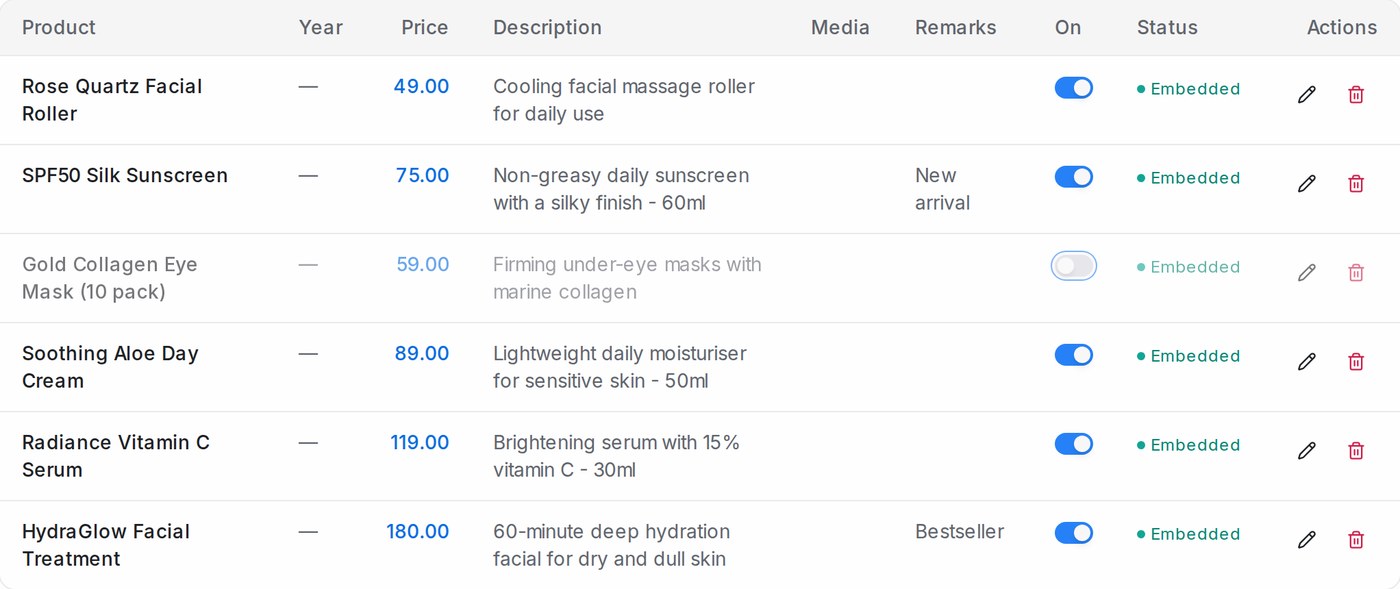
While a product is off:
- The AI agent leaves it out of recommendations, catalogue answers and order taking.
- The row stays in your table, greyed out, with its description, price and photos intact.
- A price-list upload or store sync never switches it back on. New products, typed in or imported, start switched on.
Switch it back on and the product is available again straight away.
Recommending products in a flow
You don’t have to change your flow at all — once the catalogue exists, agents answer product questions whenever customers ask them, then carry on with the flow.
When an agent answers this way, the photos attached to the products it recommends are sent right after its reply — only for the products it actually named, so a customer asking about one item doesn’t receive your whole catalogue.
To recommend at a specific moment — say, right after asking what the customer is looking for — open the flow designer, select the step, and set Tool type to Product in the step’s Tool section. That step then recommends live from your product catalogue: real names and prices, based on what the customer needs. Optionally, set Search from variable to a variable that holds what the customer wants (e.g. product_need); leave it blank to search from the customer’s latest message. If the variable holds a yes/no answer rather than a product, the step searches the customer’s latest message instead. A step set up this way sends the product details as text.
Note: an OpenAI API key (added under Settings → Integrations → AI Providers) is required for the AI to search and use your catalogue.
Showing only the products that match
A product search always returns the closest products in your catalogue, even when none of them is what the customer asked for. To leave those out, open the step’s Tool section and set Which products to use:
- Closest products from the search (the default): the step uses the closest matches, even when some aren’t what the customer asked for.
- Only matching — hand off if none: the step keeps only the products that are what the customer asked for, including the right fit or model. A side mirror made for another car model, for example, is left out. Each product is checked against what the customer said and the answers they already gave, such as their car model.
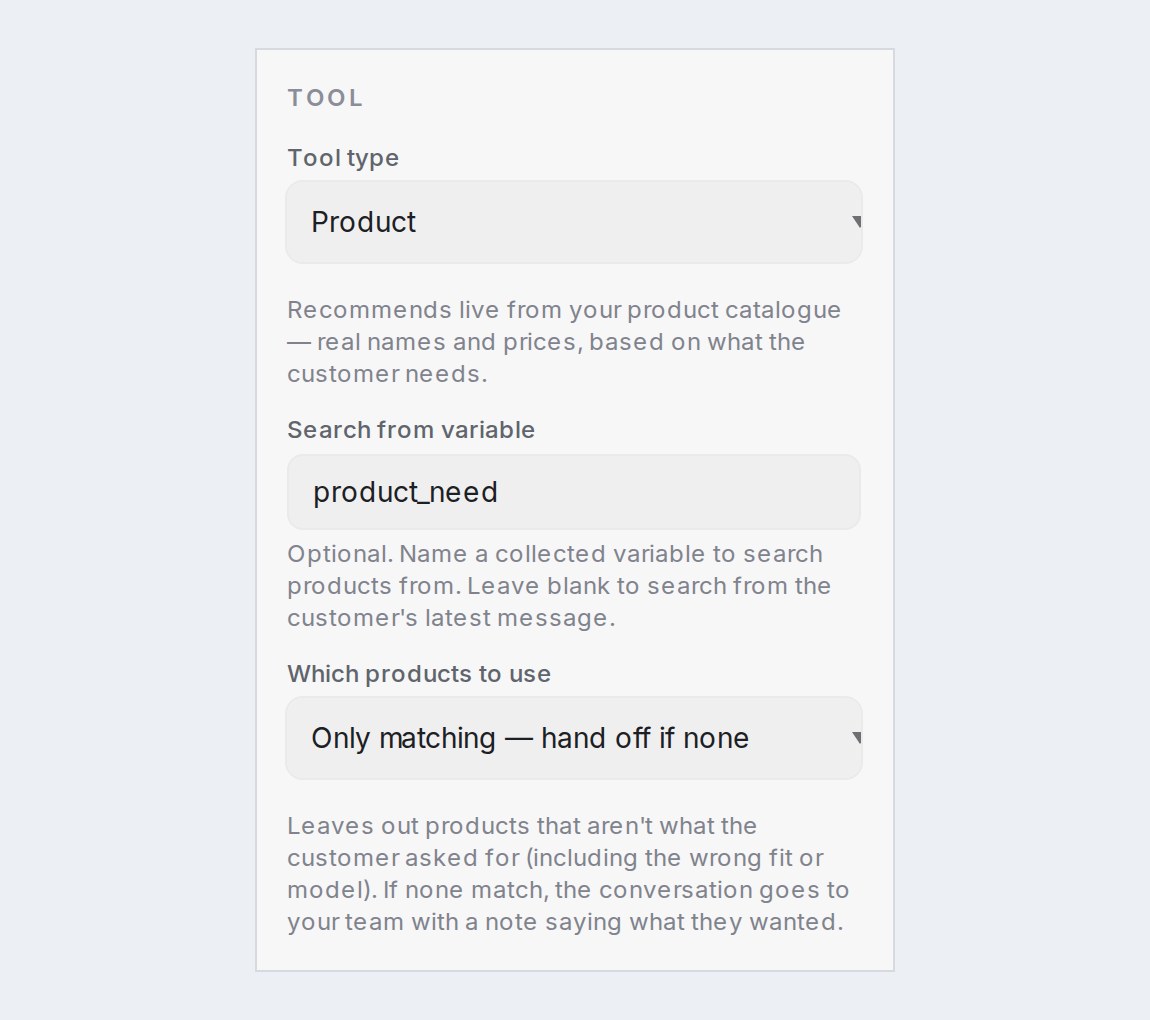
When no product matches, the customer is told the item couldn’t be found in your catalogue and that a teammate will check it. The conversation goes to your team, with a private note saying what the customer asked for. The same happens if your catalogue can’t be searched at that moment.
AI Task steps that use the product tool have the same option, as Only matching products. The task then works only with the matching products, and a later step that shows the same search does too. If none match, the task gets “No matching products found.” so the next branch in your flow can decide what happens, for example hand the customer to your team.
You can also ask the flow designer. “Only show products that actually fit what the customer asked for” turns it on for the steps that pick and show products; “Show the closest products again” turns it off. Flows the designer builds use the closest products unless you ask. If your flow opens in the chat designer, choose Switch to classic view to open a step’s settings.