
Click the person icon at the right edge of a conversation to open the Contact panel; × closes it. Expand a section with +, and drag sections up or down to put your favourites first.
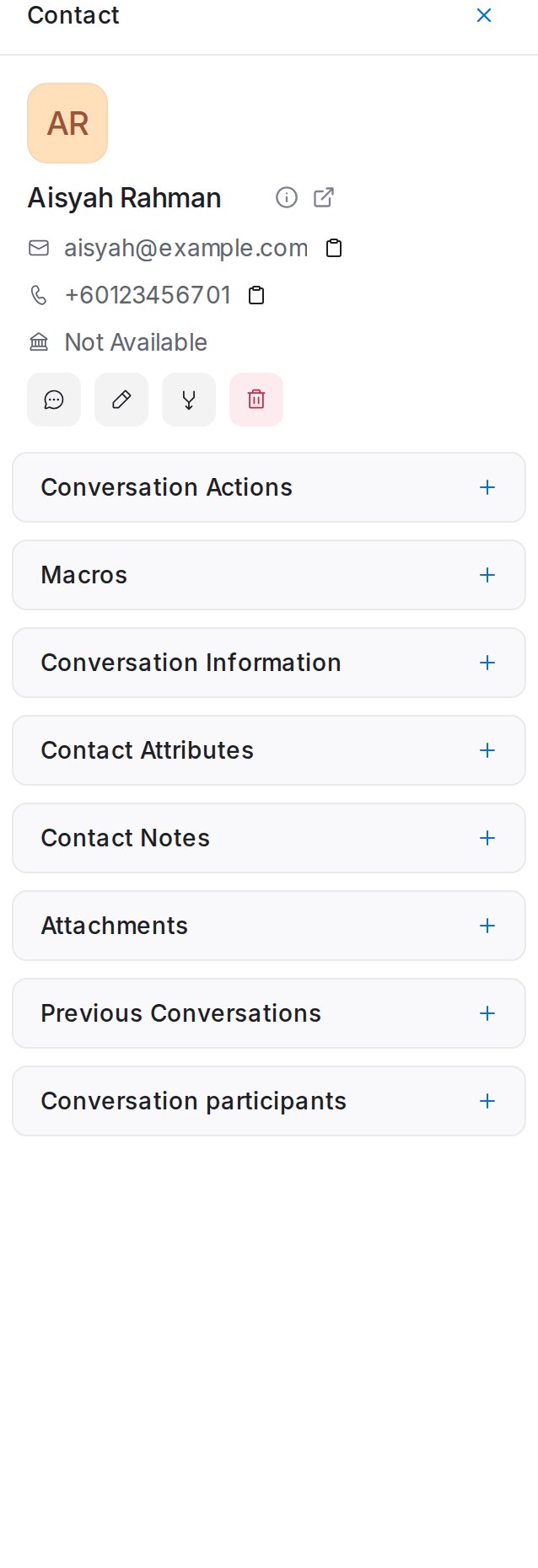
The contact card
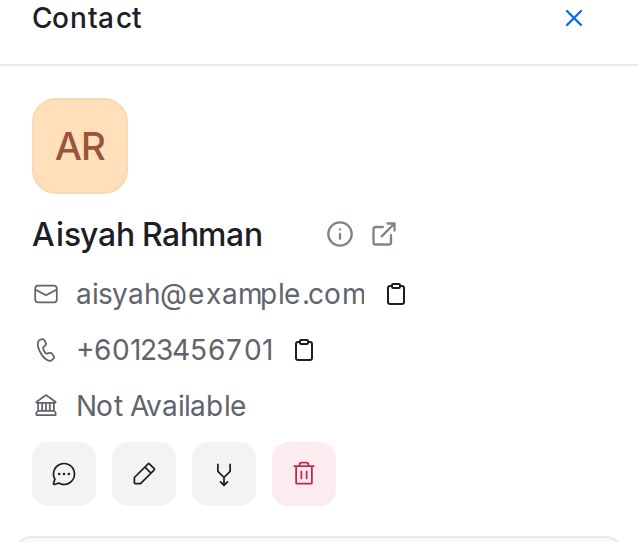
Name, Email Address, Phone number (each with a copy icon) and Company. The info icon shows more details; the arrow opens the full profile. The four icons are:
- New message starts a fresh conversation with this person on one of your inboxes.
- Edit opens the contact form.
- Merge contact folds this contact into another one, for example the same customer who wrote from two numbers. See Viewing and editing a contact.
- Delete removes the contact. Administrators only.
Accounts with a voice inbox also get Call.
Conversation Actions
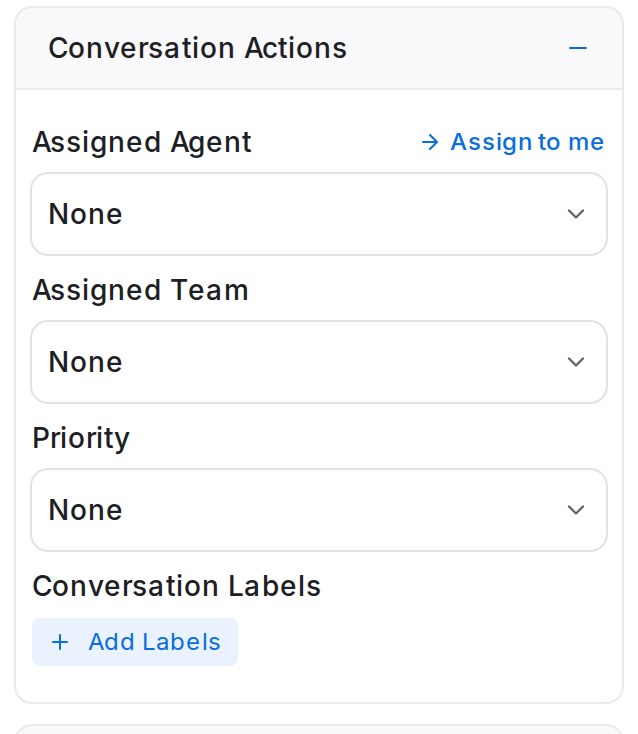
- Assigned Agent: pick a teammate, or click Assign to me.
- Assigned Team: route to a team such as Sales. Pick None to clear it.
- Priority: None, Urgent, High, Medium or Low.
- Conversation Labels: Add Labels to tick labels, or type a new name and choose Create new label. These label the conversation; the contact’s own labels live on the contact page.
See Assigning conversations to agents and teams and Labels, priority and status.
Conversation participants
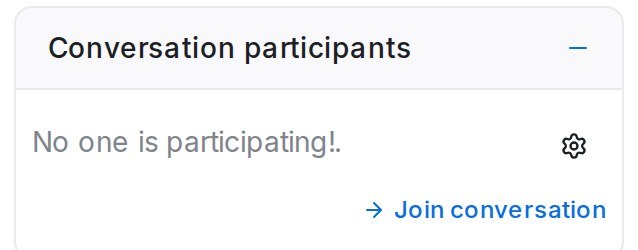
Teammates following this chat besides the assignee. The gear icon (Select participants) adds someone; Join conversation adds you. They see the chat in their Participating folder.
Macros
Your saved macros: Execute runs one on this chat, Preview Macro shows its steps first. Set them up under Settings → Macros. See Canned responses, macros and bots.
Conversation Information
Where and when the chat started (Initiated from, Initiated at); for website chats the Browser, Operating System and IP Address; for customers from a Facebook or Instagram ad, Came from, Ad headline and Ad link.
Contact Attributes
Your contact custom attributes and this person’s values. Click a value to change it. See Custom attributes and notes.
Contact Notes
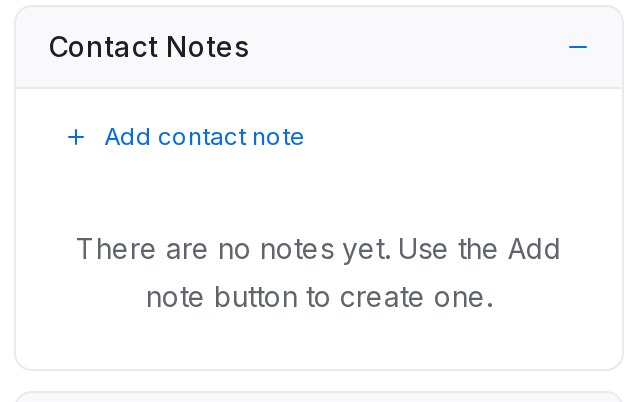
Notes about the person, shown on every conversation with them. Click Add contact note, type, and click Save note.
Attachments
Files from this chat, split into Media and Files: View all, Jump to message or Download file.
Previous Conversations
Every other conversation with this contact, newest first. See Seeing a customer’s history across channels.
Sections that appear when a feature is on
- AI Reply Score: when AI Monitoring scores your team’s replies, the latest score out of 5 with its reason. See Agent Reply Quality report.
- Shopify Orders: the customer’s recent orders when your store is connected. See Connecting Shopify.
- Upcoming appointment: who the booking is with, when, and the meeting link. See Booking pages and the Schedule view.