
Articles are the pages of your help centre. Each one is a Draft until you publish it, and stays editable after that.
Watch the walkthrough
The article list
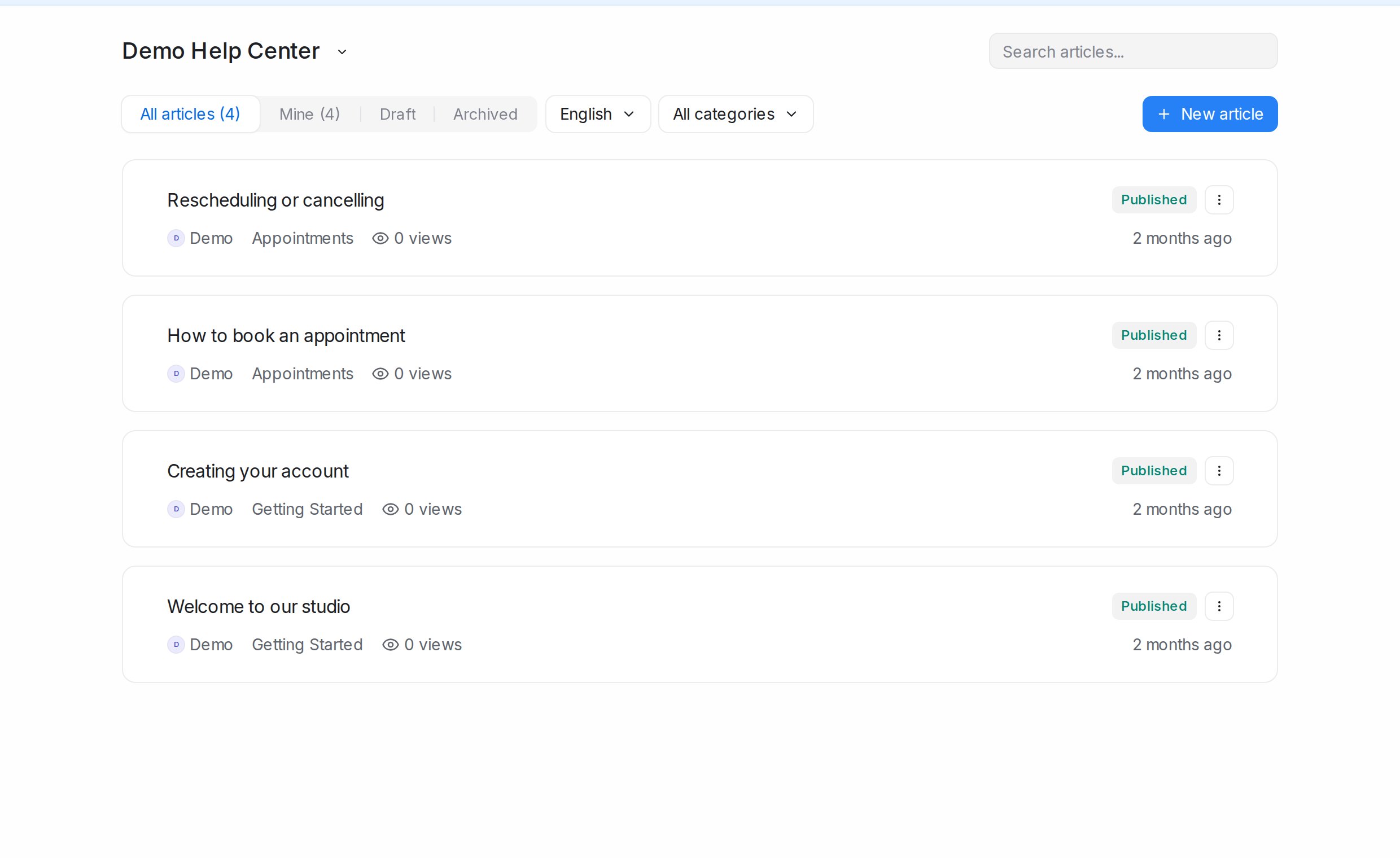
Help Center → Articles lists the portal’s articles in the language picked at the top (for example English), with tabs All articles, Mine, Draft and Archived, a All categories picker and Search articles…. Each card shows the status, author, category, view count and when it was last changed.
Writing an article
- Click New article.
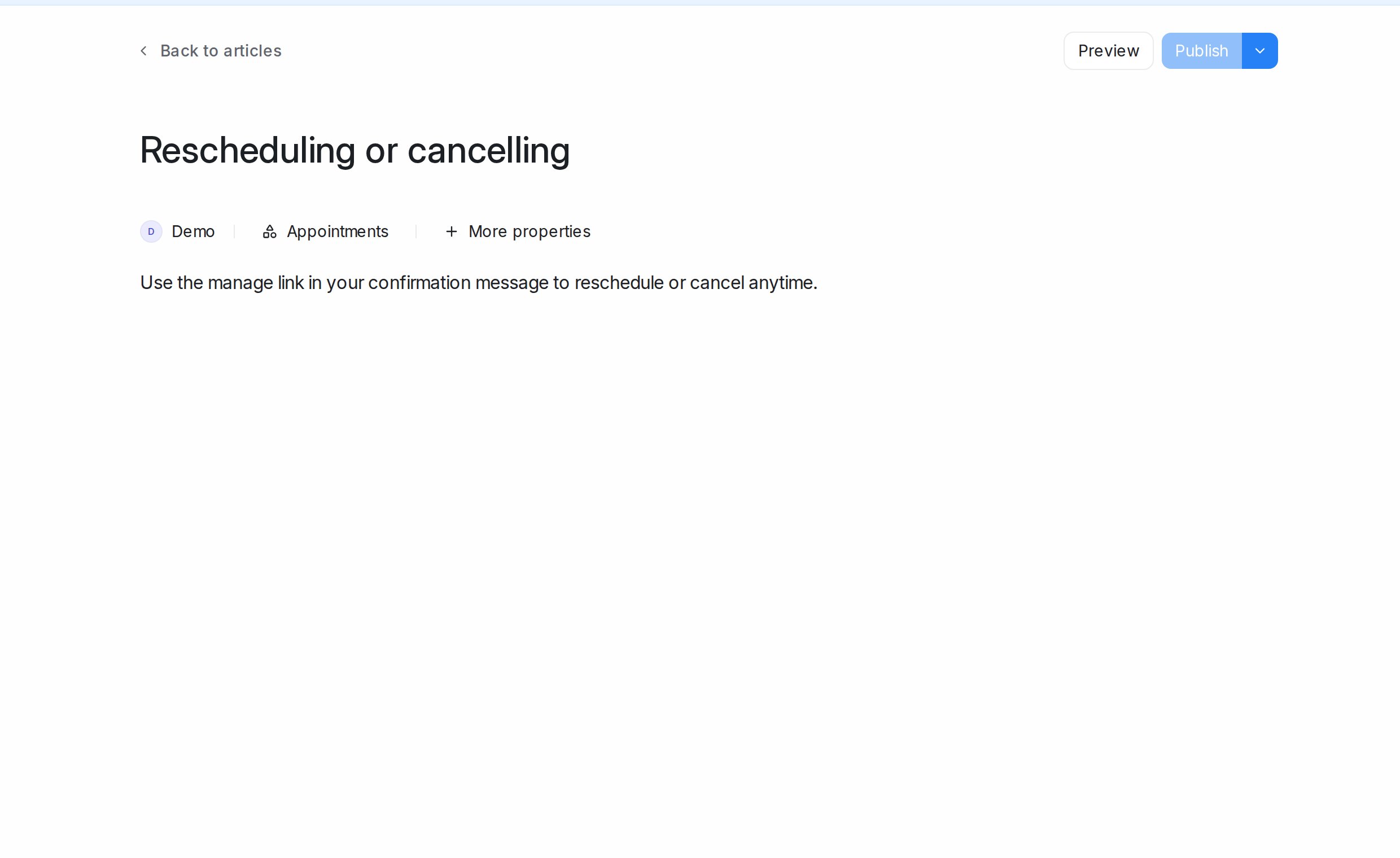
- Type the title, then the body. The editor handles headings, bold and italic, lists, links, quotes, code and images (Upload image, JPG or PNG).
- Beside the title, pick the Author and Category. More properties holds Meta title, Meta description and Meta tags, which search engines and link previews use.
- Preview shows the article as customers will see it.
- Click Publish. The article goes live on the portal straight away.
Changing a published article
Edits to a published article are kept aside until you are ready, so customers never see a half-finished change. The article card and editor show Unpublished changes (or Unpublished edits); open it to see what changed, then Apply changes to publish them or Discard changes to drop them.
Statuses
The ⋯ menu on each article card, and the bulk bar, set the status:
- Publish: live on the portal.
- Draft: hidden from customers while you work on it.
- Archive: taken off the portal but kept, for outdated pages you may need again.
- Delete: removed for good, after you confirm.
Many articles at once
Tick articles in the list to get a bar with Publish, Draft, Archive, Category (move them to another category), Translate and Delete. Select all and Clear selection are in the same bar. Articles with unpublished changes are skipped by status changes until you apply or discard their changes.
Translating
Translate on one article or on a selection creates a draft copy in another of the portal’s languages. Choose the Target language and, if you like, a Target category, then Translate. The translated drafts appear in that language’s list once ready; review and publish them like any article. If a translation already exists, you are asked to confirm Overwrite and translate.
AI article drafts from your approved FAQs
On accounts where it is switched on, Mampu AI writes draft articles overnight from the FAQs you approved in AI Knowledge. They arrive as drafts in your portal, and Home shows Review … AI article drafts until you publish, edit or delete them. Nothing is published without you.
See AI article drafts from your approved FAQs for how to review the editor notes and what happens when your FAQs change.