
A message sequence is a reusable set of follow-up messages that go out step by step — reminders, check-ins, nudges — each with its own timing and conditions. Where a blasting is one broadcast to many people at once, a sequence follows up with one customer over time, automatically.
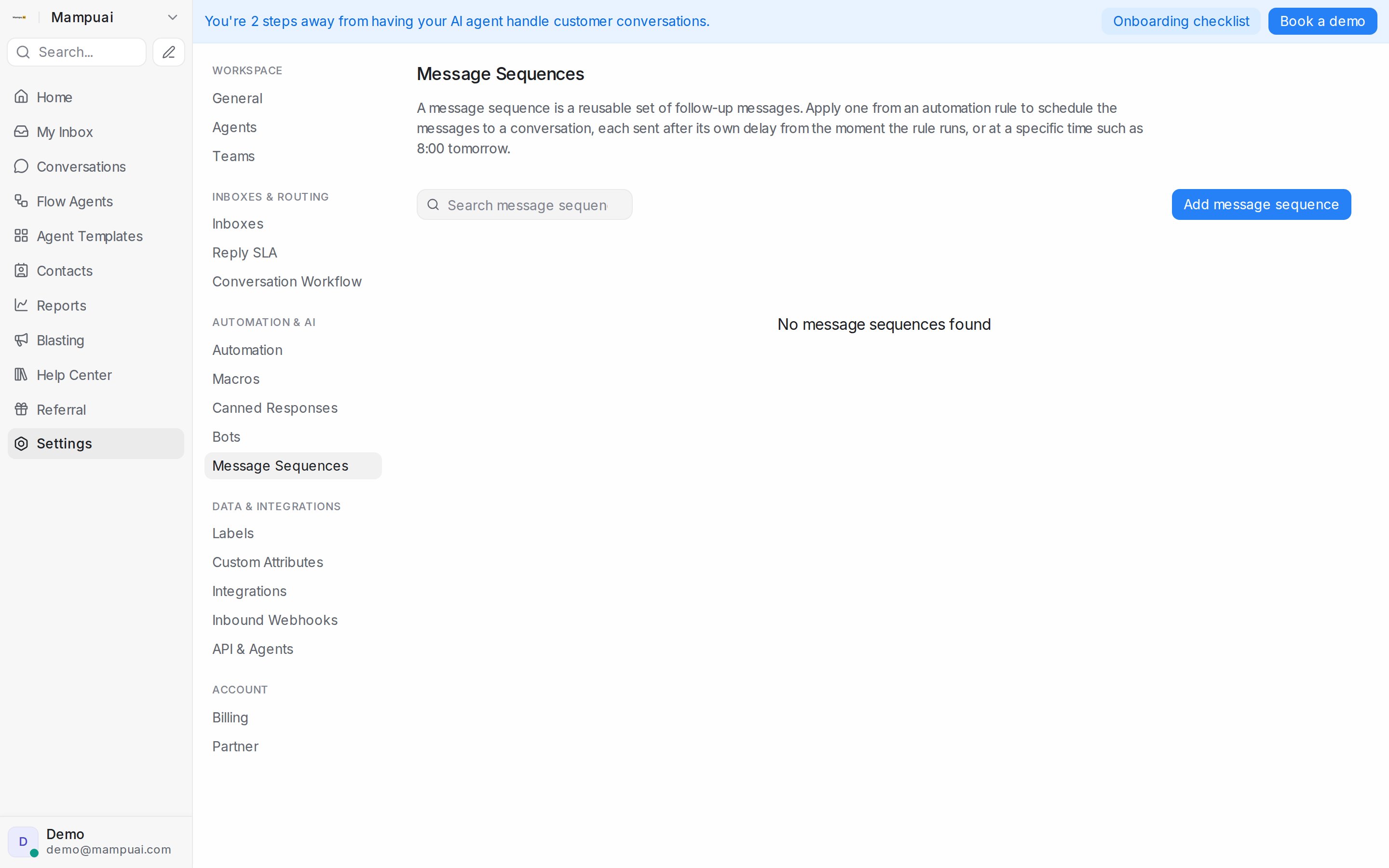
Open Settings → Message Sequences and click Add message sequence.
Watch the walkthrough
Triggers — when a sequence starts
- Manual — applied by your automation rules (e.g. when a conversation gets a certain label) or by inbound webhooks.
- Inactivity — starts when a conversation handled by the selected flow agents goes quiet.
- Appointment booked — starts when a booking lands on one of your calendars, so you can send confirmations, reminders before the appointment, and follow-ups after it.
Steps — what goes out, and when
Each step holds one or more messages (with media attachments if you like, within the picture and file size limits) and its own timing, set under When to send:
- After a delay — e.g. 2 days after the previous step (or after the sequence starts, for the first step). A delay of 0 sends the step straight away — on the first step, the moment the sequence starts.
- At a specific time — pick the time, then the day: Today, Tomorrow, X days later, On a date, or a day counted from the sequence’s event date (see below).
- Before a date attribute — before or after a contact date attribute, or the appointment time for booking-triggered sequences (at booking, before the appointment, after the appointment).
Sending on an exact date
Choose At a specific time, enter the time, choose On a date and pick the date. Everyone in the sequence gets that message on the same day, no matter when they joined — useful for launch days, holidays and other date-tied announcements.
Anyone who joins the sequence after that date and time has passed skips the step, so nobody gets a stale announcement. The rest of the sequence still runs.
Timing steps around an event date
For a webinar, a launch or a class, give the sequence an event date and time its steps around it. Reuse the same sequence for the next session by changing one date.
- In Setup, set the Event date.
- In a step’s When to send, choose At a specific time and pick the hour.
- Choose X days before the event, On the event day or X days after the event, and enter the number of days. The date the step will send on shows beside it.
A step counted from the event can’t be saved until the sequence has an event date. When you change the event date, everyone who enters the sequence from then on gets each message on its new day. Someone who enters after a step’s send time has passed skips that step.
These event options are not offered on sequences triggered by Appointment booked or Store order event — those steps count from the appointment or the order instead.
Use what the customer already told your flow agent
A step can use the answers your flow agent collected in the conversation — the customer’s car model, city, budget or any other field your flow asks for.
- In a step’s message, type
{{. - Under Flow agent answers, pick the field (for example
car_model). It shows as{{conversation.flow.car_model}}and is replaced with the customer’s answer when the message sends. - Under the message, If the customer hasn’t answered, send instead lists every answer the message uses. Type what to send when the customer never gave that answer — for example “your car”. Leave a box empty to send nothing in that spot.
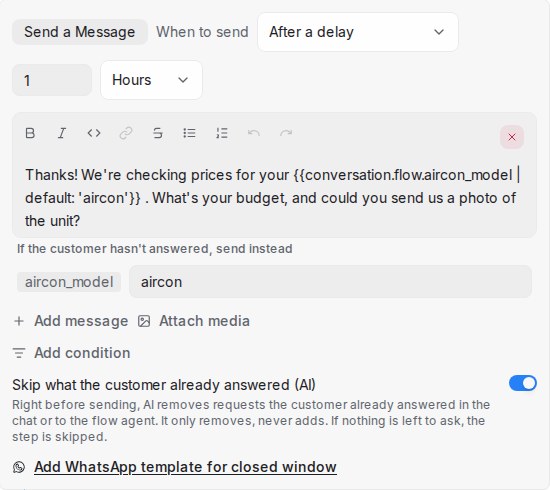
The same answers are offered under Fill variables for the WhatsApp template, with the same boxes underneath.
Skip what the customer already answered
Customers often answer part of a follow-up before it goes out — they send the car year, or the photo you were about to ask for. Turn on Skip what the customer already answered (AI) on a step, and right before the step sends, AI reads the conversation and the flow agent’s answers and removes the requests the customer has already answered.
- If the message asks for the car year and a photo and the customer already gave the year, only the photo request goes out.
- If the customer already gave everything the step asks for, the step isn’t sent. A note in the conversation tells your team it was skipped.
- It only removes words — it never adds or changes anything. When it isn’t sure a request was answered, the request stays.
The switch is off for every new step. It applies to regular messages; a WhatsApp template sent outside the 24-hour window always goes out exactly as approved.
Only send if…
Every step can carry conditions, checked right before that message goes out — conversation language, current date, and more. If the conversation doesn’t match, that message is skipped and the rest of the sequence continues.
WhatsApp’s 24-hour window
If a step may deliver outside WhatsApp’s 24-hour reply window, attach an approved WhatsApp template to the step with Add WhatsApp template for closed window — the sequence automatically uses the template when the window is closed, so the message still arrives.
Under Fill variables, fill each of the template’s variables: type the text to send (for example the session date and time, exactly as it should read), or type {{ to insert a contact or conversation attribute, or a flow agent answer. You can mix both in one variable.
You can also control repeats with Allow again after — how many days must pass before the same message can be sent to the same conversation again.
Send in each customer’s language
A sequence can carry a version of every message in each language your AI persona speaks. Customers receive the version that matches the language they chat in; everyone else receives the default language.
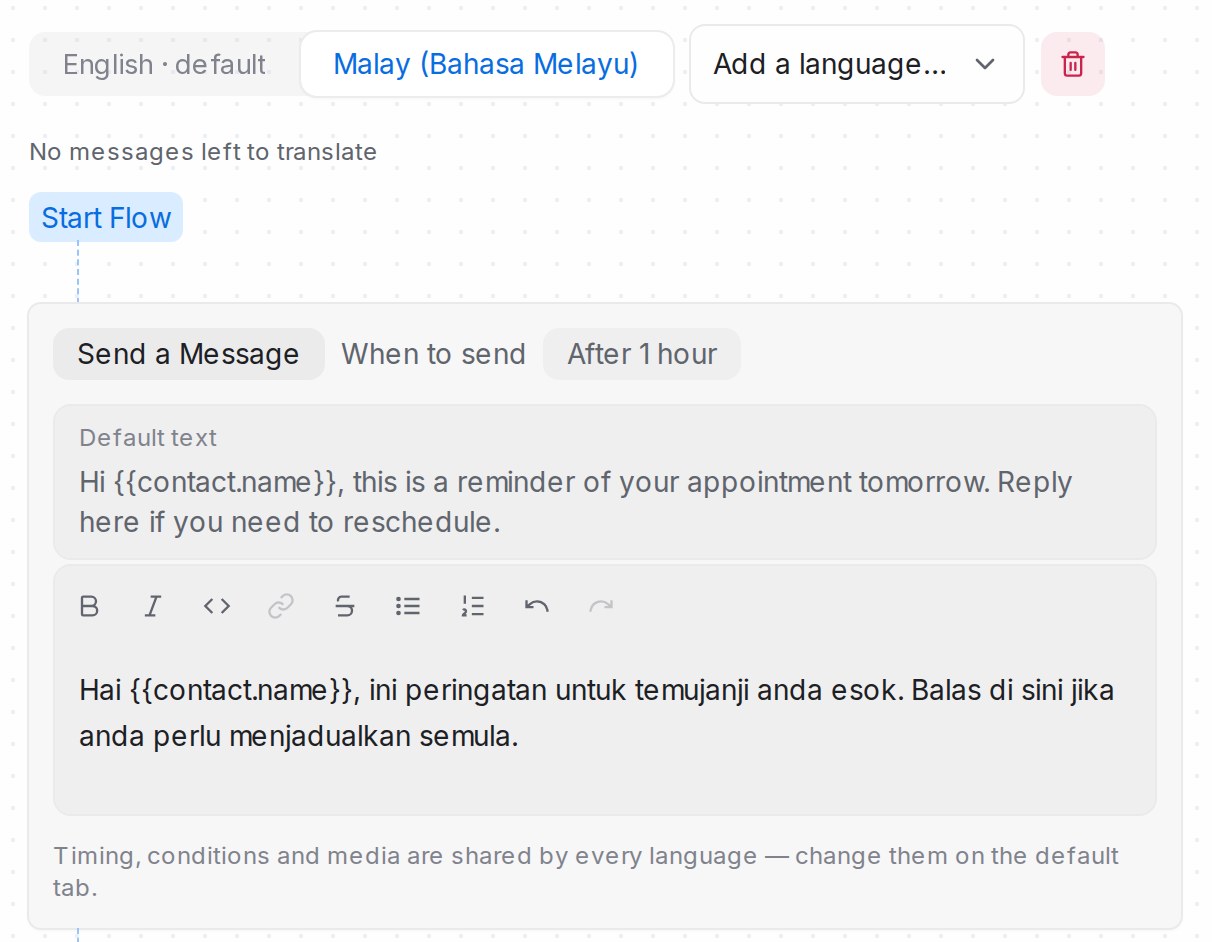
- Write the sequence in your default language as usual.
- Above the steps, pick a language from Add a language…. The list mirrors the languages in your AI persona settings (Flow Agents → AI Knowledge → Tone & persona).
- On the new language tab, each message shows the default text as a reference with an editor beneath it — write that language’s version there. Timing, conditions, media and the message list are shared, so you change them on the default tab.
- If a step has a WhatsApp template, pick that language’s template too with Pick a … template; until you do, the default template is used.
A message you leave blank in a version simply sends the default text, and the tab shows how many messages are still untranslated. In Setup → Language, choose the Default language — the one everyone else receives. Once a version is fully translated you can make it the default, which swaps it with the current default message by message. Remove a version with the trash icon next to its tab.
If a language is later removed from your AI persona settings, its tab shows inactive: the text is kept, but customers won’t receive it until the language is added back.
Duplicate a sequence
Need a variation of a sequence you already have — new wording, a second audience, a seasonal version? On Settings → Message Sequences, click the duplicate icon on the sequence’s row. You get a new sequence named “… (Copy)” with every step, timing, condition, and setting carried over.
The copy never sends anything on its own: it keeps the trigger type, but you choose the flow agents or calendars again before it goes live — so duplicating a live sequence never causes double sends. Edit what you need, pick the targets, and save.
Related
- Managing AI Knowledge — the Tone & persona languages a sequence can be translated into.
- Filter conditions and operators