
Every button and menu item on the Conversations screen, in one place. Each section links to the article that explains it in depth.
In the conversation header
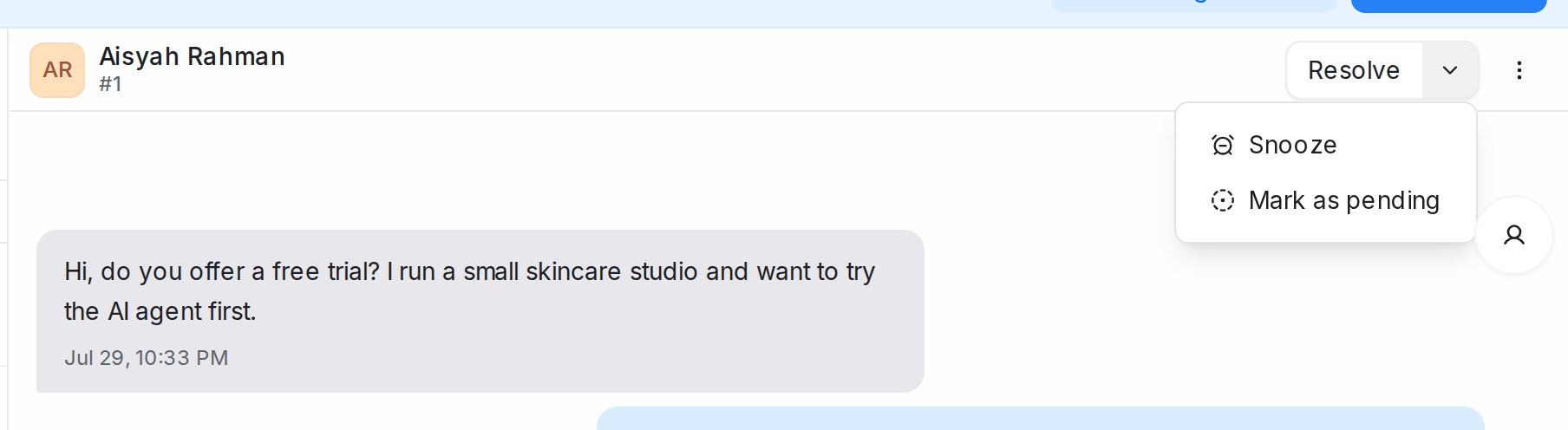
| Action | What it does |
|---|---|
| Resolve | Closes the conversation. It leaves the Open list and moves to Resolved. |
| Reopen | Brings a resolved or pending conversation back to Open. |
| Mark as pending (under the arrow next to Resolve) | Parks the conversation as waiting on your side, for example while you check with a colleague. |
| Snooze (under the same arrow) | Hides the conversation until Next reply, Tomorrow, Next week, or a time you type such as in 1 hour. It comes back to Open by itself. |
| Flow agent badge → Resume flow agent | Shows when an AI agent is paused on this chat and lets it carry on. |
| Start WhatsApp call / Start call | Appears on inboxes with calling switched on. |
| Lead badge, SLA pill, Snoozed until | Read-only signals: lead temperature, reply-time targets, and when a snooze ends. |
| Person icon at the right edge | Opens or closes the Contact details panel. |
See Labels, priority and status.
In the More menu (⋯ in the header)
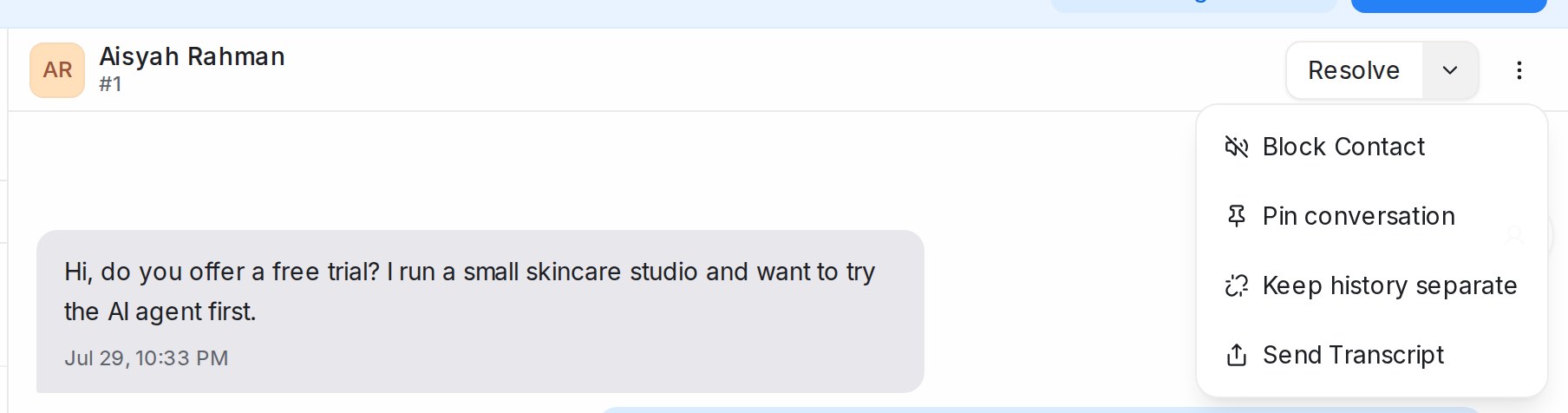
| Action | What it does |
|---|---|
| Block Contact / Unblock Contact | Blocks the person behind the conversation. Their open conversations resolve on their own and new messages from them stay out of your queue. Unblock to let them through again. |
| Pin conversation / Unpin conversation | Keeps the chat at the top of the list for everyone, up to three at a time. |
| Keep history separate / Share history again | Decides whether this conversation shows the customer’s messages from your other inboxes. |
| Send Transcript | Emails a copy of the conversation to the customer, to the assigned agent, or to any address you type. |
See Seeing a customer’s history across channels and Pinning conversations.
Right-click a conversation in the list
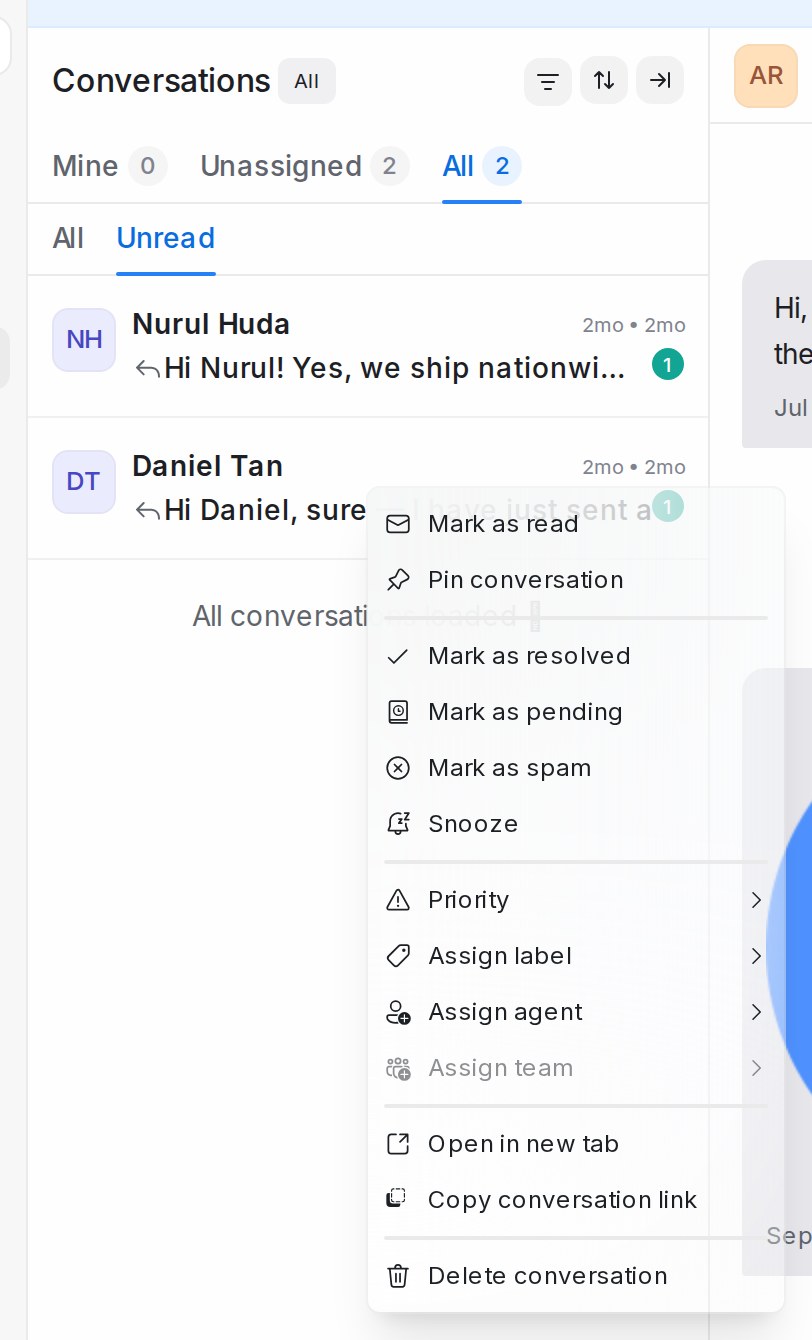
| Action | What it does |
|---|---|
| Mark as read / Mark as unread | Changes the unread marker without opening the chat. |
| Pin conversation / Unpin conversation | Same as the header. |
| Mark as resolved, Reopen conversation, Mark as pending, Mark as spam | Changes the status in place. Spam conversations move to the Spam list. |
| Snooze → Until next reply / Until tomorrow / Until next week | Snoozes without opening the chat. |
| Priority → None, Urgent, High, Medium, Low | Sets the priority flag. |
| Assign label | Ticks or unticks labels. |
| Assign agent, Assign team | Routes the conversation. |
| Delete conversation | Removes the conversation for good. Administrators only, with a confirmation. |
| Open in new tab, Copy conversation link | For sharing a chat with a teammate. |
Several conversations at once
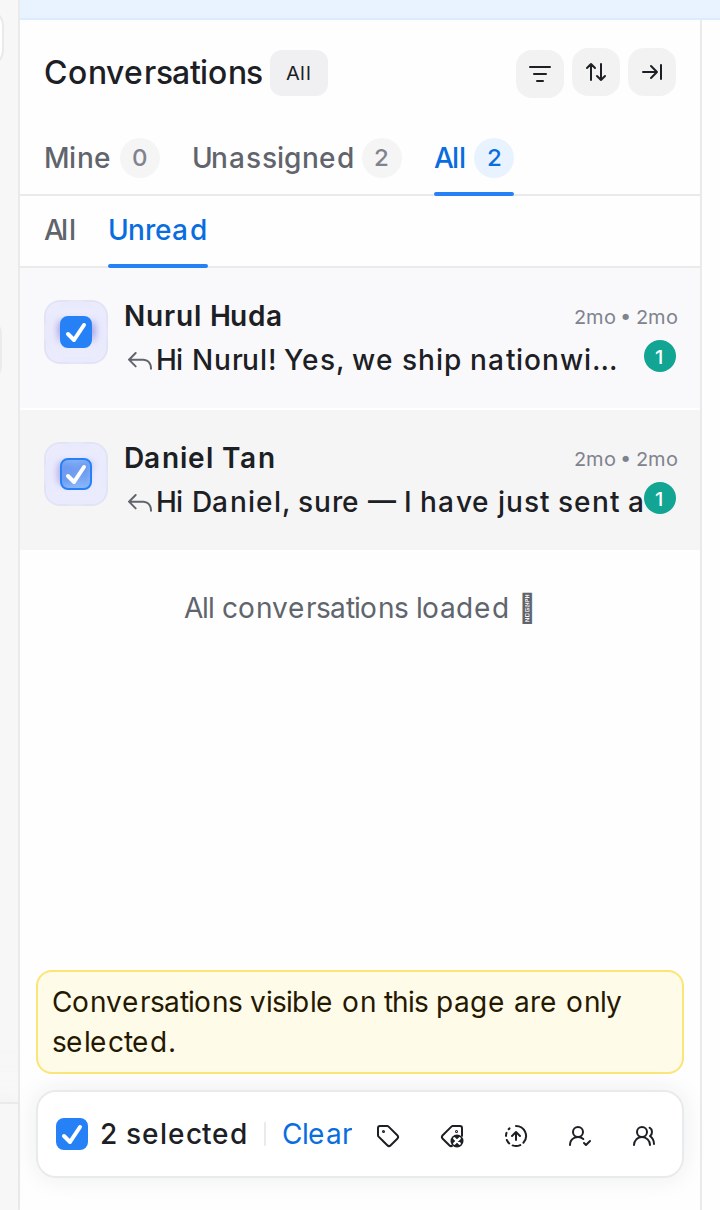
Hover over a conversation and tick the box on its avatar. A bar appears at the bottom of the list.
| Action | What it does |
|---|---|
| {n} selected, Clear | Shows the count and drops the selection. |
| Assign agent, Assign team | Routes all selected chats. Choose None to unassign; you confirm first. |
| Assign labels, Remove labels | Adds or removes labels on all of them. |
| Change status → Resolve, Pending, Snooze | Changes status for all of them. |
Only conversations visible on the page are selected, so scroll or filter first.
In the reply box
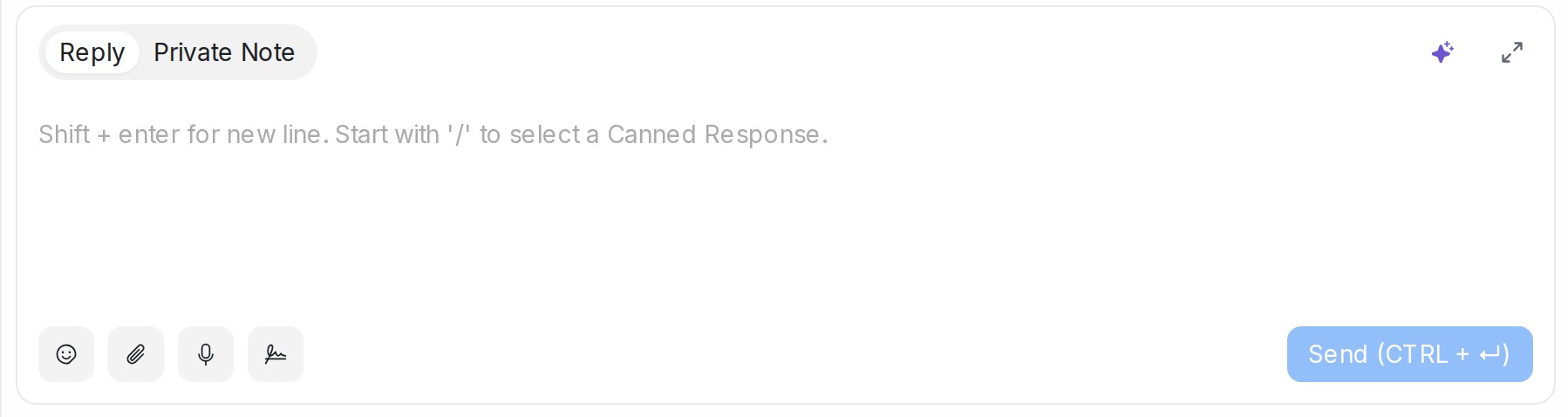
| Control | What it does |
|---|---|
| Reply / Private Note tabs | Message the customer, or leave a note only your team sees. |
| Show emoji selector, Attach files | Add an emoji or a file. You can also drag a file onto the box. |
| Record audio | Records a voice note and sends it as audio. |
| Enable signature / Disable signature | Adds your personal signature to the reply. Set the text under your profile settings. |
| Whatsapp Templates | Picks an approved template, the only way to reply once the 24-hour window has closed. |
| From | Sends from another of your WhatsApp numbers. |
| Bot button | Asks the connected flow agent to reply to the latest customer message. |
| Keyboard | Shift + Enter for a new line, / for a canned response, @ to mention a teammate in a note. |
See Replying and adding private notes.
In the details panel
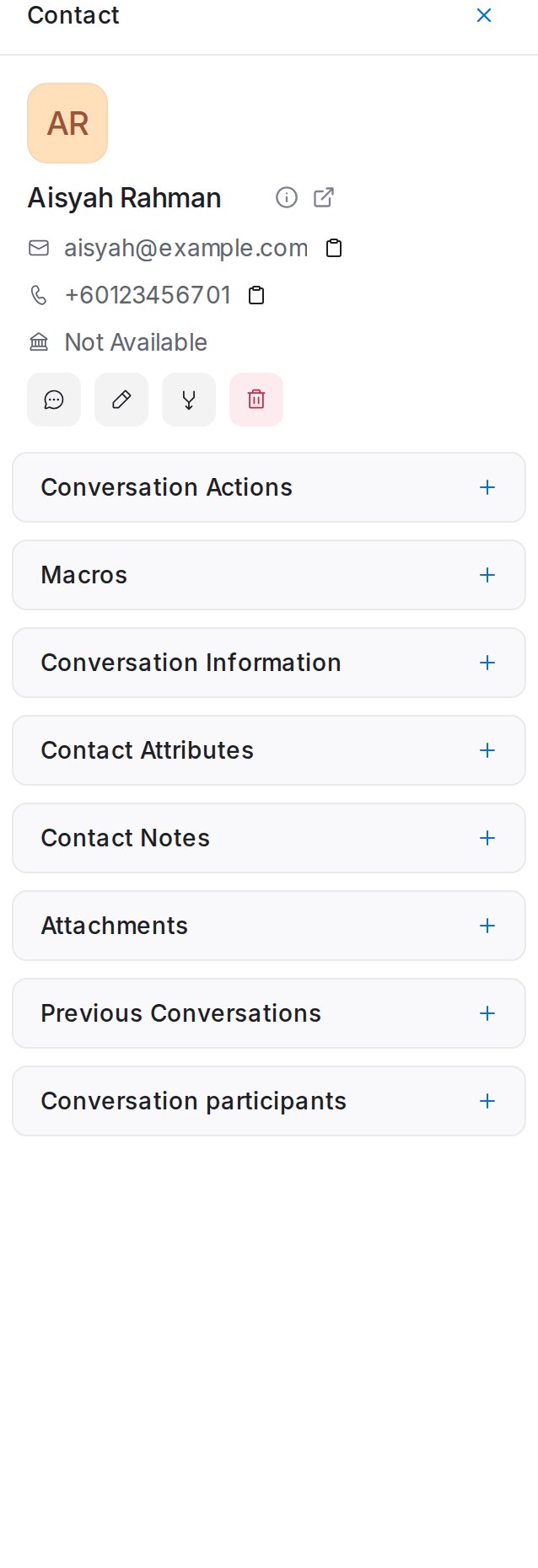
Click the person icon at the right edge of the thread to open the Contact panel: the contact card (New message, Edit, Merge contact, Delete for administrators), then Conversation Actions, Macros, Conversation Information, Contact Attributes, Contact Notes, Attachments, Previous Conversations and Conversation participants. See The details panel beside a conversation.
Sorting and status filter
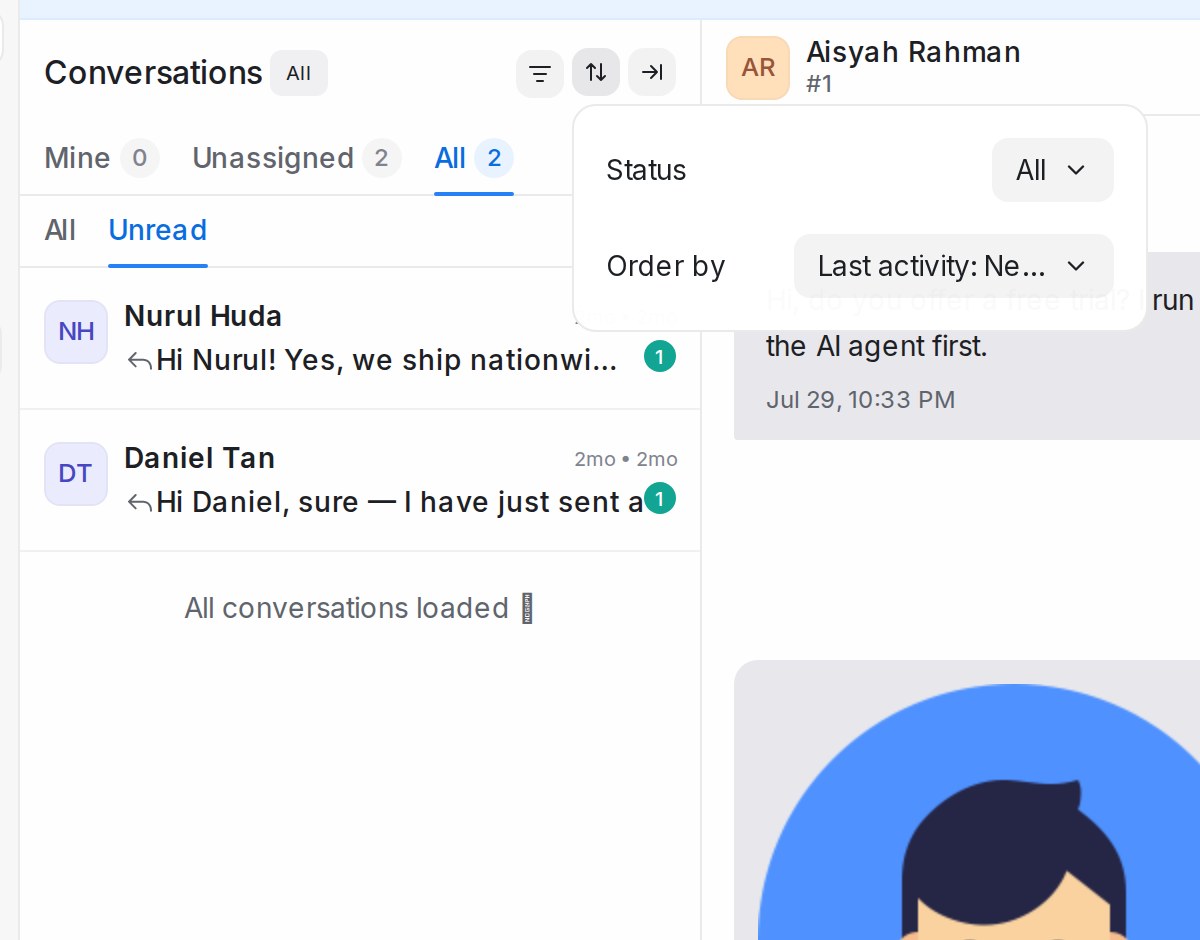
The arrows button above the list sets which Status you see and the Order by. See Managing Conversations.