
Two reports under AI & Flows cover your automated replies: Bot shows how often bots resolve or hand over conversations, and Flow Submissions lists everything your flow agents collected from customers.
Watch the walkthrough
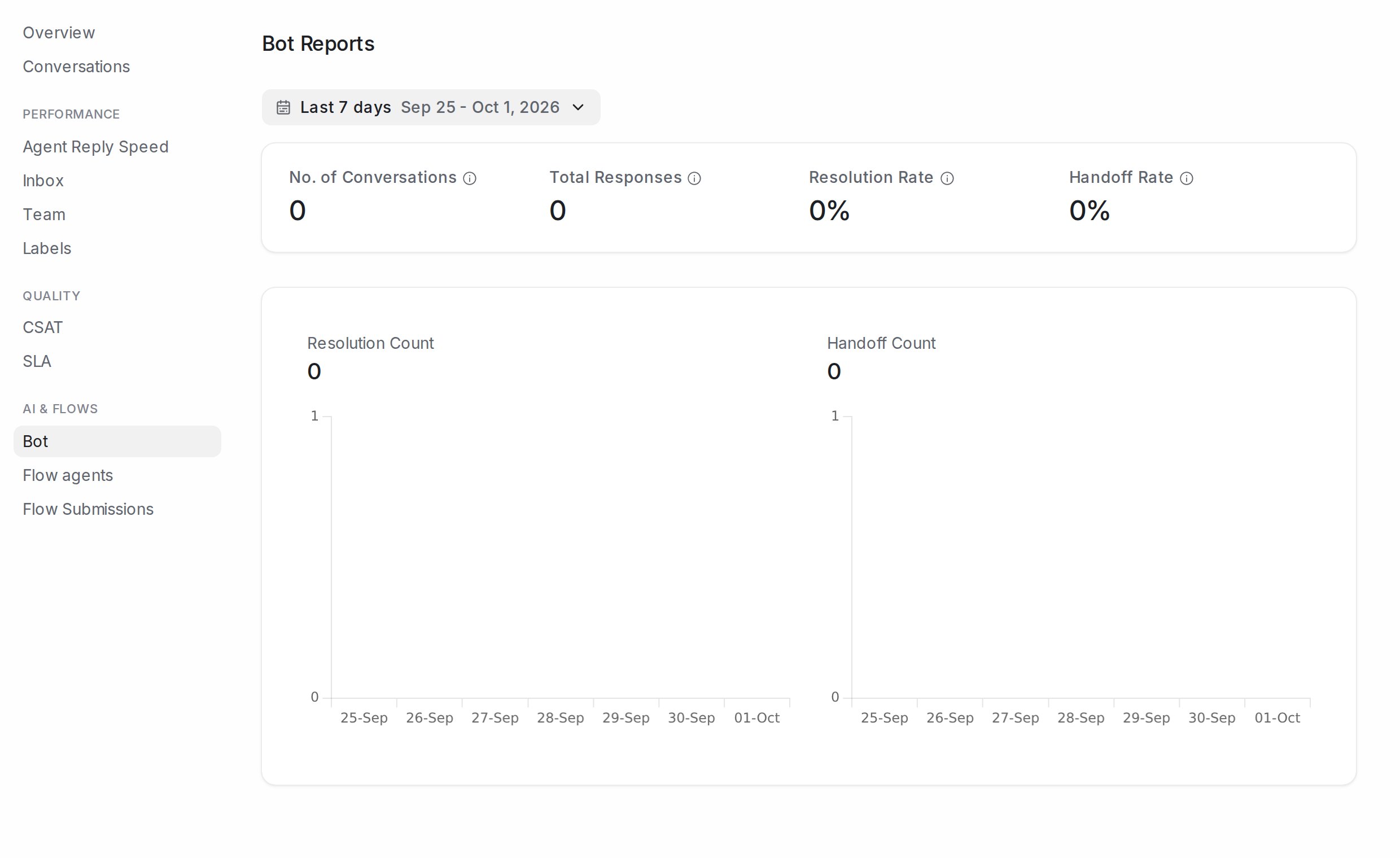
Bot
Reports → Bot shows, for the chosen period, No. of Conversations a bot took part in, Total Responses it sent, Resolution Rate (conversations it finished without a person) and Handoff Rate (conversations it passed to your team). For flow agents in particular, the Flow agents report goes further: what each agent handled, why it handed over, and what it cost.
Flow Submissions
Every time a customer goes through a flow agent’s questions, their answers are saved as a submission. Reports → Flow Submissions shows them as a table.
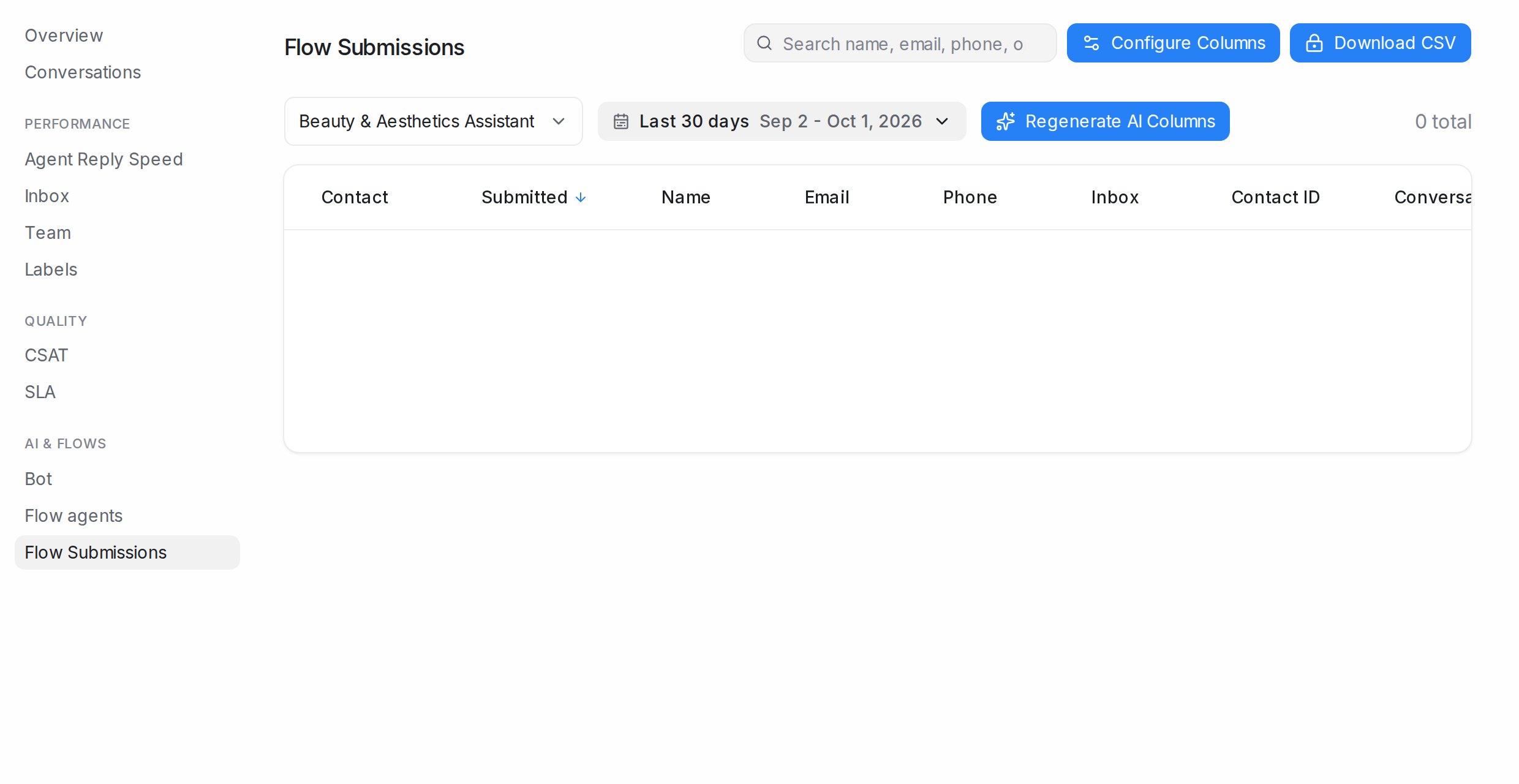
- Pick the flow agent at the top left, and a date range (Last 30 days by default).
- Search by name, email, phone or any answer in the search box.
- Each row shows the Contact, when it was Submitted, and one column per piece of information.
Choosing columns
Click Configure Columns to decide what the table shows, grouped as Contact Fields (name, email, phone, inbox), Conversation Labels, Contact Attributes, Flow Fields (each question the agent asks), Ad / Post Source (which ad or post the customer came from) and AI Columns. Drag a column to reorder it or use Move to top, then Save. The choice is kept for that agent.
AI Columns are conversation attributes that the AI fills in from the chat, such as a summary or a category. Click Regenerate AI Columns to refill them for the submissions in view after you change the attribute’s instructions. They need an AI provider connected under Settings → Integrations → AI Providers.
Downloading
Download CSV saves every submission in the current view, with your columns, as a file for Excel or Google Sheets. Downloads are available on paid plans. To send submissions to a sheet automatically instead, connect Google Sheets or Lark; see Connecting Google Sheets.
A contact’s own submissions also appear on their contact page.
Downloading other reports
Most reports have their own download button: Download conversation reports, Download agent reports, Download CSAT Reports, Download SLA reports and the download icon on each Overview heatmap.