
The Conversations inbox is where your team handles every customer message, no matter which channel it arrived on. The list sits on the left, the open conversation in the middle, and the details panel on the right.
Watch the walkthrough
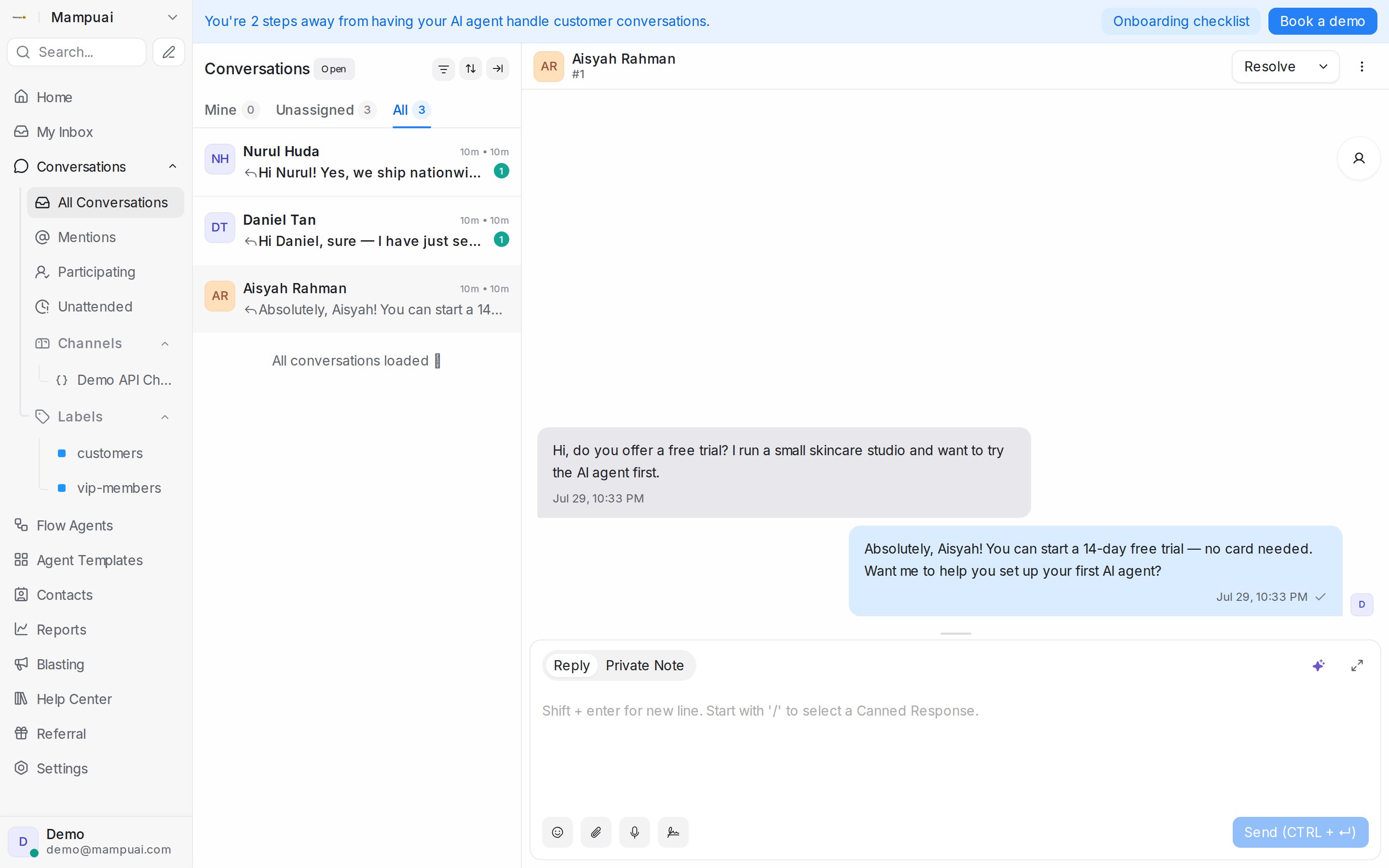
The list on the left
The sidebar groups your conversations so nothing slips through: All Conversations, Mentions, Participating, Unattended, your saved Folders, and one entry per Team, Channel and Label. See Conversation folders explained.
At the top of the list, switch between Mine, Unassigned and All to focus on the right queue. The row below narrows it further: keep All, or pick Unread to see only conversations with customer messages you have not read yet.
The chip next to the title shows which status you are looking at (All by default). The list remembers your last-used tabs the next time you come back, and the conversation you have open stays in the list until you move on.
Finding a conversation: filter, sort and layout
The three icons beside the status picker are:
- Filter conversations: build a condition such as Labels Has any of VIP, then Apply filters. A Save icon appears so you can keep the filter as a folder. See Filter conditions and operators.
- Sort conversations: opens a small panel with Status (Open, Pending, Snoozed, Resolved, Spam or All) and Order by: Last activity newest or oldest first, Created at newest or oldest, Priority highest or lowest, Pending Response longest or shortest waiting, Priority highest then oldest, or Unread Count highest first.
- Switch the layout: gives the open conversation the full width and hides the list; click again to bring the list back.
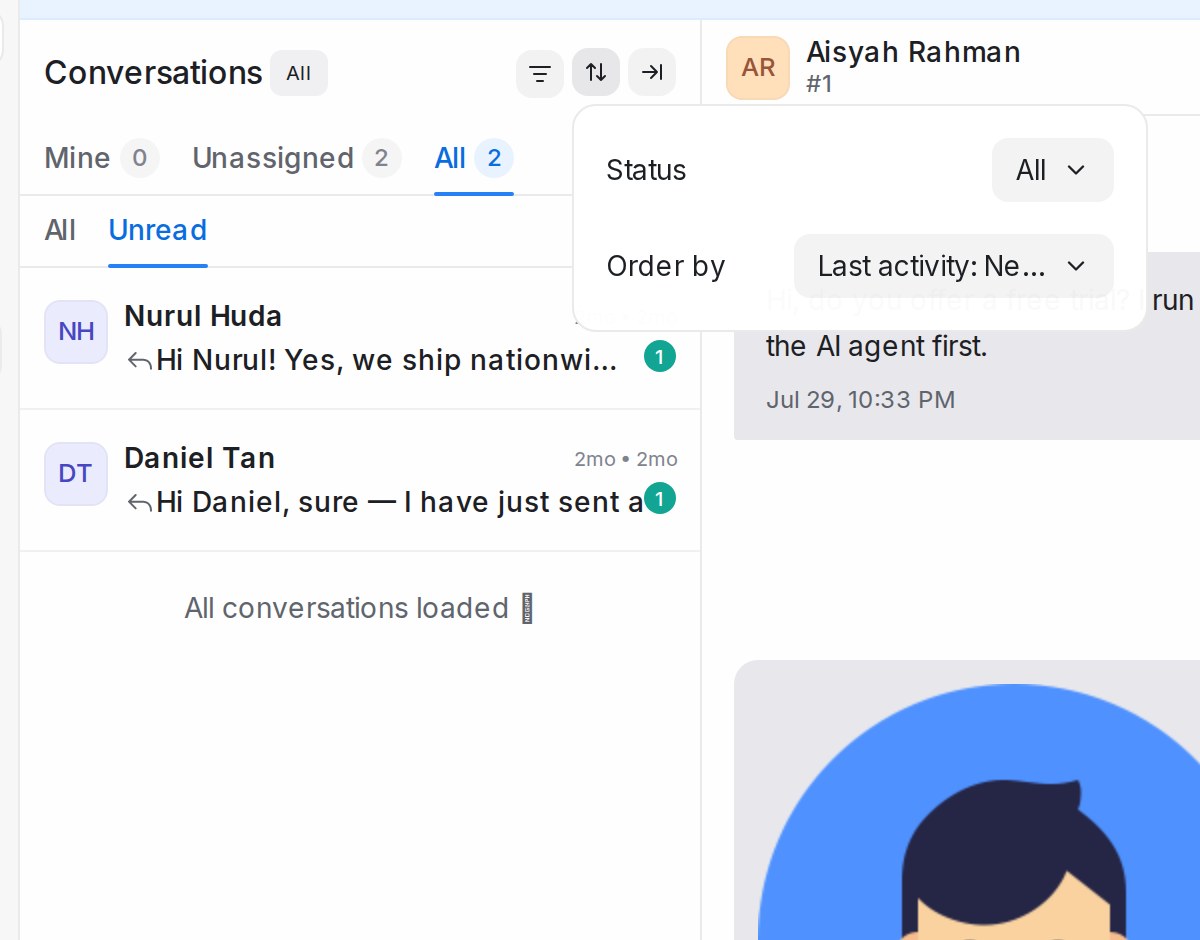
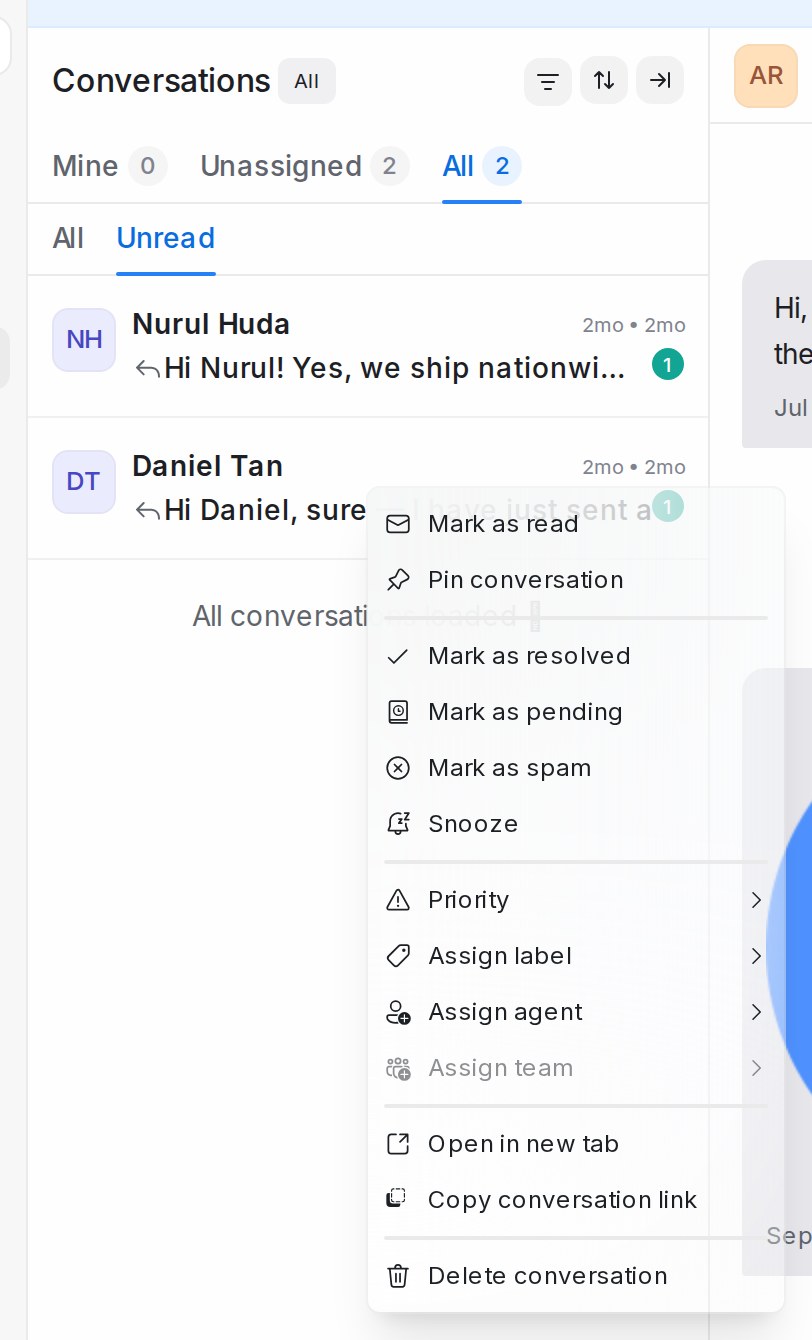
Right-click a conversation
Most things you do in the header you can also do from the list without opening the chat. Right-click a conversation for Mark as read or Mark as unread, Pin conversation, Mark as resolved, Mark as pending, Mark as spam, Snooze, Priority, Assign label, Assign agent, Assign team, Open in new tab and Copy conversation link. Administrators also see Delete conversation.
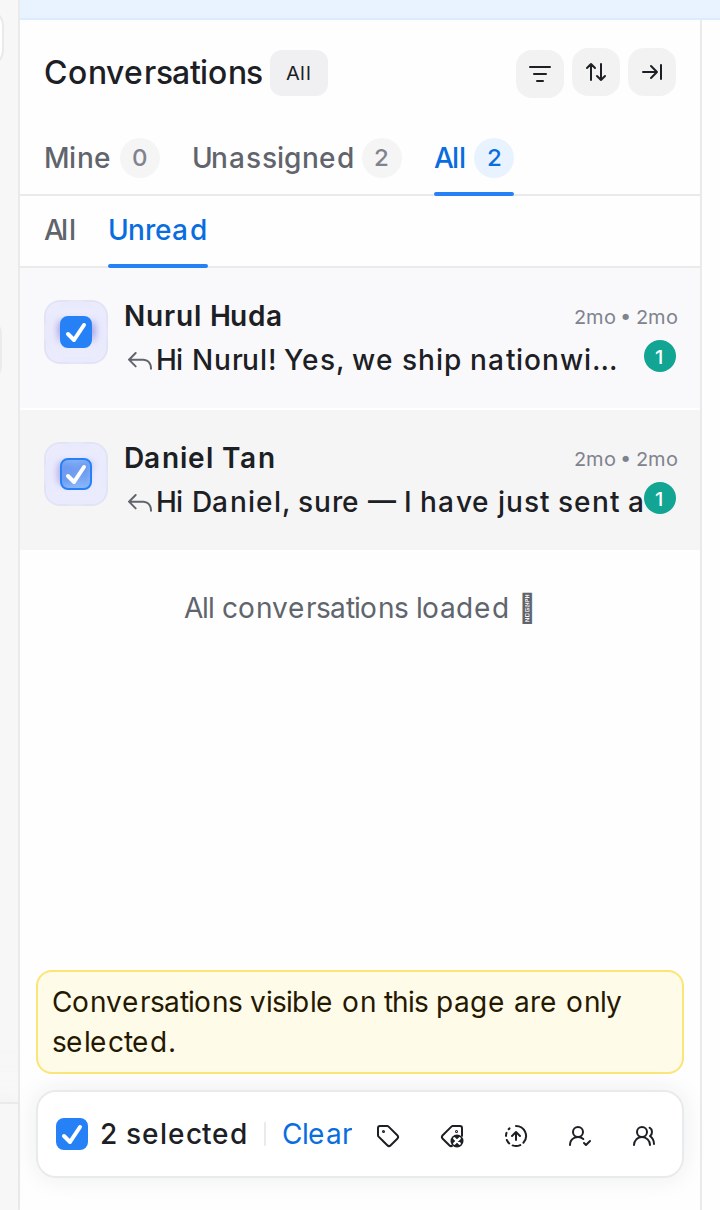
Working on several conversations at once
Hover over a conversation and tick the box that appears on its avatar. Do the same on the others, and a bar appears at the bottom of the list showing {n} selected. Its icons let you Assign labels or Remove labels, Change status to resolve, mark pending or Snooze, and Assign agent or Assign team for all of them in one go. Clear drops the selection. Only the conversations visible on the current page are selected, and the open conversation stays hidden until you clear the selection.
Pinning a conversation
To keep a conversation in view, right-click it and choose Pin conversation. Pinned conversations sit at the top of the list for everyone in your account, up to three at a time. See Pinning conversations.
The conversation header
Above the thread you see the customer’s name, which inbox the chat belongs to, and, when it applies, Snoozed until with the time, a reply-time pill, the lead temperature badge, and a flow agent badge with Resume flow agent when an AI agent is paused on the chat. On the right are Resolve (with Mark as pending and Snooze under its arrow), the call button on inboxes with calling, and the More actions menu with Block Contact, Pin conversation, history sharing and Send Transcript. The full list is in Everything you can do in a conversation.
The details panel
Click the person icon at the right edge of the thread to open the Contact panel. It shows everything about the customer: contact details, assignment and priority, labels, attributes, past conversations, macros, notes, attachments, and any upcoming appointment (who it is with, when, their phone number and the video meeting link), so whoever picks up the chat has the full picture. See The details panel beside a conversation.
If a customer edits a WhatsApp message they sent, the conversation updates to match, so you are always reading what they actually said.