
Watch the walkthrough
Test in the playground
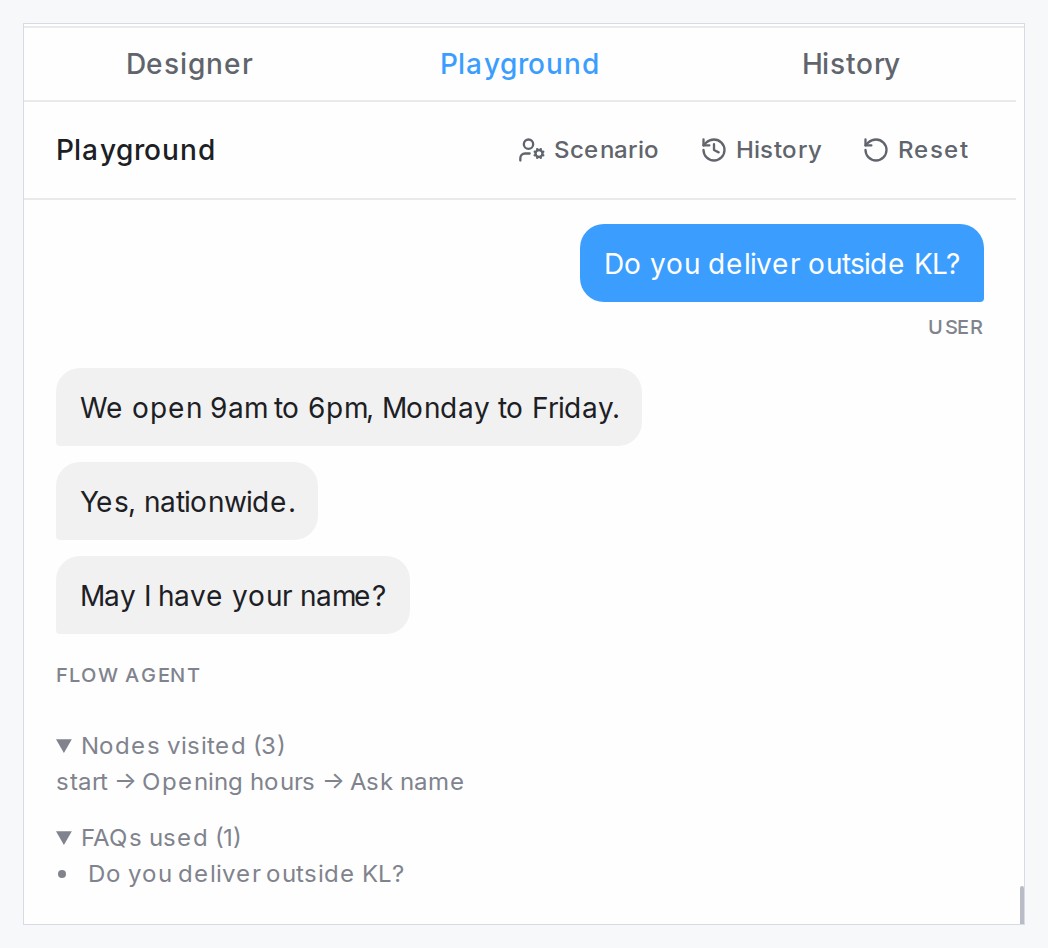
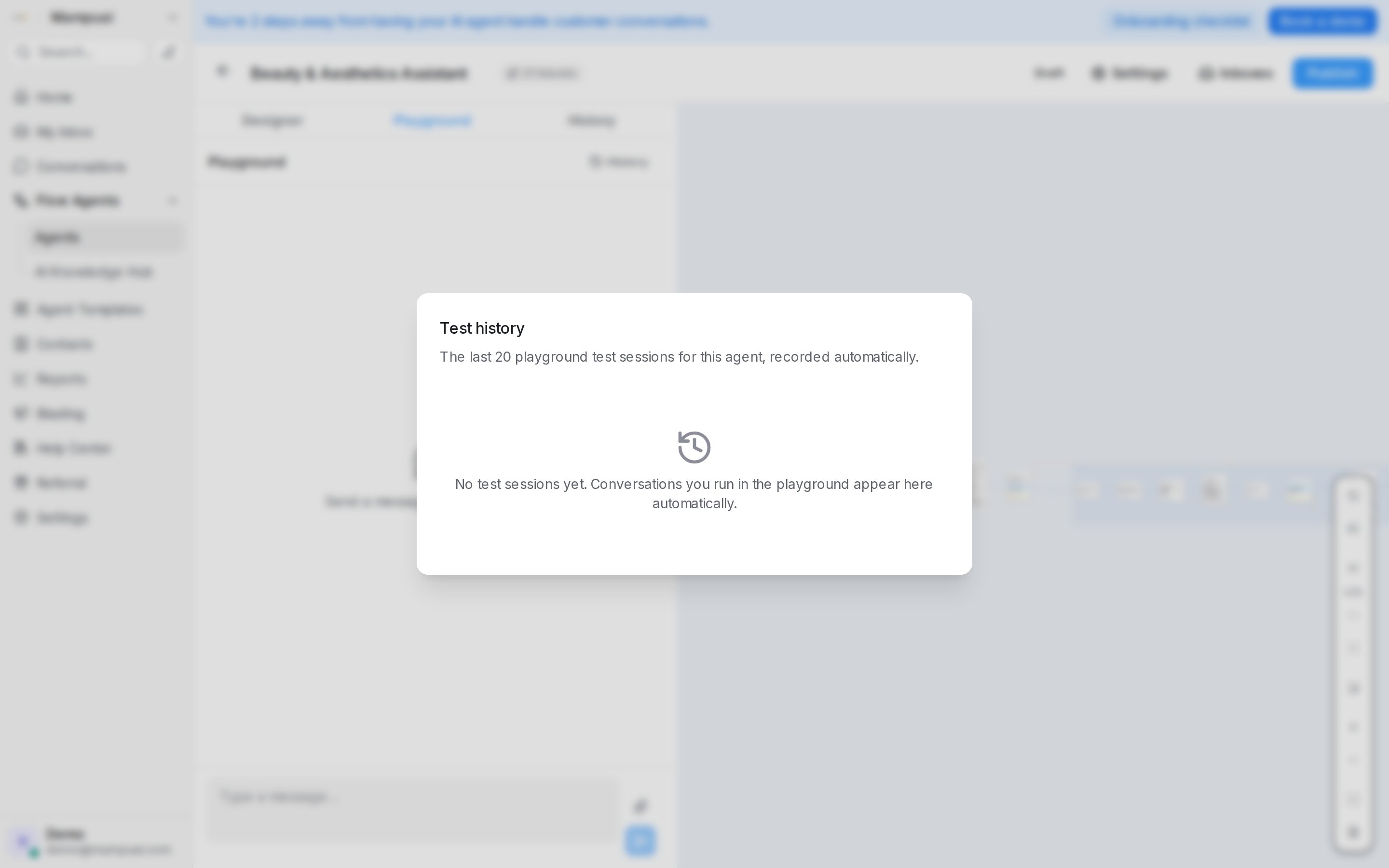
Open the Playground tab in the designer and chat with your agent as if you were the customer. Every conversation you run is saved automatically — click History to revisit the last 20 test sessions for the agent, so you can compare behaviour before and after a change.
Under each reply, Nodes visited lists the steps the agent walked through, and FAQs used lists the questions from your AI Knowledge the reply drew on — only the ones it actually used, so you can check that a question was answered from the FAQ you expect. The same two things appear under the agent’s replies in live conversations — see Replying and adding private notes. If the agent notices a problem in your flow along the way — for example a product step searching the catalogue with a variable that holds a yes/no answer instead of a product — a Flow warning line appears there too, naming the step and the variable so you can fix it before publishing.
Test with photos, voice notes and PDF documents
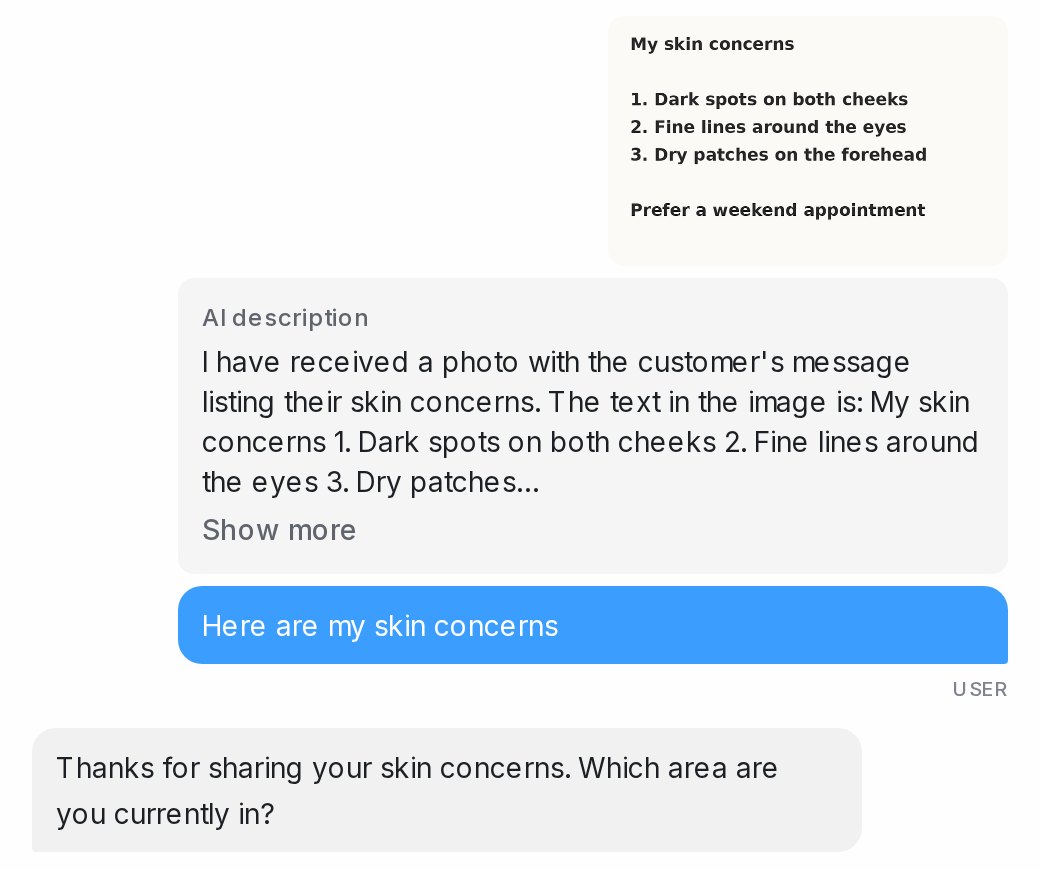
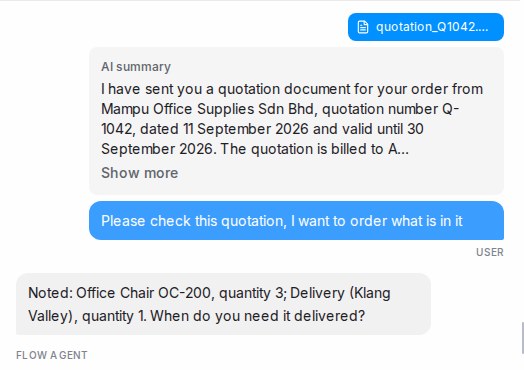
Attach a photo, a voice note or a PDF in the Playground, the same way a customer would send one. Under the file, the chat shows what the agent read: an AI description of what is in the picture, the transcript of what was said, or an AI summary of the document. It is the same text your team sees on a live conversation, so you can check that the agent understood an order list, a screenshot, a spoken request or a quotation before it replies. The rest of the test conversation uses that reading too, so follow-up messages behave as they would with a real customer.
PDF documents work well for quotations, order forms, invoices, receipts, bank slips and booking confirmations: the agent picks out the items, amounts, dates and reference numbers, and a collect step can take its answer straight from the document. Scanned PDFs are read too. Other file types, such as Word, Excel or ZIP files, reach your team as files but are not read by the agent, and a very large PDF is passed on without a summary. A file that is damaged, password-protected or not really a PDF isn’t guessed at: the agent is told it couldn’t read the file, and no summary appears under it.
Test as a real customer
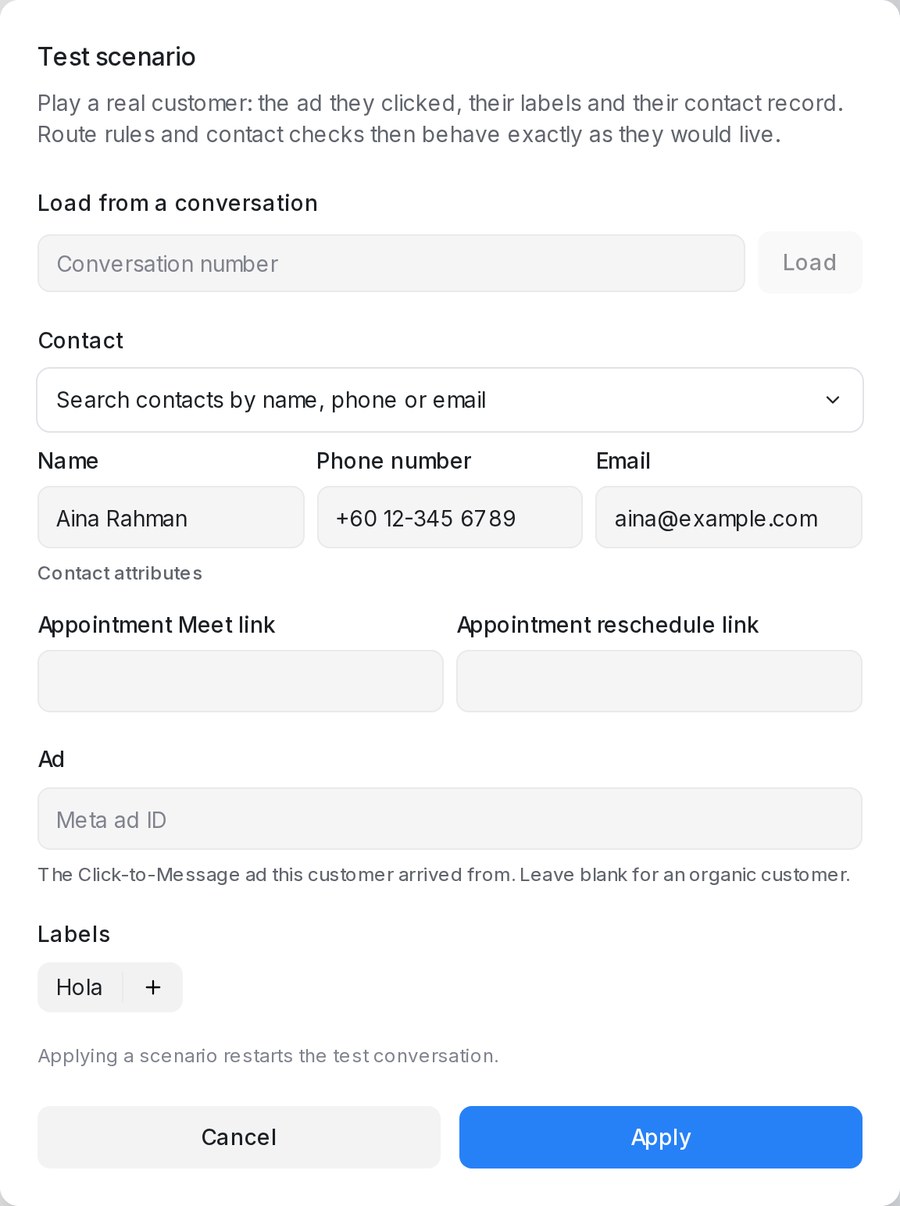
By default the Playground plays an anonymous customer with no record, so every route stays visible and the agent knows nothing about who is asking. To test the flow exactly as a particular customer would experience it, click Scenario above the chat and describe who you are playing:
- Load from a conversation — type a conversation number and the customer’s contact details, labels and the ad they arrived from fill in for you.
- Contact — search for an existing contact, or type a name, phone number, email and any contact attributes by hand.
- Ad — the Meta ad the customer clicked, so routes reserved for an ad behave as they would live.
- Labels — the labels on the customer’s conversation or contact.
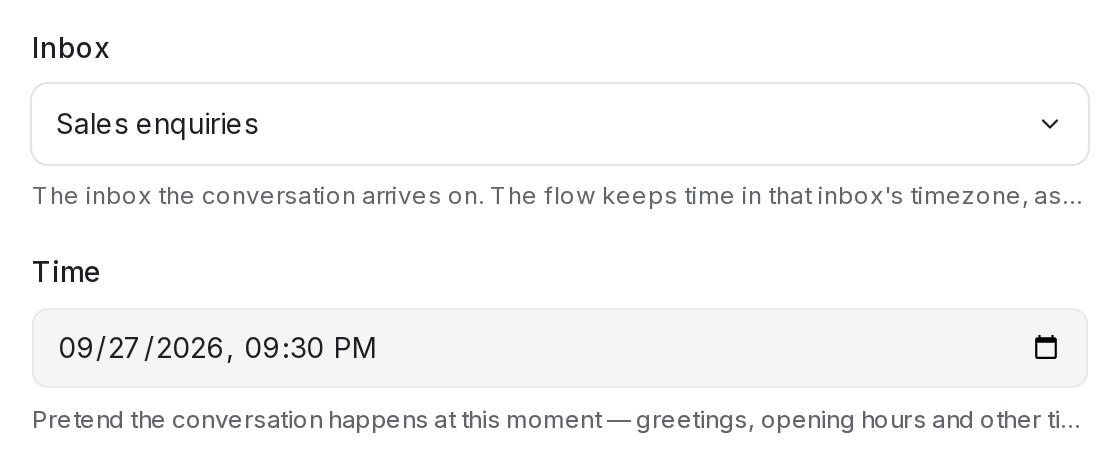
- Inbox — the inbox the conversation arrives on. The flow keeps time in that inbox’s timezone, and an End step’s Outside business hours message follows that inbox’s hours.
- Time — a pretend moment for the conversation, so greetings, opening hours and other time-aware replies behave as they would then. The Testing as strip shows the inbox and time you picked.
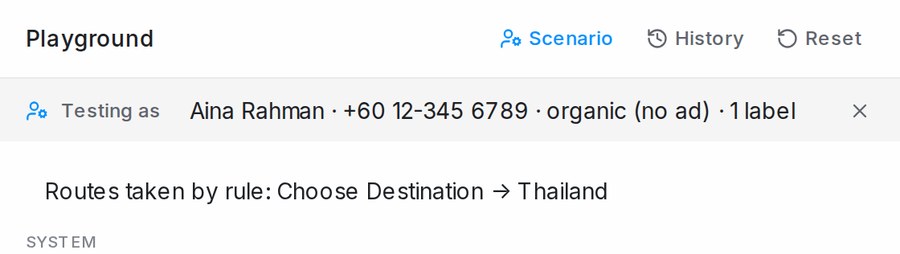
Press Apply and the conversation restarts as that customer. A Testing as strip above the chat shows who you are playing, and whenever your route conditions hide a branch or send the customer straight down one, a note in the chat says which routes were affected. Conditions that read contact details — such as skipping the phone question when a number is already on file — use the record you entered.
- Reset keeps the scenario, so you can rerun the same customer in one click; Clear scenario in the dialog returns to the anonymous tester.
- Changing the scenario restarts the test conversation — a real customer’s details are fixed from their first message.
- History shows which customer each saved test session played as.
Connect inboxes
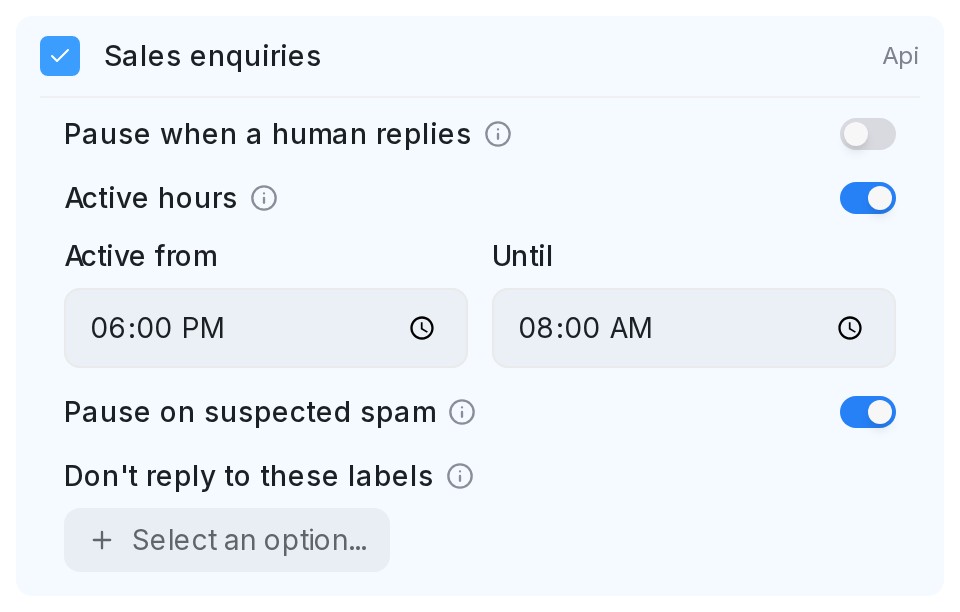
Click Inboxes in the designer header and select which inboxes the agent should handle — each inbox can only be assigned to one flow agent. Per inbox you can also set:
- Pause when a human replies — when a teammate answers (from the dashboard or the connected app), the agent steps back automatically instead of talking over them.
- Active hours — the agent works this inbox only between the start and end times you set, every day, in the inbox’s timezone. A window that runs past midnight, such as 6:00 PM to 8:00 AM, is fine.
- Don’t reply to these labels — the agent skips any conversation or contact tagged with the labels you pick, so VIPs or complaint cases stay human-handled.
- Only reply to specific ads — limit the agent to chats that started from particular Meta ad IDs.
- Ignore WhatsApp group chats — the agent stays out of group conversations.
Outside an inbox’s active hours the agent stays quiet for everyone on that inbox: new customers are not taken into the flow, customers already partway through get no further replies from the agent, and no follow-ups go out. If the inbox has an out-of-office message, that plays instead. The agent badge at the top of each conversation reads Outside active hours with the window, so your team knows the silence is intended, and the bot button in the reply box still makes the agent answer when you want it to — see Replying and adding private notes.

Publish
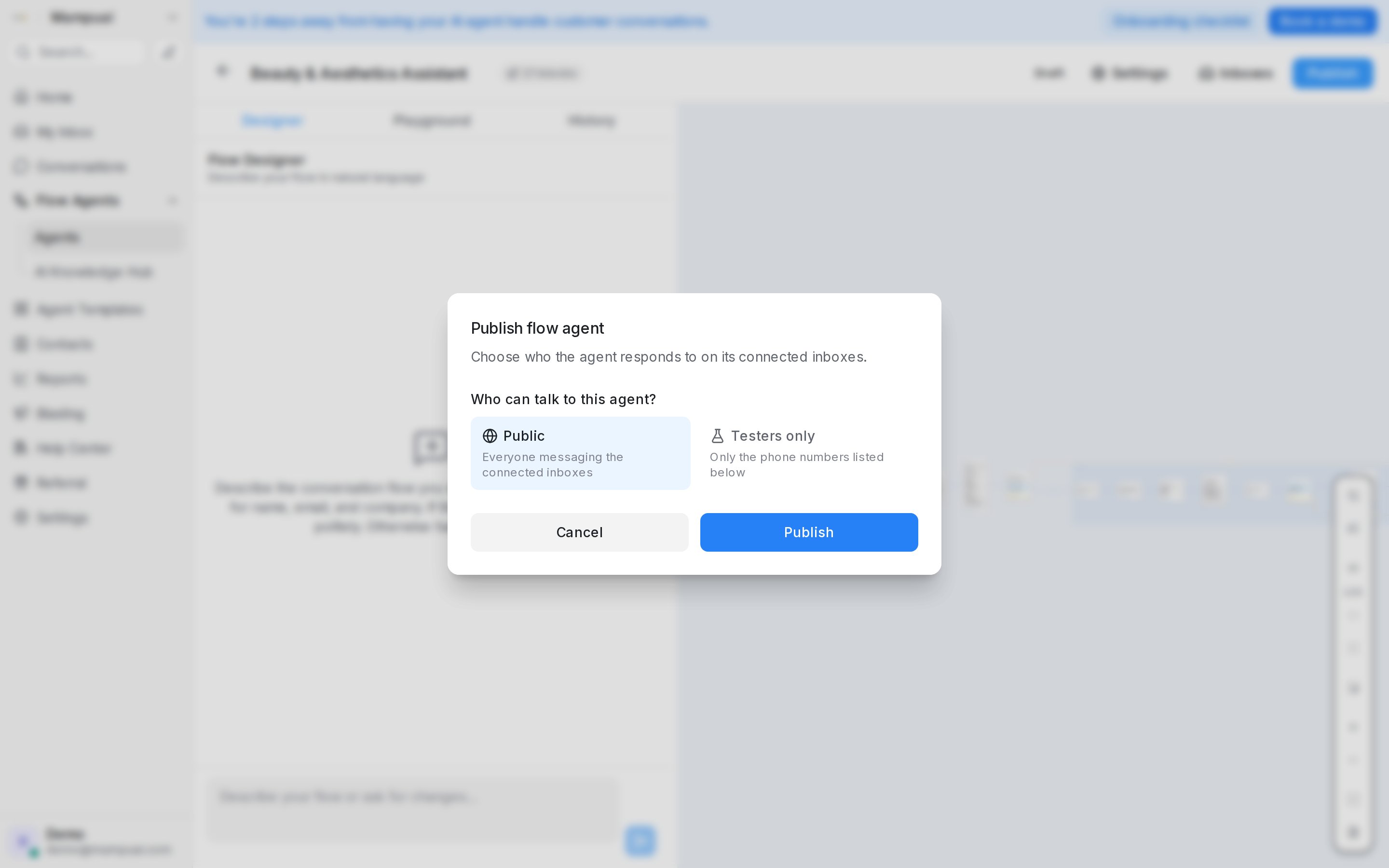
Click Publish and choose who can talk to the agent:
- Public — everyone messaging the connected inboxes.
- Testers only — only the phone numbers, emails or WhatsApp usernames you list under Tester phone numbers, emails or WhatsApp usernames, so you can trial the agent on a live channel before opening it up.
If the agent is set to hand off silently (a blank handoff message), the first publish shows what customers will experience and asks you to confirm before going live.
Once customers start talking to the agent, the flame button in the designer toolbar shows which steps they reach and where they drop off — see See where customers go.
Start a test over with ##reset
Anyone on the agent’s tester list can restart a test from their own phone. Send ##reset as a message on its own in the chat with the agent (capitals don’t matter). The agent confirms with “Flow reset — your next message starts the flow from the beginning.”, and your next message is treated as a brand-new customer’s first message, in the same chat. You don’t need a new number or a new chat to see the opening again.
A reset clears the labels the flow’s steps added, the AI columns filled in from that test run, and the submission it recorded. Other labels and the contact’s details stay as they are.
##reset works whether the agent is published to Testers only or Public, as long as you are on the tester list. From anyone who is not on the list, it is an ordinary message.
Behaviour settings
The Settings button in the designer header controls how the agent behaves in conversation:
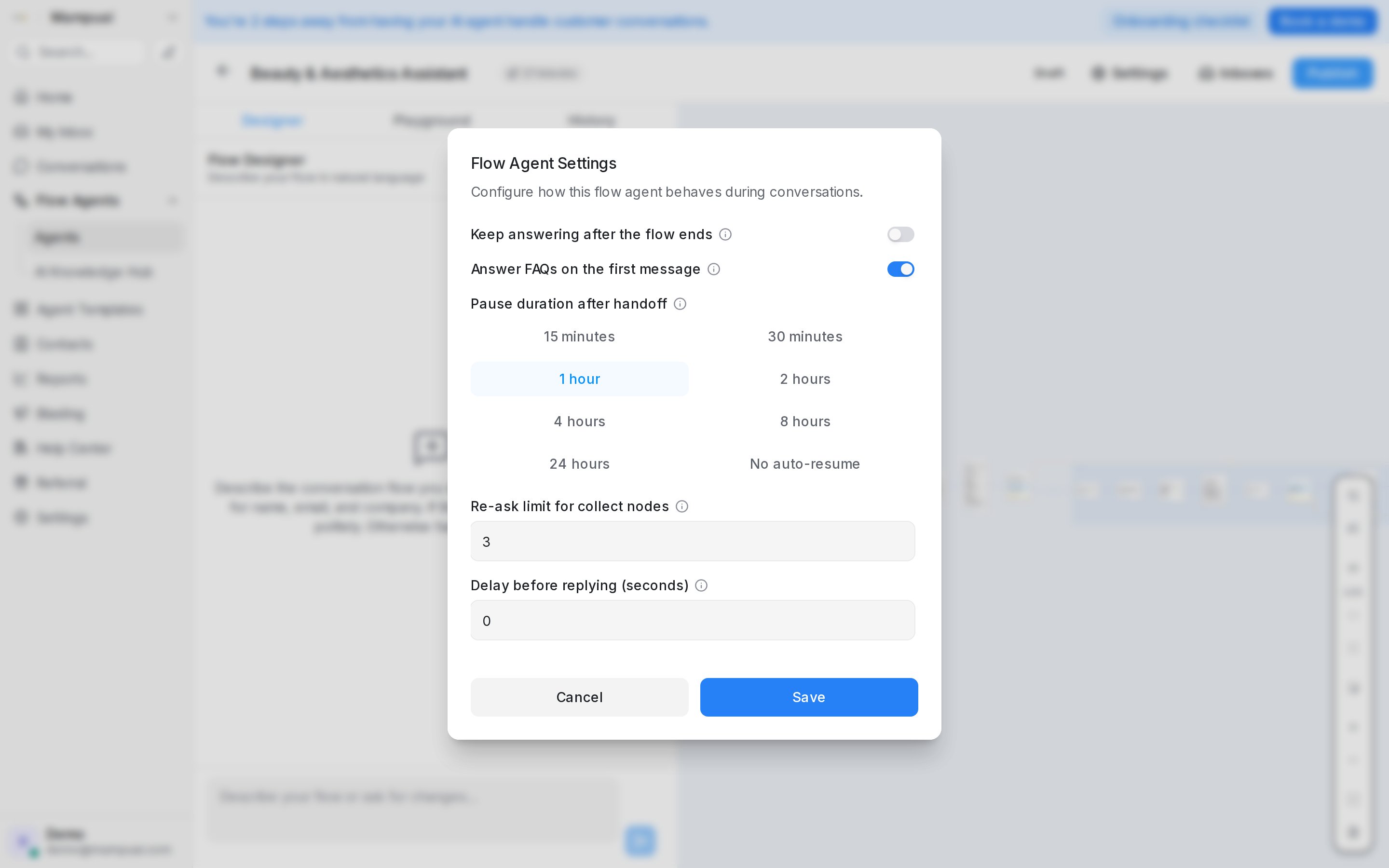
- Keep answering after the flow ends — the agent stays available for questions once the flow finishes, instead of going quiet.
- Answer FAQs on the first message — if a customer’s very first message matches your AI Knowledge, the agent answers it before the flow’s opening plays.
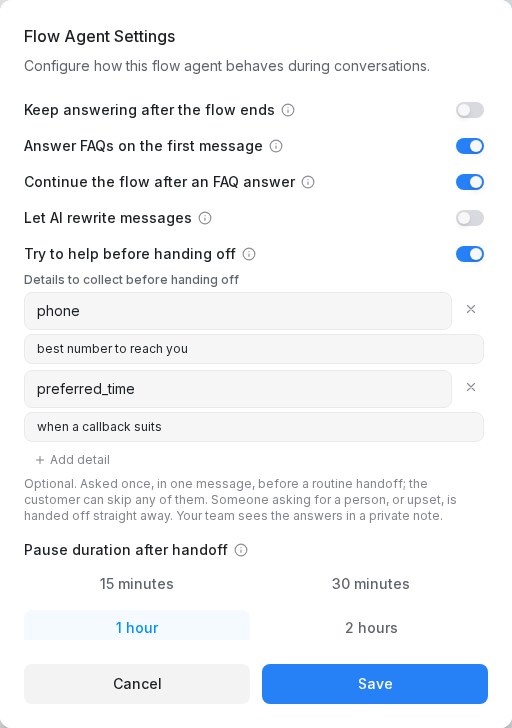
- Continue the flow after an FAQ answer — on by default: after answering a question from your AI Knowledge or product catalogue, the agent carries on — it asks its pending question again, or plays the greeting and opening question when the question was the customer’s first message. Turn it off to have the agent stop after the answer and wait for the customer’s next message; the flow then starts (or resumes) on the next message that isn’t a question.
- Let AI rewrite messages — the agent rewords flow and FAQ messages to match the tone you configured in AI Knowledge → Behaviour. Facts, prices, dates, and links are never changed.
- Try to help before handing off — before passing a conversation to your team, the agent checks whether it can still help: it may ask one clarifying question, or answer using only what your flow and AI Knowledge actually say. It never invents information, and customers who ask for a human are always handed off immediately. Off by default — turn it on per agent when you’re ready. You can also list details for the agent to collect first — see below.
- Pause duration after handoff — how long the agent stays quiet after a handoff before resuming (15 minutes to 24 hours, or never).
- Re-ask limit for collect steps — how many times the agent asks again for a required detail before moving on.
- Delay before replying — an optional pause so responses feel less instant.
- Quiet hours for follow-ups — no follow-up messages between the start and end times you set, in the inbox’s timezone. A follow-up due in that window goes out when it ends.
- Facebook post context — how much of a post’s text the agent sees when replying to comments on it.
The dialog also lists Business hours for every inbox connected to the agent, with its schedule and timezone, so you can set the hours an End step’s Outside business hours message follows without leaving the designer — see The handoff message.
Details to collect before handing off
When Try to help before handing off is on, a list called Details to collect before handing off appears under it. Add the details your team needs to act on a handover — a phone number, a preferred callback time, an order reference — each with a short note on what to ask for, and press Save.
When the agent has to hand over a routine question it cannot answer, it asks for these details once, all in one message, in the customer’s language, and makes clear they are optional. Whatever the customer replies, the conversation goes to your team next, with a private note Collected before handoff that shows their question and each detail; anything skipped is marked not provided. The details also appear in the flow’s submissions like any other collected detail.
The agent never puts this ask in front of an urgent customer: someone who asks for a person, or is clearly upset, is handed off straight away. Details the flow already collected are not asked for again, and if the customer goes quiet for 15 minutes the handover happens anyway with whatever was shared.
If the agent ever stops replying with an error about limits, check your plan’s AI credit usage — the agent pauses when the account’s credit limit is reached and resumes once it renews or is raised.
If a reply fails because of a temporary service hiccup, the agent hands the conversation to your team with a note in the conversation, then quietly tries once more a few minutes later — unless someone has already replied or paused it. You can also make the agent reply on demand with the bot button in the conversation reply box — see Replying and adding private notes.