
The two Quality reports answer two questions: are customers happy with how they were helped, and is your team replying within the times you promised.
Watch the walkthrough
CSAT
Reports → CSAT collects the answers to the satisfaction survey sent when a conversation is resolved. Switch the survey on per inbox under the inbox’s CSAT tab; see Inbox settings, tab by tab.
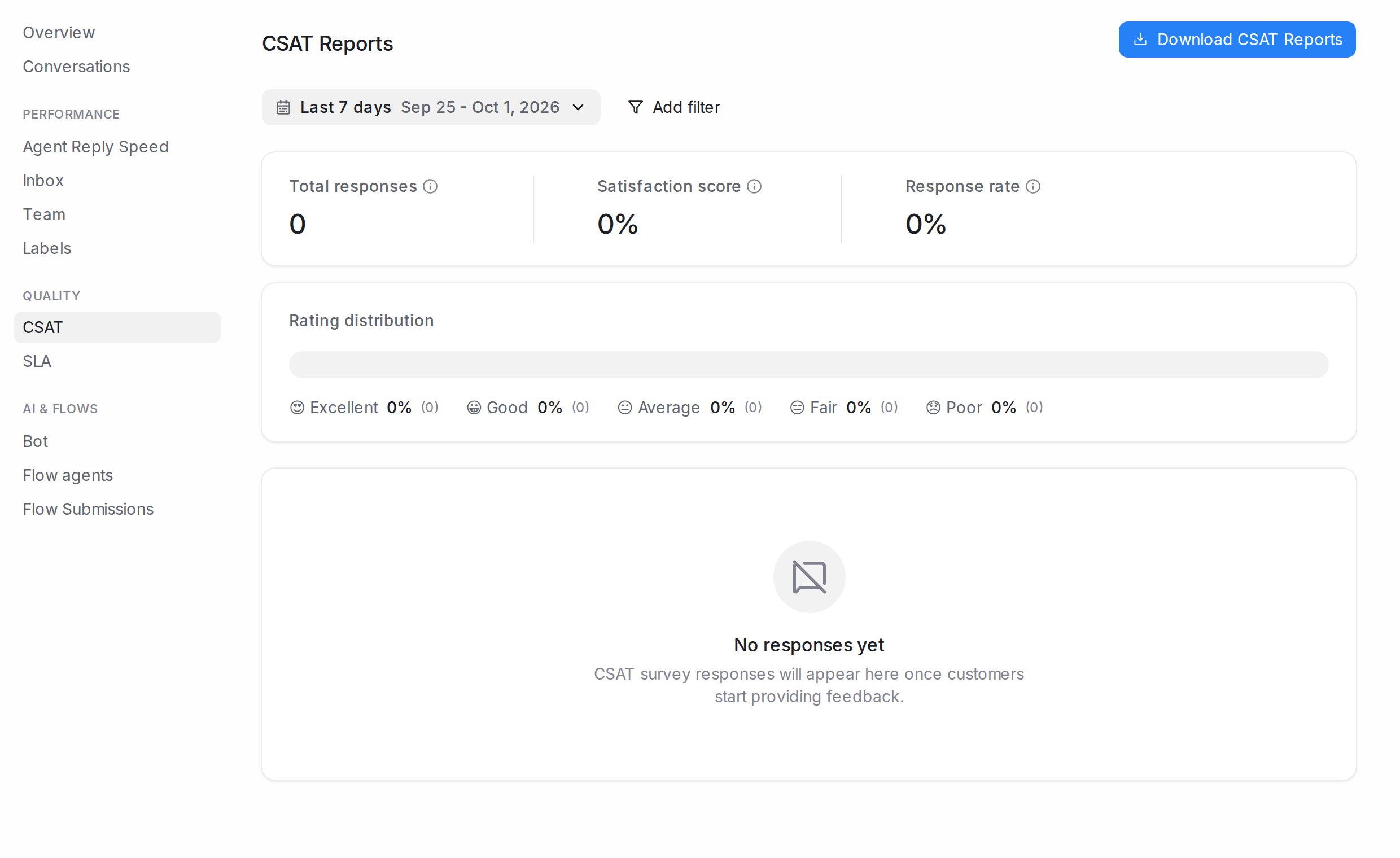
- Total responses: how many customers answered.
- Satisfaction score: the share of positive ratings.
- Response rate: answers as a share of surveys sent.
- Rating distribution: how the ratings spread from lowest to highest.
Below the totals, each response shows the Customer, the Rating, any Feedback comment, who Handled by, and a link to the Conversation. Use Add filter to narrow by Agent, Inbox, Team or Rating, and Clear all to reset. Download CSAT Reports saves the list. Until customers answer, the page shows No responses yet.
SLA
Reports → SLA shows how often conversations met the reply-time targets of your SLA policies.
- Hit Rate: the share of conversations that met every target.
- Number of Misses: conversations that broke at least one target.
- Number of Conversations: conversations an SLA applied to.
The table lists each conversation with its Policy and Agent; View Details shows which target was missed. Filter with Add filter by SLA Policy, Inbox, Agent, Label or Team, and Download SLA reports to save it.
Reply-time targets for your team are set under Settings → Reply SLA; see Reply SLA.