
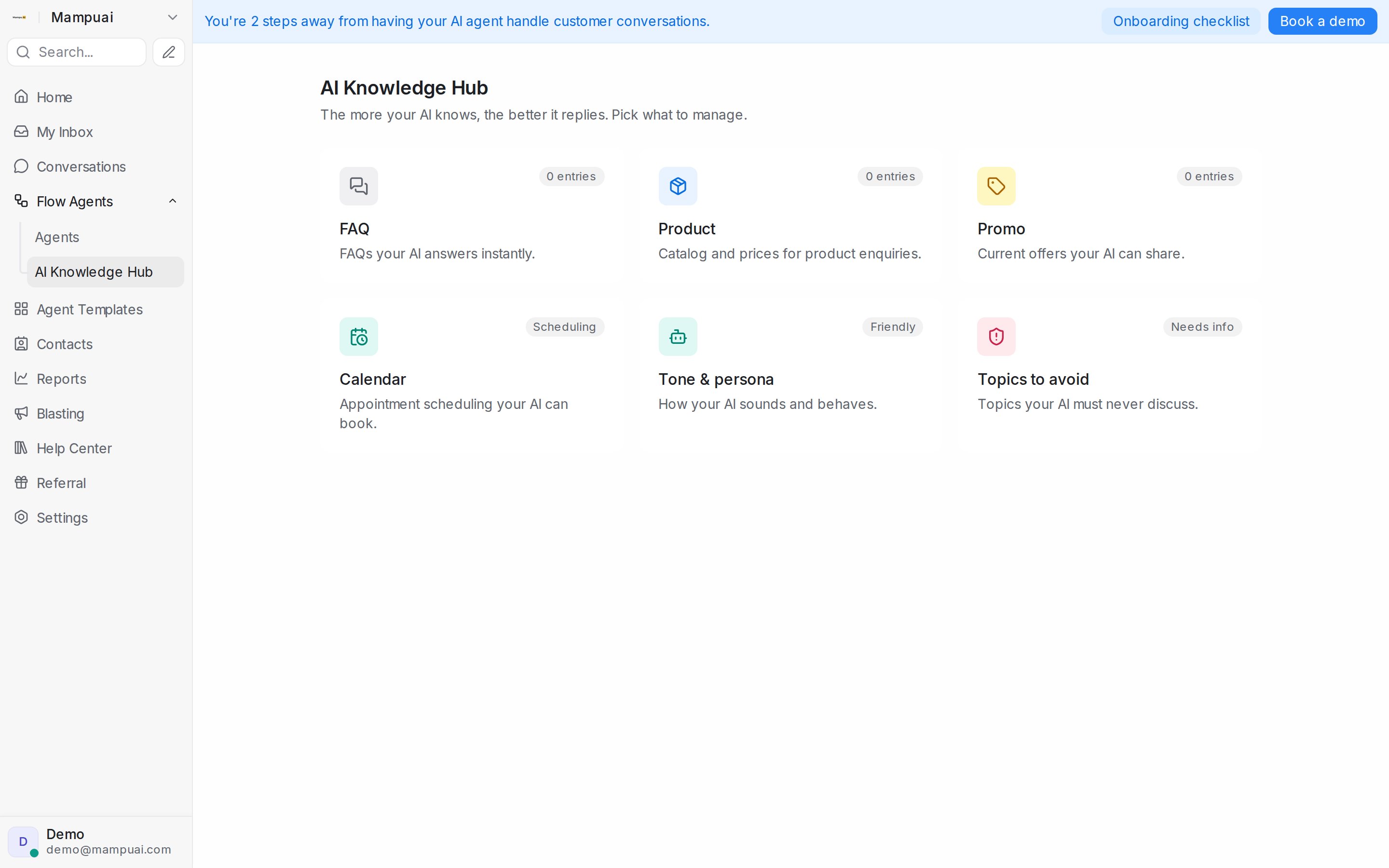
AI Knowledge is everything your agents know beyond the flow itself. Open Flow Agents → AI Knowledge Hub — the more your AI knows, the better it replies. The hub is organised into tiles:
- FAQ — questions your AI answers instantly.
- Product — your catalogue and prices, for product enquiries and recommendations (guide).
- Promo — current offers your AI can share.
- Calendar — appointment scheduling your AI can book (guide).
- Tone & persona — how your AI sounds and behaves.
- Topics to avoid — things your AI must never discuss.
Watch the walkthrough
Working with FAQ entries
- Add Entry — create question-and-answer pairs.
- Import → From text / From Word — paste content or upload a Word document, and AI turns it into entries for you. Generated entries wait under the Pending tab so you can approve them before the agent uses them.
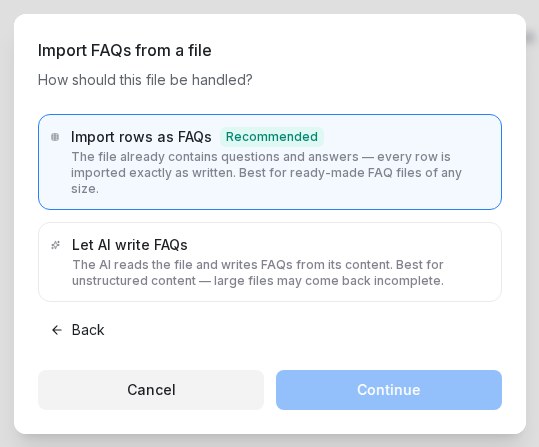
- Import → From CSV — upload a spreadsheet (CSV or Excel) and choose how to handle it: import the rows exactly as written, or let AI write FAQs from the content.
An answer can carry pictures, videos or documents: click Add media under the answer. Each file must fit the picture and file size limits (5 MB for a picture), and a file that is too big shows the reason on its row instead of uploading.
The agent does not repeat an FAQ answer or product photo it has just sent in the previous few replies. It answers in its own words instead, and sends the entry again if the customer asks for it. Keep one entry per answer: two entries that say the same thing in different words can still read as a repeat.
Reviewing pending drafts
Entries the AI drafts for you — from a document, a spreadsheet, your own conversations or the WhatsApp chat history you shared when connecting your number — wait under the Pending tab until you approve them. Each card shows the draft’s question and answer and, for drafts taken from a conversation, the customer message and agent reply it came from.
When a draft asks something your FAQs already cover, the card says so:
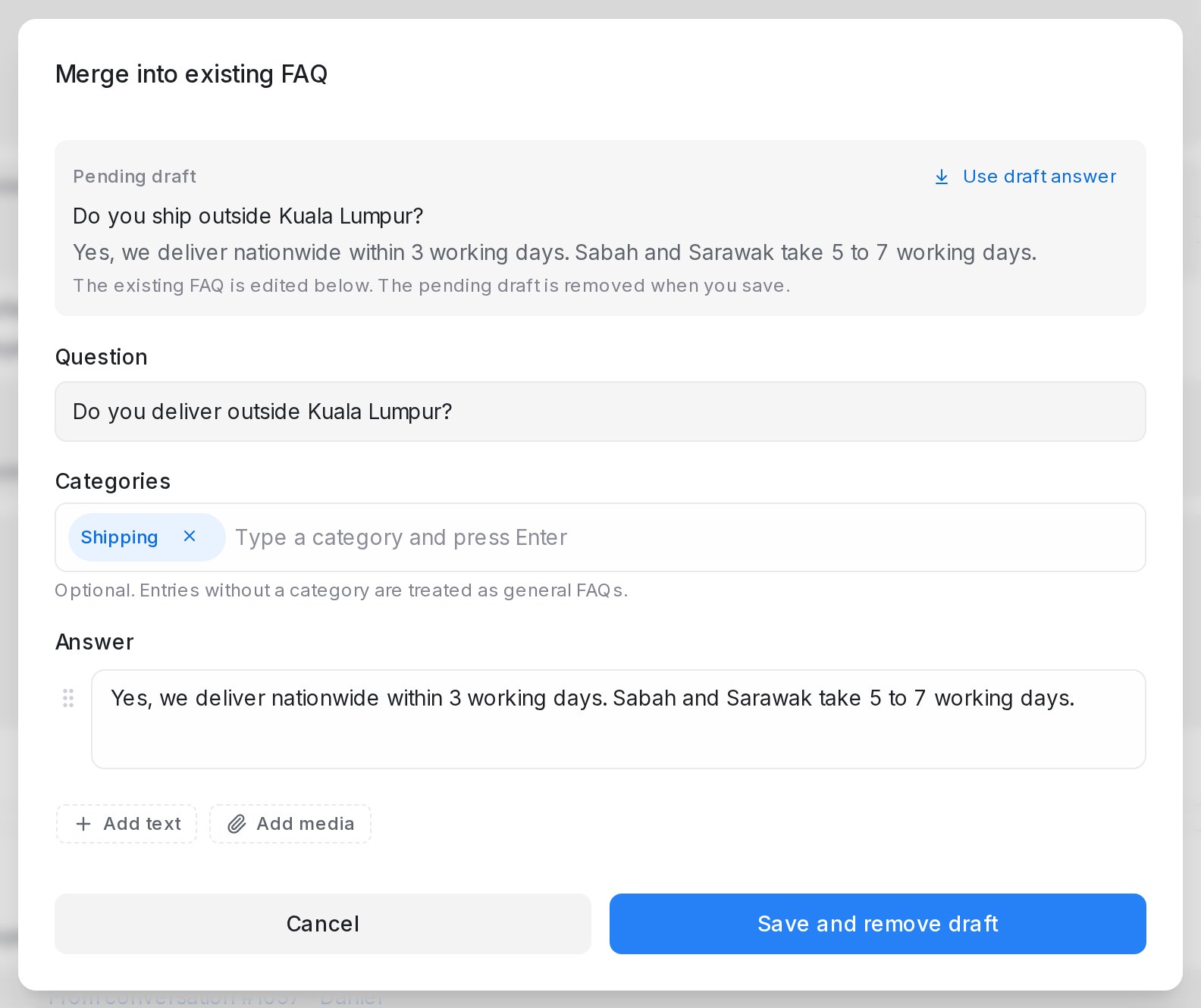
- Already in your FAQs lists the approved entries that ask the same question. Click Merge to open that entry for editing with the draft shown beside it. Use draft answer copies the draft’s wording into the answer if it reads better; saving keeps one FAQ and removes the draft.
- Also pending review lists the other drafts asking the same question. Click Keep this, discard N to remove those copies and keep the draft in front of you — you confirm the list first.
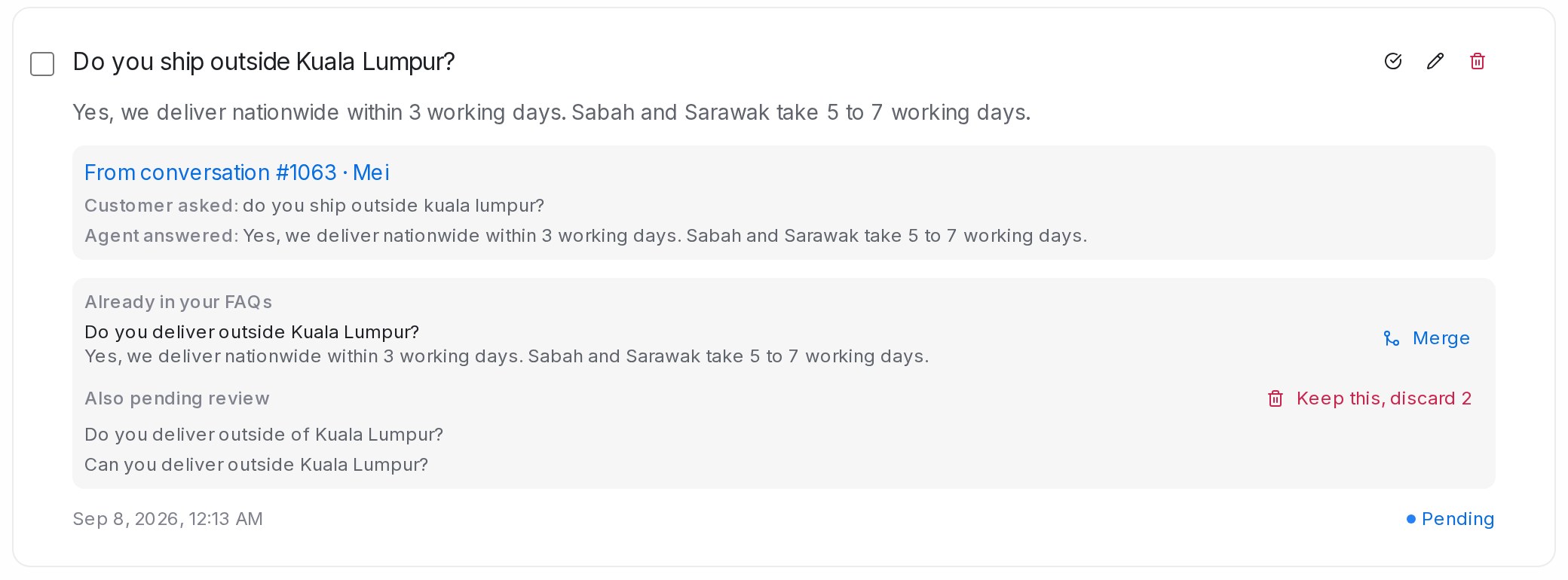
Approve puts a draft straight into your FAQs; Delete drops it. Select several drafts with the checkboxes to approve or delete them together. Questions your FAQs already answer are not drafted again, so the list stays short over time.
Importing a ready-made FAQ spreadsheet
If your file already has question and answer columns, choose Import rows as FAQs — every row is imported exactly as you wrote it, even for files with hundreds of entries.
- Upload the file. Columns are matched to Question, Answer and Category automatically — adjust the matching if needed. A category column fills each entry’s Categories.
- Review the preview: how many entries will be added or updated, plus any rows that can’t be imported (for example a duplicated question or a missing answer).
- Apply changes — the import runs in the background and you’re notified when it’s done. Imported entries are approved and ready for your agent straight away.
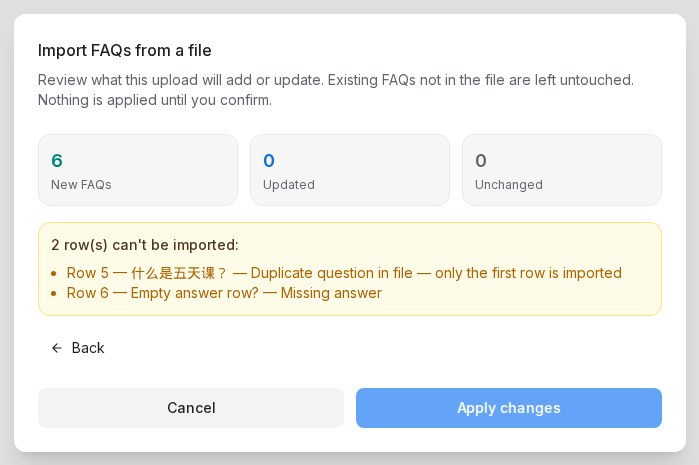
Re-uploading a file later updates the entries whose question matches and adds the new ones — it never removes existing FAQs.
Organise entries with categories
Give FAQ and Promo entries one or more Categories (e.g. Delivery, Pricing) when you create or edit them — type a new category or pick an existing one, and filter the list by category as your library grows. Entries without a category count as general knowledge.
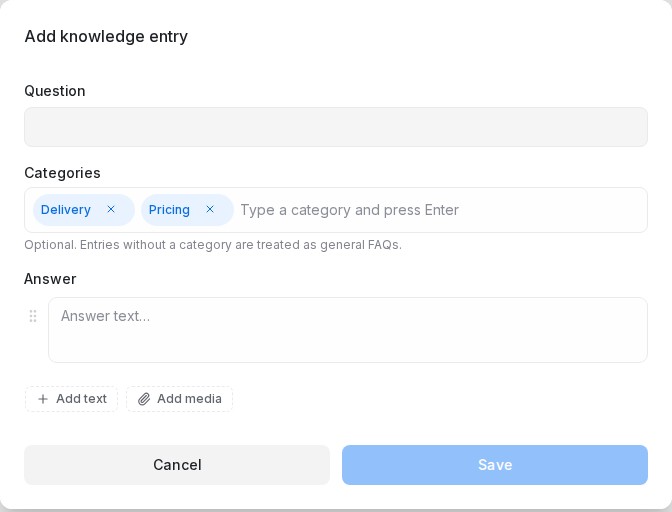
Categories become powerful in the flow designer: a flow step can restrict the agent to answering only from the categories you choose — see Building the conversation flow.
Your knowledge powers two things: FAQ answering (the agent can answer a knowledge question at any point in a conversation, then return to the flow) and knowledge query steps you place in the flow yourself. When a customer asks several questions in one message, the agent answers each of them — in the order they were asked — before carrying on.
Entries work in any language — the agent answers in the customer’s language even if the entry was written in another.
See which FAQs your agent uses
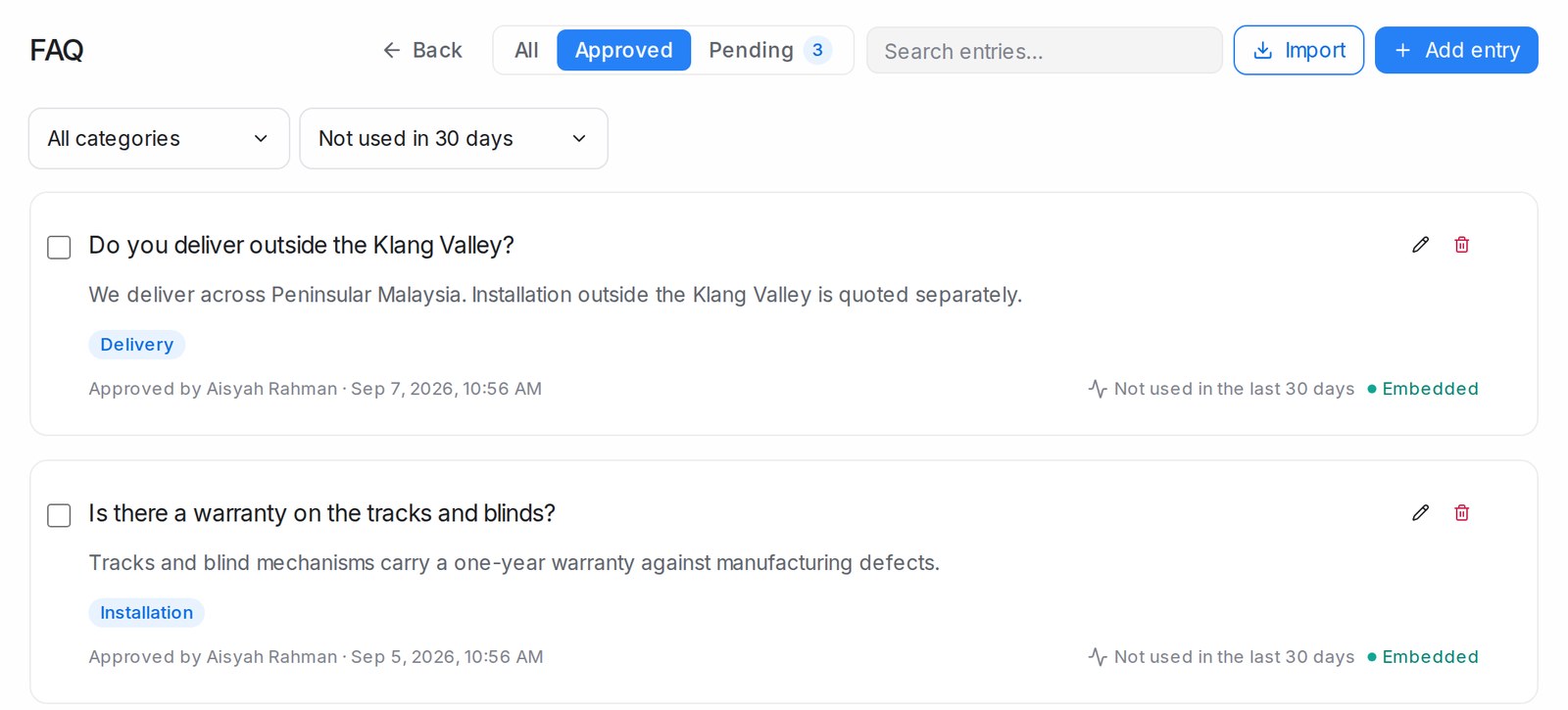
Every FAQ card shows in how many chats your flow agents used it in the last 30 days, so you can see which answers customers actually need and which ones nobody asks about.
- Used in 12 chats in the last 30 days — the agent had this FAQ at hand while answering customers in 12 different chats. Hover over the line to see how many of those replies quoted it, for example 5 of those replies quoted it, or No reply quoted it yet.
- Not used in the last 30 days — no customer chat needed this FAQ in that time.
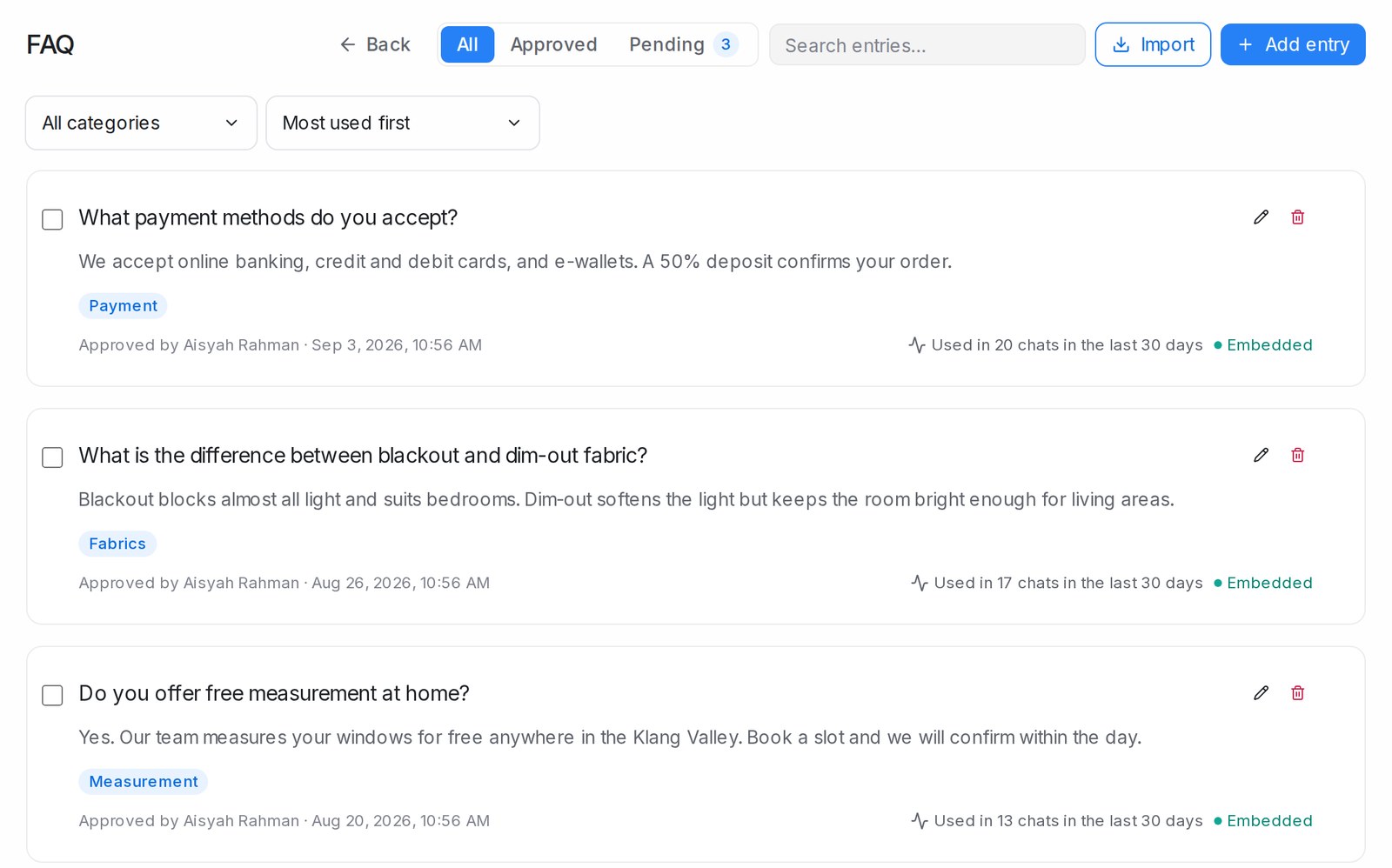
Only real customer chats count: test chats in the playground don’t. Each chat counts once, however many times the FAQ came up in it. Pending drafts are never used until you approve them, so a pending card shows no usage line.
To sort or narrow the list, open the usage menu next to the category menu, under the header:
- Any usage — the usual list.
- Most used first — the FAQs used in the most chats at the top.
- Not used in 30 days — only the FAQs no chat used.
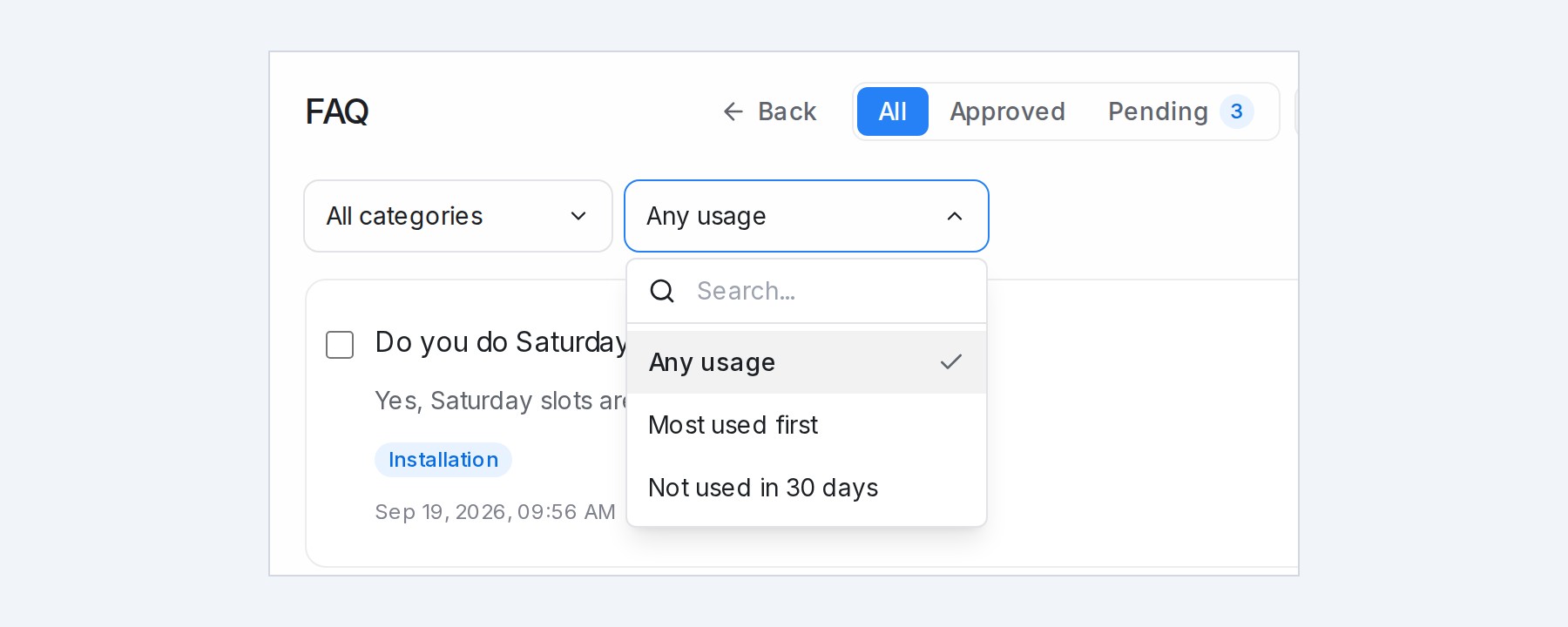
The usage menu works together with All, Approved and Pending, the category menu and the search box. For example, choose Approved and Not used in 30 days to see the approved answers your agent hasn’t needed.
Use the list to keep your FAQs in shape:
- Improve what customers ask most. The FAQs at the top of Most used first shape the most replies, so keep their answers clear and up to date.
- Tidy what nobody needs. An FAQ that isn’t used may no longer be relevant, or may be worded differently from how customers ask. Update it, or delete it.
- Spot one-off chat lines. A line saved from a single chat, such as “Ok, I will tell my wife first”, rarely helps other customers. Delete it.
To remove several unused FAQs at once, choose Not used in 30 days, tick the FAQs to remove, then click Delete. The box in the selection bar ticks every FAQ on the page, and Select all takes in the other pages too. Only the FAQs in the filtered list are deleted.
See your FAQs on the AI Brain Map
The AI Brain Map draws your FAQs by meaning, so you can see what your knowledge covers, where answers repeat each other and which topics customers ask about most. Look for List and AI Brain Map at the right end of the row under the FAQ header, and click AI Brain Map.
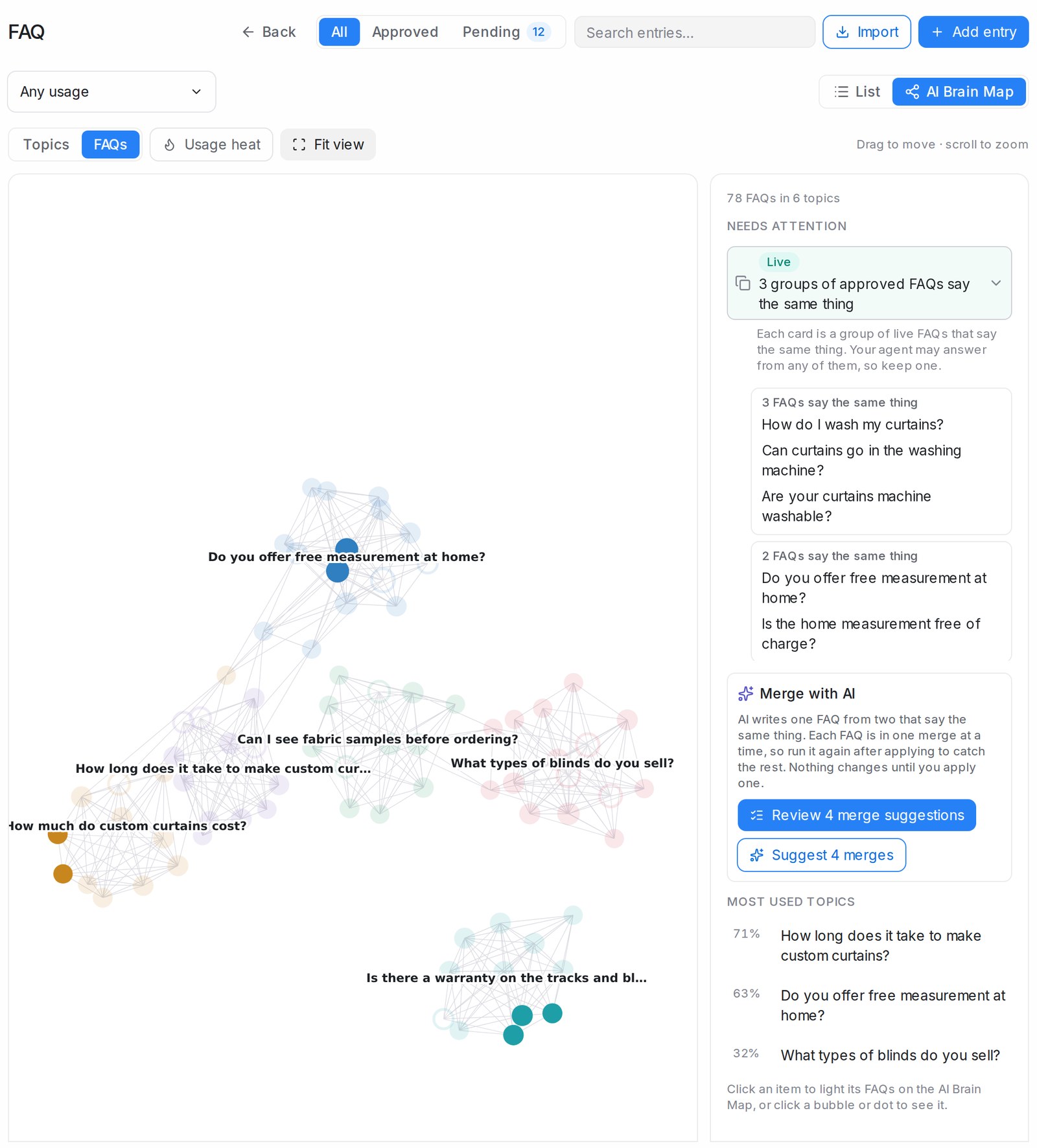
- Topics shows one bubble per topic. Topics are formed automatically from FAQs that are close in meaning, so there is nothing to tag. The filled part of a bubble is the share of its FAQs that are approved, and a line between two bubbles means some of their FAQs are close in meaning.
- FAQs shows every FAQ as a dot, linked to the FAQs closest to it in meaning. A filled dot is approved; a ring is a pending draft. Dots of the same colour belong to the same topic; grey dots fit no topic.
- Usage heat colours the AI Brain Map by the share of the last 30 days’ AI chats that used each FAQ or topic. Faded items were not used.
- Fit view brings the whole AI Brain Map back on screen. Drag to move and scroll to zoom.
The AI Brain Map follows the same filters as the list: All, Approved and Pending, the category menu, the usage menu and the search box, which lights the FAQs it finds.
The first time the AI Brain Map opens after your FAQs change, it starts on FAQs and the lines fill in over a few seconds while Linking FAQs by meaning… counts up. Topics and Needs attention appear once it finishes.
Click a dot to see that FAQ in the side panel: whether it is approved, its topic, how many chats used it, and the FAQs Closest in meaning. Click Open FAQ to edit it. Click a bubble to see its topic: how many FAQs it has, how many chats used it, and its Related topics; Show its FAQs zooms in on them.
When nothing is selected, the side panel lists what Needs attention. Each item is tagged Live when it is about approved FAQs your agent answers from today, or Pending when it is about drafts waiting for review:
- Live — groups of approved FAQs that say the same thing. Your agent may answer from any of them, so keep one.
- Pending — suggestions that repeat another FAQ. Delete the suggestion, or merge it in if it adds something.
- Live — approved FAQs not used in the last 30 days.
- Two topics cover the same ground — two topics with many FAQs that are close in meaning. Clicking it selects the first topic, so you can check whether the two should be one.
Click an item to light its FAQs on the AI Brain Map and list them underneath as cards. Each card, headed N FAQs say the same thing, is one group: every FAQ in it says the same thing as the first one. In a Pending item, each question on a card is also tagged Live or Pending. Click a question on a card to select it on the AI Brain Map. Below the items, Most used topics shows the three topics used in the largest share of chats.
Merge FAQs that say the same thing
Account admins can let AI tidy up FAQs that say the same thing. Merge with AI in the Needs attention panel writes one FAQ from each pair, and nothing changes until you apply a merge yourself.
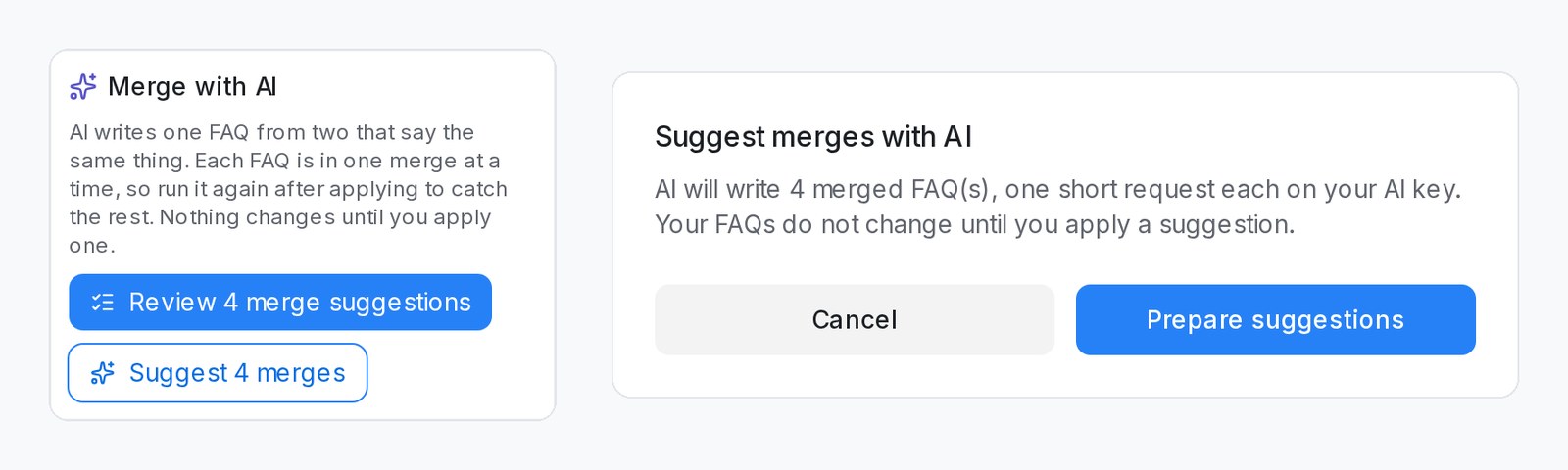
- On the AI Brain Map, click Suggest N merges under Merge with AI, then Prepare suggestions. While the AI writes them, the panel shows Preparing merge suggestions… N ready so far.
- Click Review N merge suggestions. You can start reviewing while the rest are still being prepared.
- On each card, compare the two FAQs. The one marked Kept stays; the one marked Removed after the merge goes. Each also shows Live or Pending.
- Read the Merged FAQ question and answer, and edit them if needed.
- Click Apply merge, or Dismiss to keep both FAQs as they are.
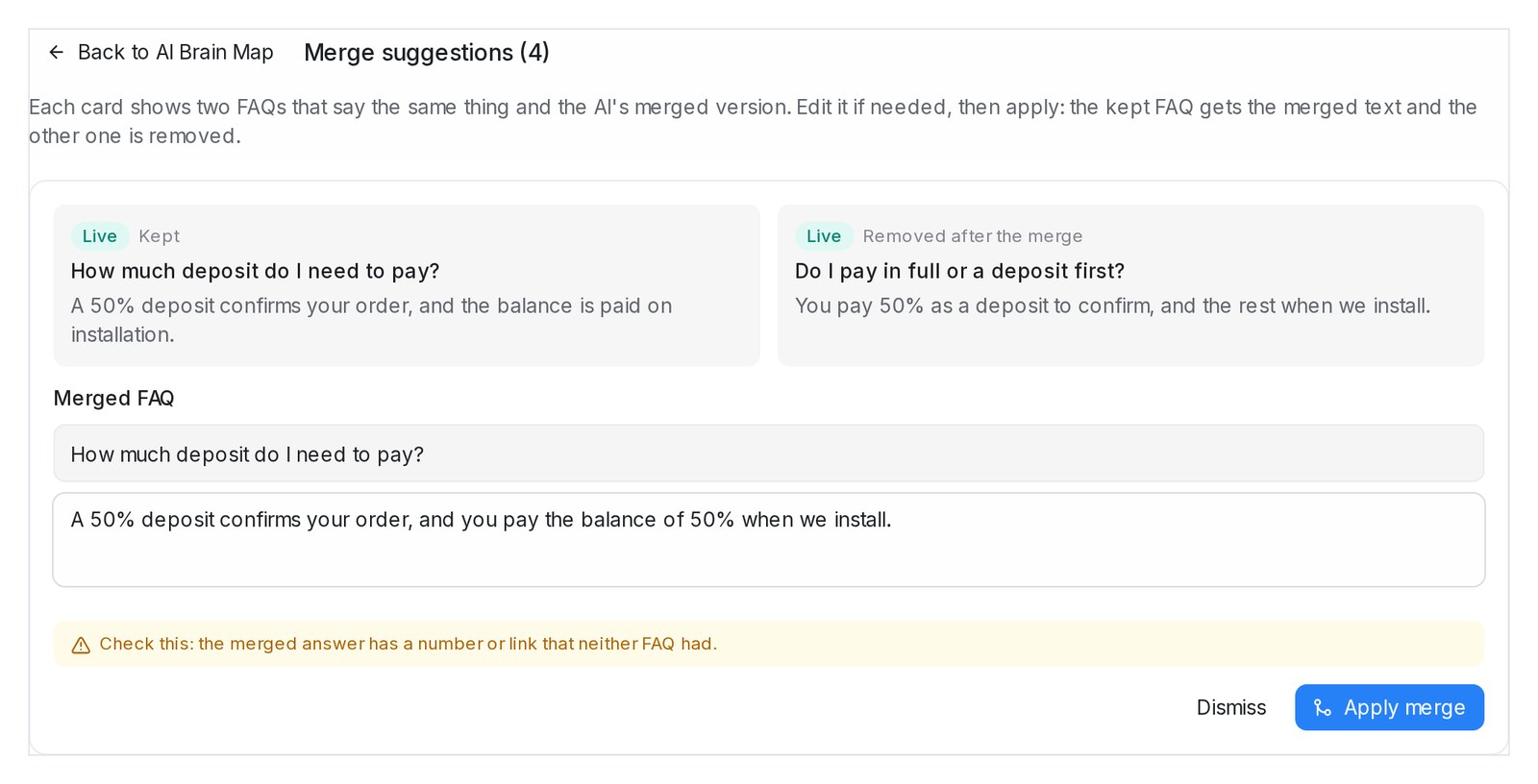
Applying a merge keeps one FAQ with the merged question and answer, approved from then on. The usage history and any photos or files of the removed FAQ move to the kept one, so its usage line counts the chats of both. Dismiss keeps both FAQs, and that pair is not suggested again.
- Which FAQ is kept — of two approved FAQs, the one used in more chats in the last 30 days; of an approved FAQ and a draft, the approved one; of two drafts, the older one.
- What the AI writes — one FAQ that keeps the facts from both answers. Read it before you apply it.
- Check this — when the merged answer has a number or link that neither FAQ had, the card warns Check this: the merged answer has a number or link that neither FAQ had. Correct the answer before you apply it.
- One merge per FAQ at a time — each FAQ is in only one suggestion per run, so there can be fewer merges than pairs. After applying them, run Suggest N merges again to catch the rest.
- Changed in the meantime — if either FAQ was edited after the suggestion was written, applying it is refused and the suggestion is removed. Run the suggestions again for a fresh one.
Merging with AI uses your own OpenAI API key under Settings → Integrations → AI Providers. The free AI credit does not cover it.
Using AI Knowledge without an OpenAI key
You can add, approve and edit FAQ entries without your own OpenAI API key while your free AI reply credits last — the FAQ page shows Using your free AI credit. When the credits are used up or expire, it shows OpenAI key not set, and adding or approving entries needs your own key under Settings → Integrations → AI Providers.
Letting AI write FAQs for you — Import → From text / From Word, or asking AI to write FAQs from a spreadsheet — always needs your own key.
Tone & persona
The Tone & persona tile sets how your AI sounds in every reply. Open it, make your changes and click Save.
- Tone — pick a style such as Friendly, Professional or Concise. An Example reply shows how that tone reads.
- Formality — Formal or Casual.
- Allow emoji and Use short-form — let the AI use emoji, and casual shortenings such as “thx”.
Languages
Languages decides which languages your AI replies in.
- Click Select languages.
- Pick the languages you serve customers in, for example Chinese 中文 and English. Type in Search languages to find one quickly — there are 31 to choose from, so there is nothing to misspell.
- Click Save.
The AI only replies in the languages on your list. If a customer’s message is detected as a language outside the list, that language is ignored, so a chat never drifts into a language you don’t serve. Leave the list empty to use the default: English, Malay and Mandarin.
The same list decides which language versions you can add to a message sequence — see Message Sequences.
Special instructions
Special instructions guide the AI in particular situations. Write them the way you would brief a new teammate, in short notes — for example “If a customer asks for the price, walk them through the package details first” or “Always greet by name”. A note like “our product is corrective insoles” makes the AI always use that name.
Instructions steer what the AI says and which way the conversation goes, but they never override the steps of your flow. You can write up to 2,000 characters; a counter under the box shows how many you have used.
When you save, your instructions are turned into clear rules. Open the tile again to see them listed, one per line, under How the AI reads this — these are the rules the AI follows in every reply. If a rule isn’t what you meant, reword the instruction and save again. While you edit the text, the rules are hidden until you save.