
这些设置只属于你自己,不影响整个账号。它们在侧边栏底部你名字后面的菜单里,以及该菜单打开的 Profile Settings 页面上。
你名字后面的菜单
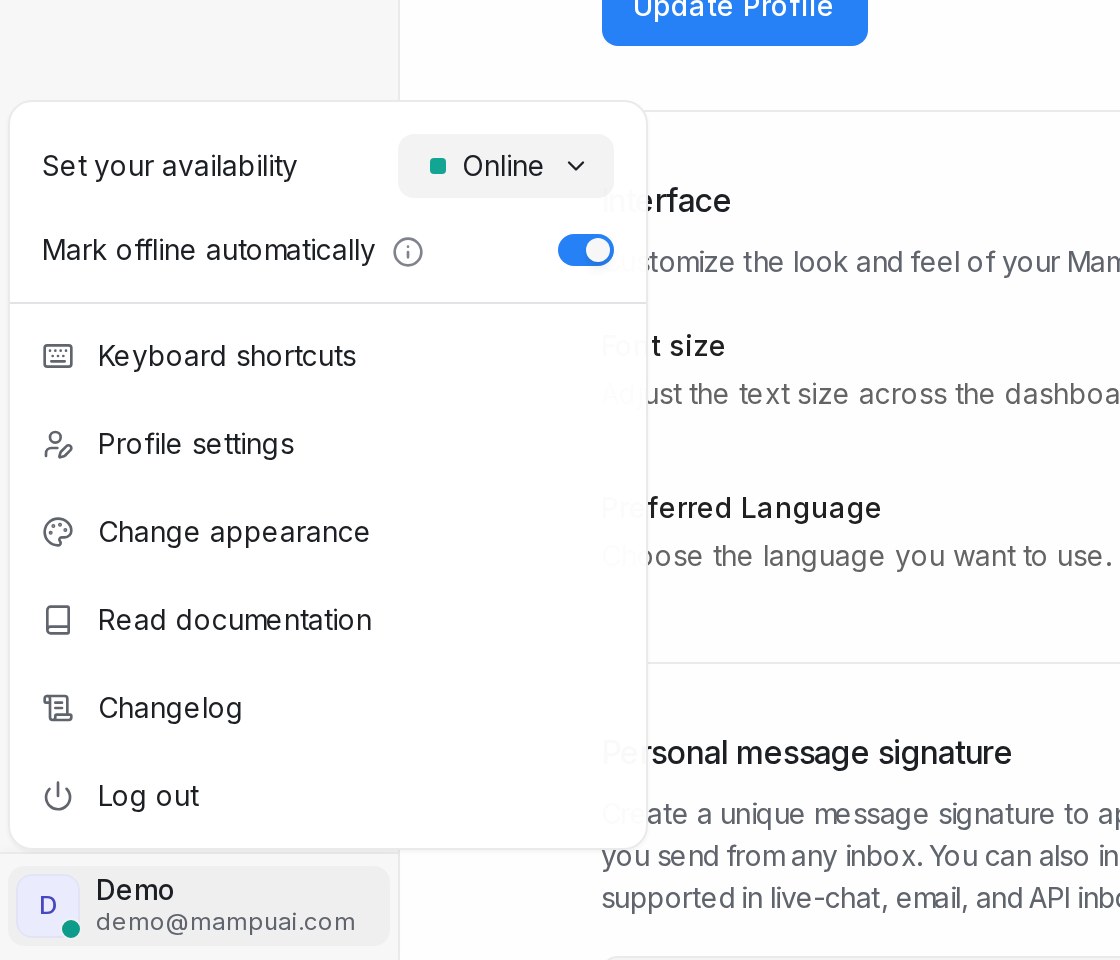
| 选项 | 作用 |
|---|---|
| Set your availability | Online、Busy 或 Offline。自动分配只把新会话交给在线客服 |
| Mark offline automatically | 你停止使用应用时设为离线,回来时恢复在线 |
| Keyboard shortcuts | 完整列表,本页末尾也有 |
| Profile settings | 打开下面的页面 |
| Change appearance | Light、Dark 或 System |
| Read documentation、Changelog、Log out | 本帮助中心、最近更新、在本设备登出 |
资料与界面
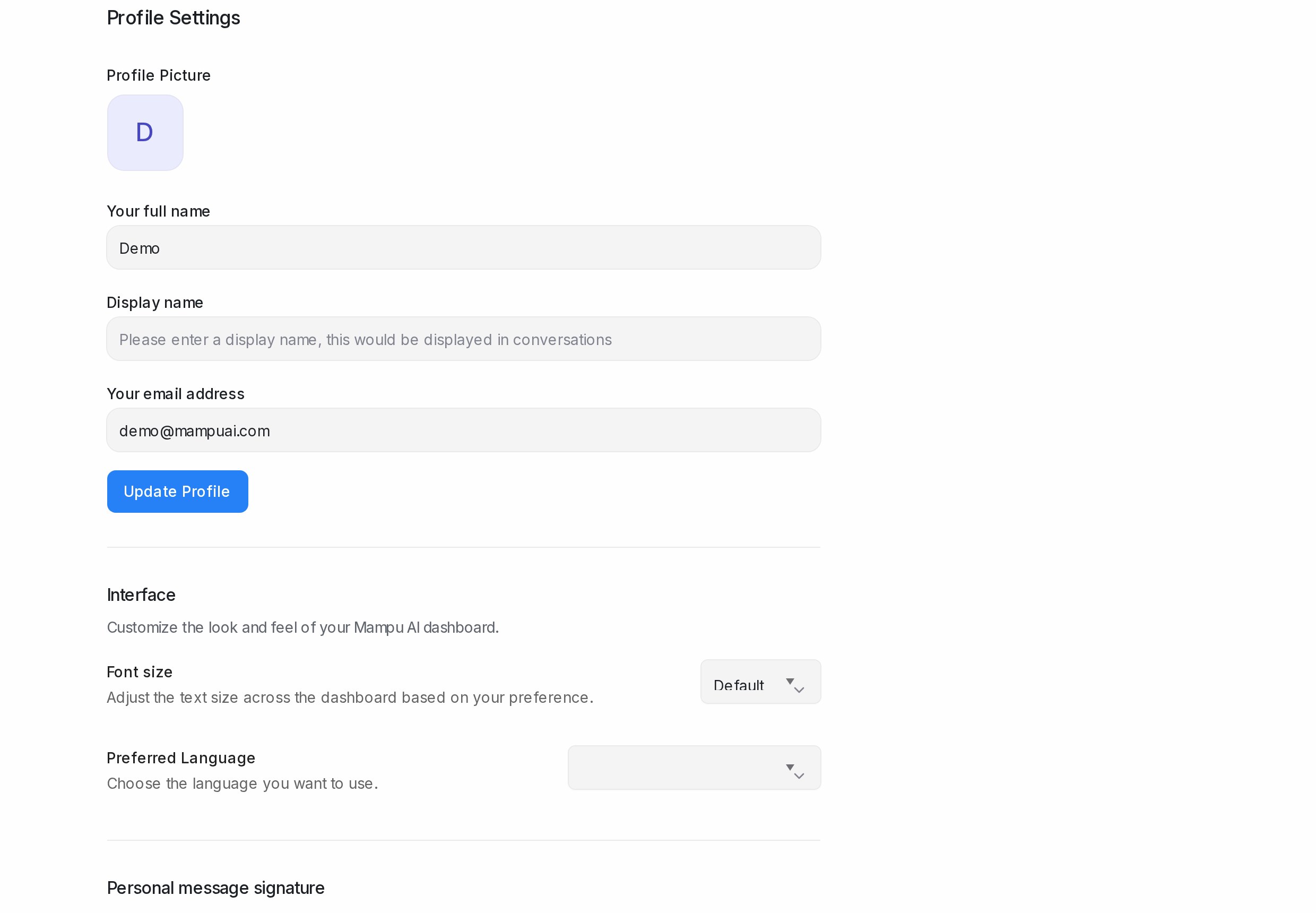
- Profile Picture、Your full name、Display name(客户和同事看到的名字)和 Your email address(你的登录邮箱)。Update Profile 保存;修改邮箱后需重新登录。
- Font size:从 Smaller 到 Extra Large。Preferred Language:你的后台语言,或 Use account default。
签名与发送快捷键
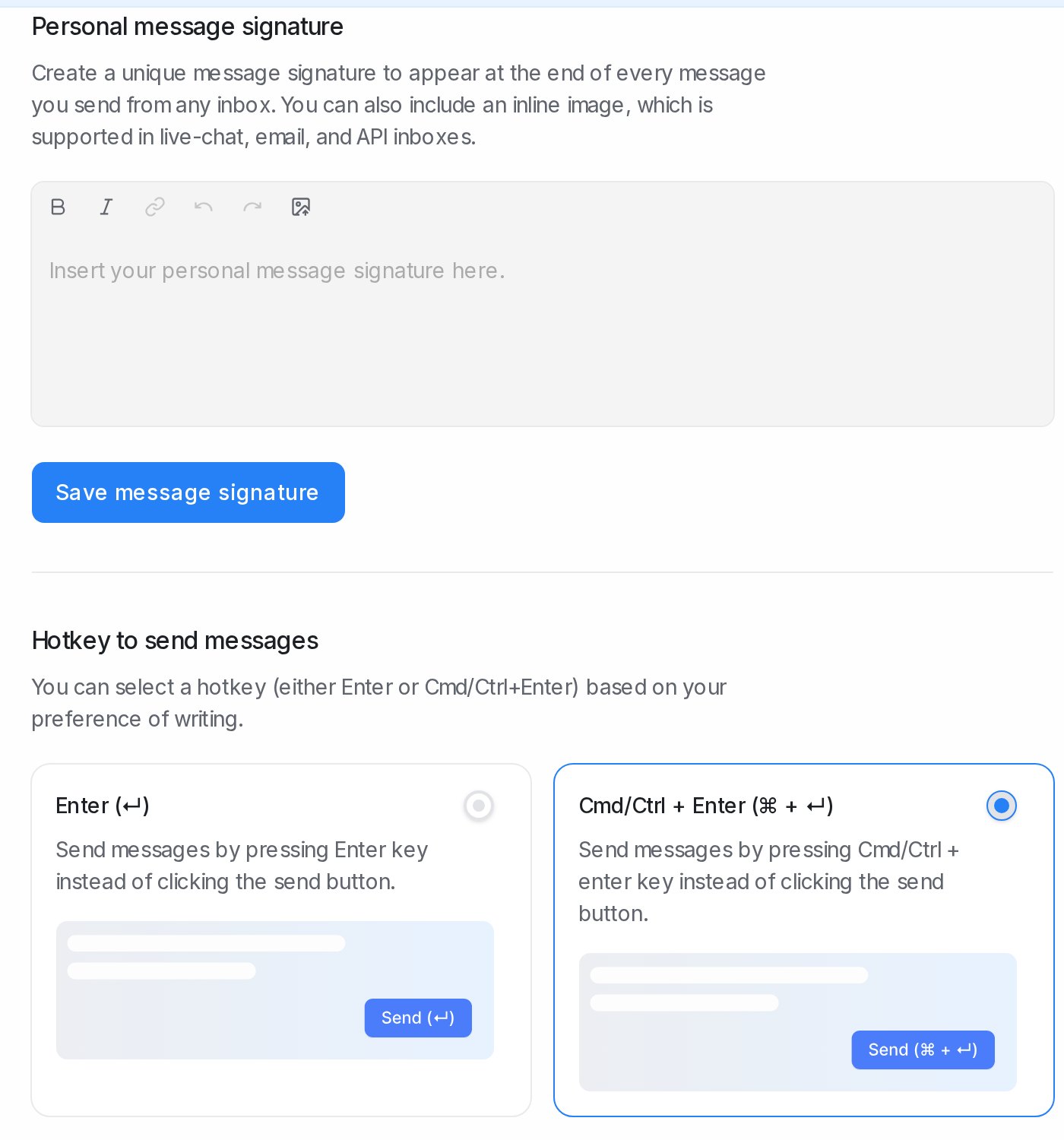
- Personal message signature 会加在你从任何收件箱发出的每条消息末尾,可以包含图片。点击 Save message signature。在回复框里,签名图标可以逐条开关签名。
- Hotkey to send messages:Enter (↵);如果希望 Enter 换行,选 Cmd/Ctrl + Enter (⌘ + ↵)。
密码
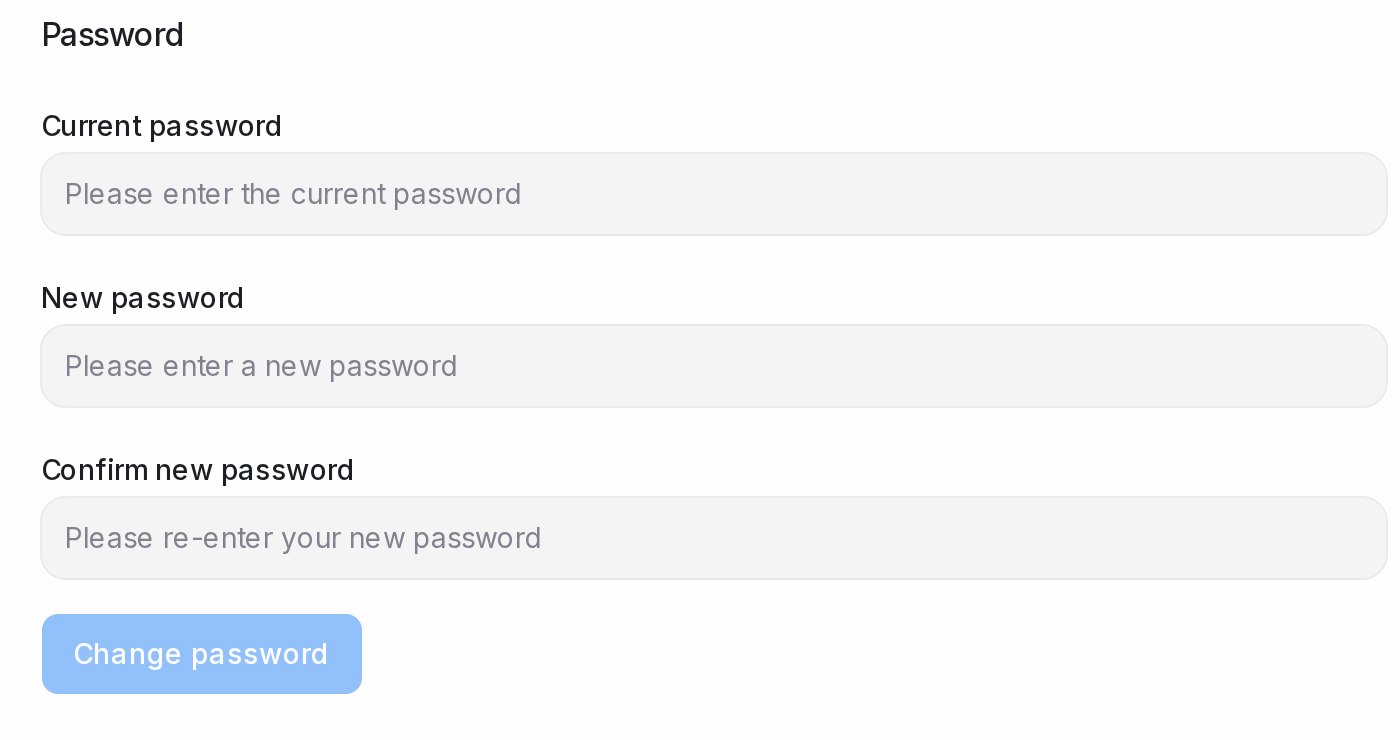
输入 Current password、New password 和 Confirm new password,然后点击 Change password。你的其他设备会被登出。
两步验证
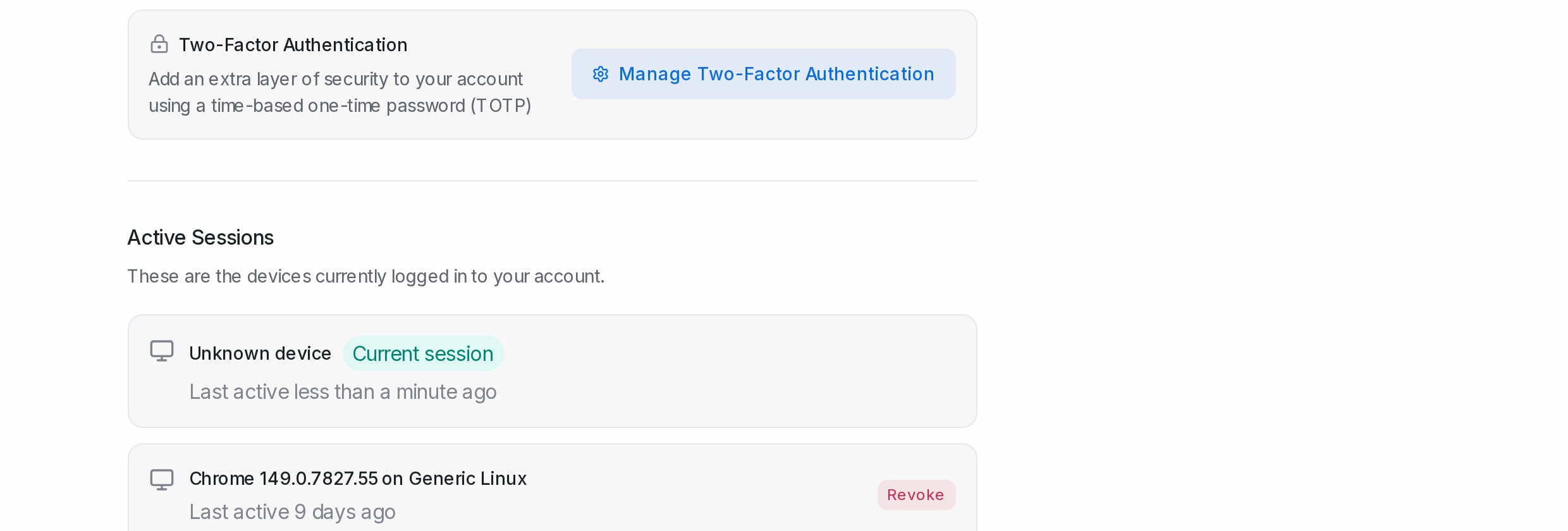
- 点击 Manage Two-Factor Authentication,再点击 Enable Two-Factor Authentication。
- Scan QR Code with Your Authenticator App,或用 Can’t scan? Enter code manually 输入 Secret Key。
- 输入 6 位验证码,点击 Verify & Continue。
- Save Your Backup Codes(Download 或 Copy All)。手机丢失时,每个备用码可登录一次。
之后你可以 Regenerate Backup Codes(旧码失效)或 Disable Two-Factor Authentication;两者都需要密码和验证码。
Active Sessions
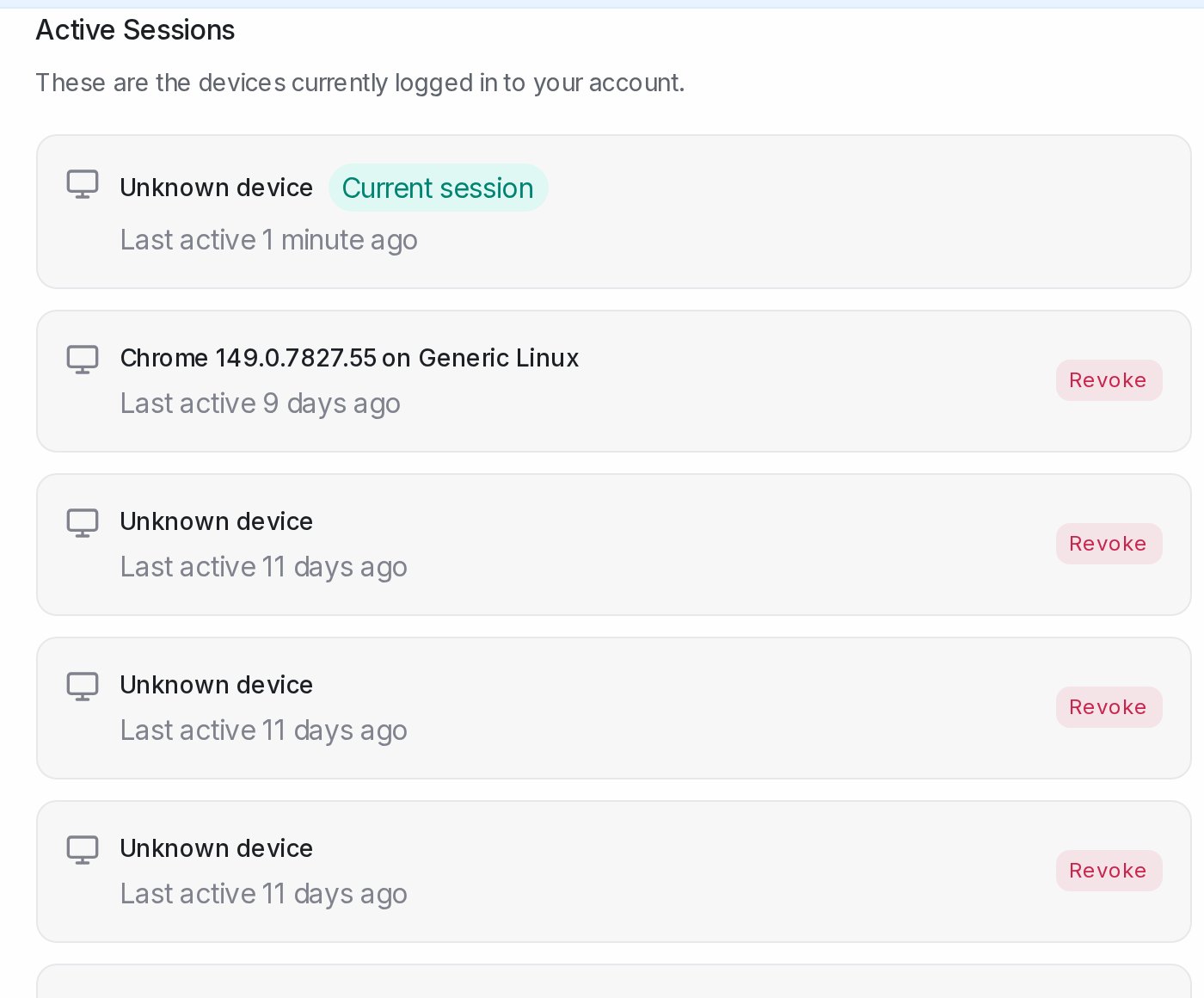
列出每台已登录的设备、最近活动时间以及 Current session。Revoke 让该设备登出。如果登录时提示 Active session limit reached,请撤销不再使用的会话。
Audio Alerts
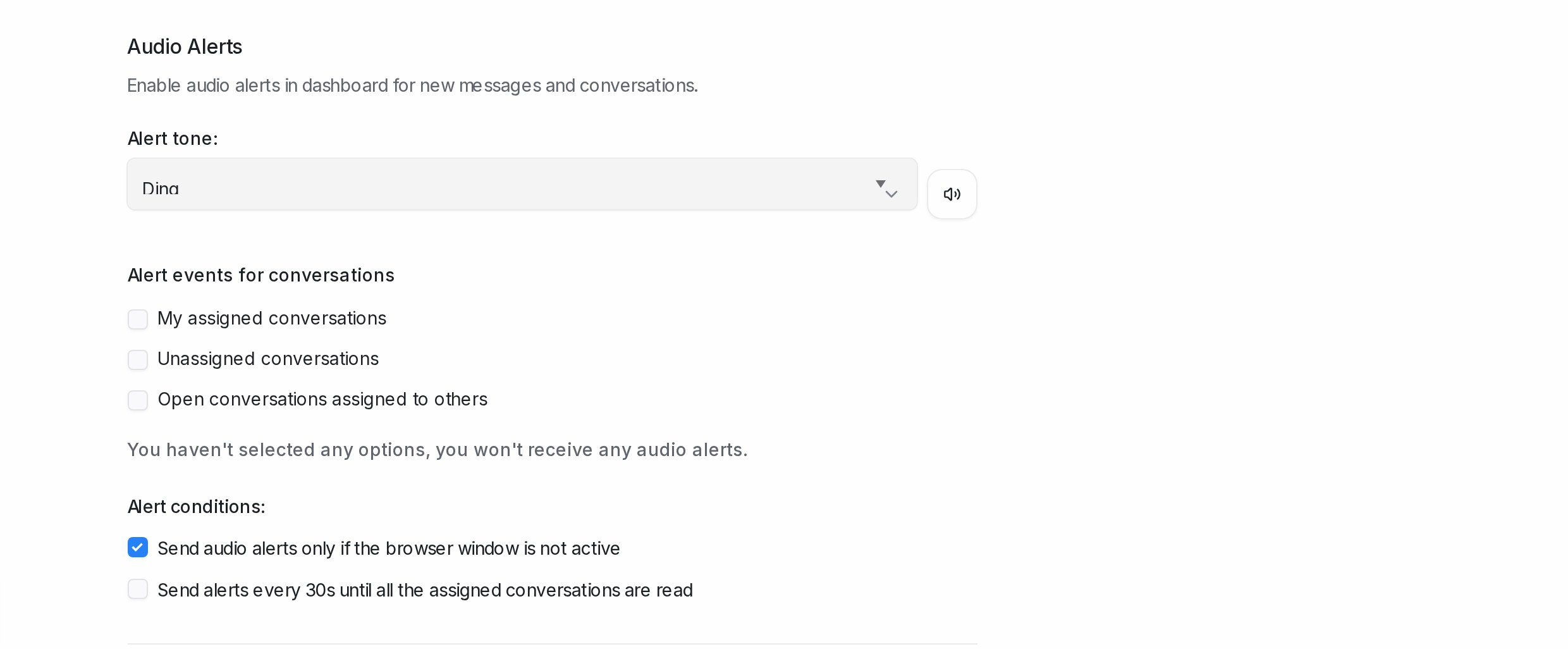
- Alert events for conversations:任意组合勾选 My assigned conversations、Unassigned conversations 和 Open conversations assigned to others。
- Alert tone,点击 Play sound 试听。
- Alert conditions:Send audio alerts only if the browser window is not active,以及 Send alerts every 30s until all the assigned conversations are read。
Notification preferences
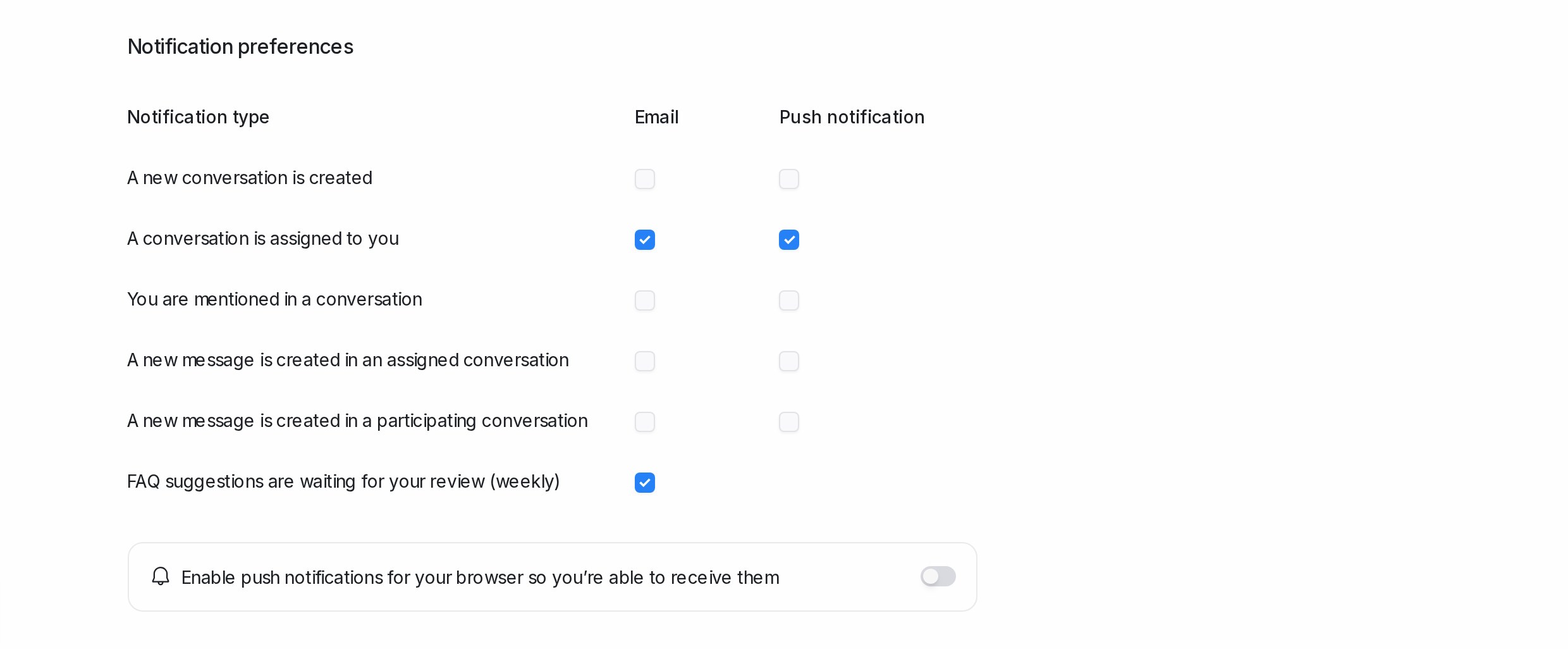
每个事件都有 Email 和 Push notification 两个勾选框:新会话、分配给你、被提及、已分配或参与的会话有新消息、SLA 超时,以及每周待审核的 FAQ 建议。推送需要先点击一次 Enable push notifications 并接受浏览器提示。手机应用会收到相同的推送通知。
页面底部的 Access Token 是个人 API 密钥(Copy;Reset 需点两次确认;付费套餐)。AI 编程智能体请改用 Settings → API & Agents;参见创建和管理你的智能体访问密钥。
通知页面
侧边栏顶部的铃铛按类型列出你的通知(New conversation、Conversation Assigned、New Message、Mention、SLA Missed),并有 Mark All Done。My Inbox 会在对应会话旁显示同样的通知;参见 My Inbox。
键盘快捷键
| 快捷键 | 操作 |
|---|---|
| Alt + J / Alt + K | 打开会话(上一个 / 下一个) |
| Alt + E | 解决会话 |
| Win/⌘ + Alt + E | 解决并移到下一个 |
| Alt + M | 打开/关闭 snooze 菜单 |
| Alt + P / Alt + L | 切换到 Private Note / 切换到 Reply |
| Win/⌘ + Alt + A | 添加附件 |
| Alt + N | 移到会话列表的下一个标签页 |
| Esc | 返回会话列表 |
| Alt + C / Alt + V / Alt + R / Alt + S | 前往 Conversations / Contacts / Reports / Settings |
| Alt + O | 显示/隐藏侧边栏 |
| Up / Down | 在下拉项之间移动 |
| Cmd/Ctrl + K | 打开搜索和命令栏 |
在 Mac 上,Alt 就是 Option 键。